


Part 1, The Machine and Its Evidence established one working rule: the GUI shows you what exists, and PowerShell is how you inspect it precisely and repeat the work across ten machines.
By the end of Part 1, you had decoded an NTFS access control list, worked with objects in the PowerShell pipeline, queried Windows event logs, and scheduled a short script that counts failed logons recorded as Security event 4625.
This half turns the machine outward.
Windows Server administration assumes you are somewhere else. You may use the graphical desktop when a task requires it, but remote administration is the normal operating model. That means understanding the network path, choosing the right remote-management method, controlling which services are reachable, and proving which identity can reach which file.
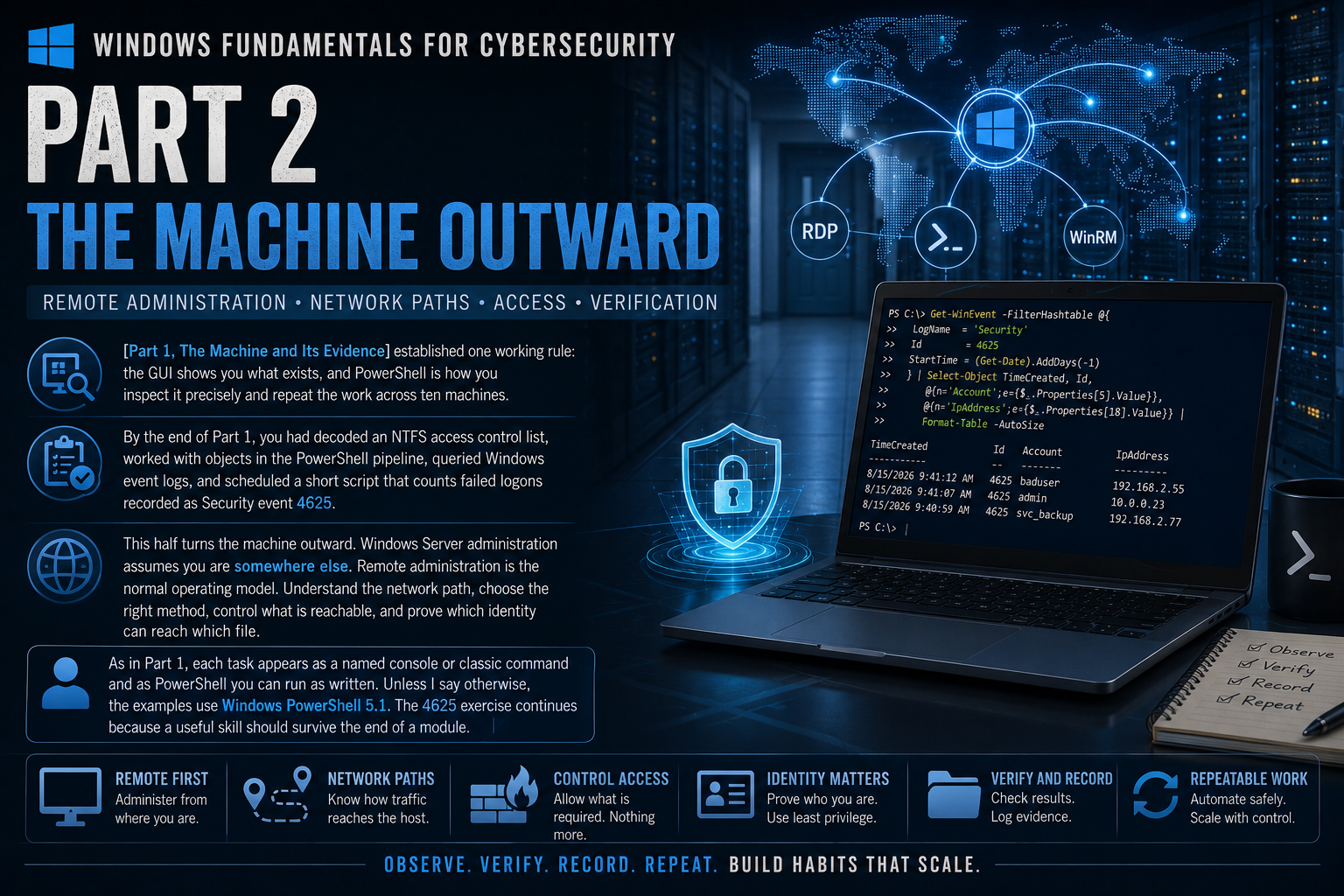
As in Part 1, each task appears as a named console or classic command and as PowerShell you can run as written. Unless I say otherwise, the examples use Windows PowerShell 5.1. The 4625 exercise continues because a useful skill should survive the end of a module.
Module 3: working outward
This module will not turn you into a network engineer. It will make you a Windows administrator who can collect useful network evidence, explain what the operating system is doing, and work effectively with the network team.
That is the scope: enough protocol knowledge to use each tool correctly and enough discipline to avoid blaming the wrong layer.
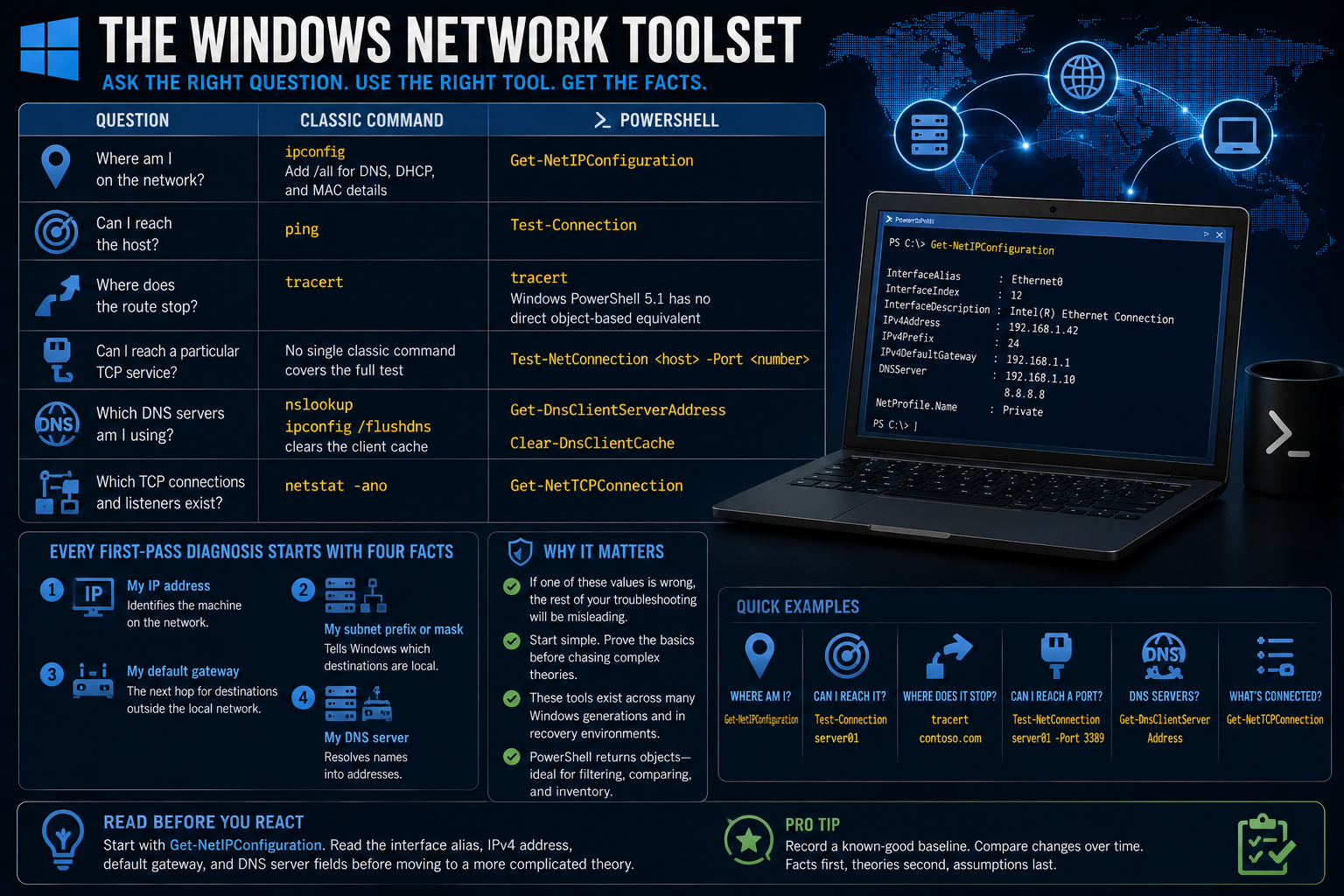
The Windows network toolset
| Question | Classic command | PowerShell |
|---|---|---|
| Where am I on the network? | ipconfig; add /all for DNS, DHCP, and MAC details |
Get-NetIPConfiguration |
| Can I reach the host? | ping |
Test-Connection |
| Where does the route stop? | tracert |
Use tracert; Windows PowerShell 5.1 has no direct object-based equivalent |
| Can I reach a particular TCP service? | No single classic command covers the full test | Test-NetConnection <host> -Port <number> |
| Which DNS servers am I using? | nslookup; ipconfig /flushdns clears the client cache |
Get-DnsClientServerAddress; Clear-DnsClientCache |
| Which TCP connections and listeners exist? | netstat -ano |
Get-NetTCPConnection |
Every first-pass network diagnosis starts with four facts:
- My IP address
- My subnet prefix or mask
- My default gateway
- My DNS server
The address identifies the machine. The subnet tells Windows which destinations are local. The default gateway is the next hop for destinations outside that local network. The DNS server resolves names into addresses.
If one of those values is wrong, the rest of your troubleshooting will be misleading.
The classic commands remain worth learning because they exist across many Windows generations and often work in stripped-down recovery environments. Their PowerShell counterparts return objects, which matters when you need to filter results, compare machines, or build an inventory.
Start with:
Get-NetIPConfiguration
Read the interface alias, IPv4 address, default gateway, and DNS server fields before moving to a more complicated theory.
Test the service, not only the host
Test-NetConnection combines several useful facts in one result:
PS C:\> Test-NetConnection www.example.com -Port 443

ComputerName     : www.example.com
RemoteAddress    : 93.184.215.14
InterfaceAlias   : Ethernet0
SourceAddress    : 192.168.1.20
PingSucceeded    : True
TcpTestSucceeded : True
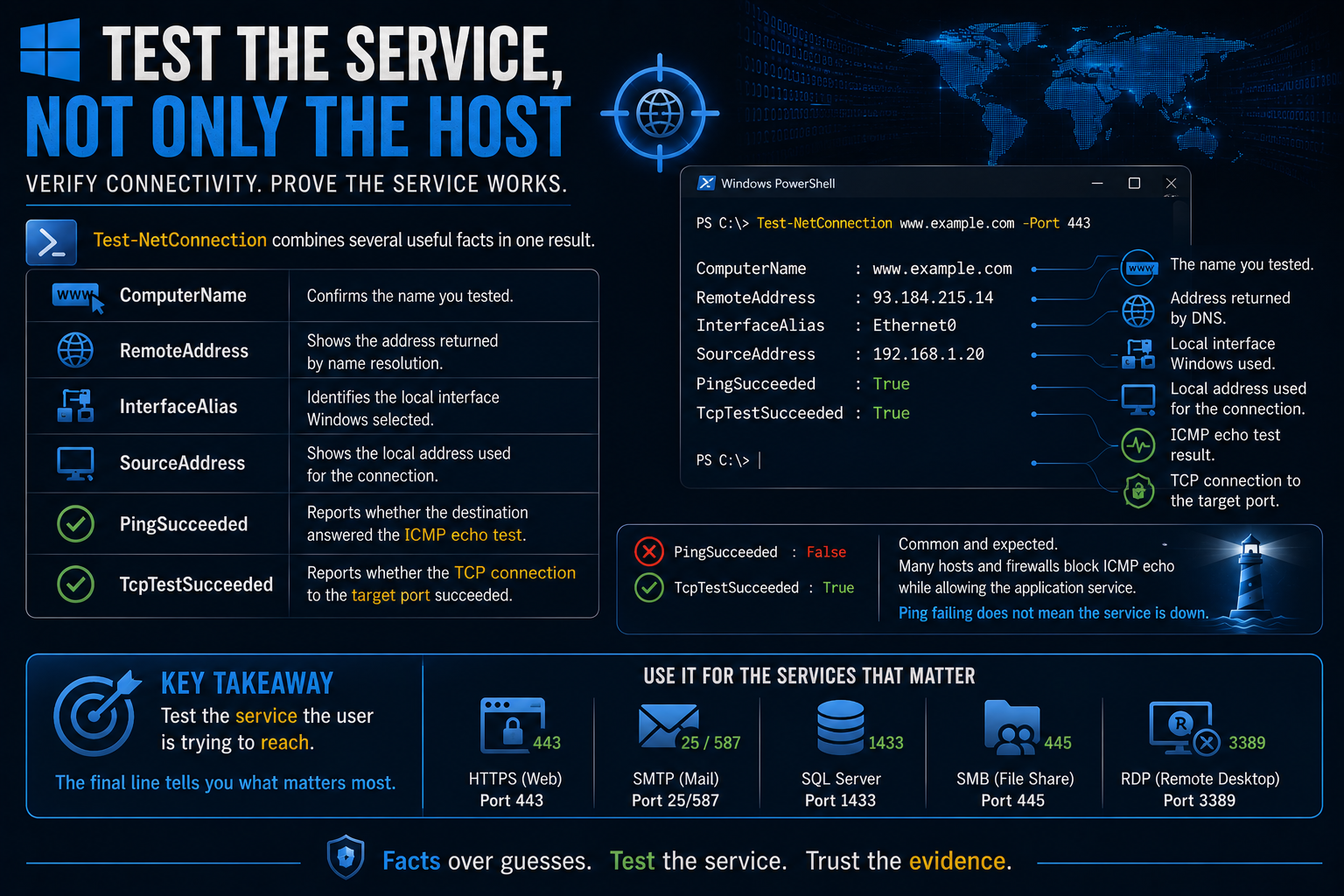
Read every line.
ComputerNameconfirms the name you tested.RemoteAddressshows the address returned by name resolution.InterfaceAliasidentifies the local interface Windows selected.SourceAddressshows the local address used for the connection.PingSucceededreports whether the destination answered the ICMP echo test.TcpTestSucceededreports whether the TCP connection to port 443 succeeded.
That result gives you evidence about name resolution, interface selection, routing, ICMP reachability, and the target service.
The final line matters most when your question is whether an application port is reachable.
A result of PingSucceeded : False and TcpTestSucceeded : True is common. Many hosts and firewalls block ICMP echo while allowing the application service. The website can be healthy even when ping fails.
Do not turn a failed ping into a claim that the host is down. Test the service the user is trying to reach.
DNS controls more than browsing
On a domain-joined Windows machine, the DNS server setting is one of the most consequential network settings you can change. Active Directory clients use DNS service records to find domain controllers and other domain services.
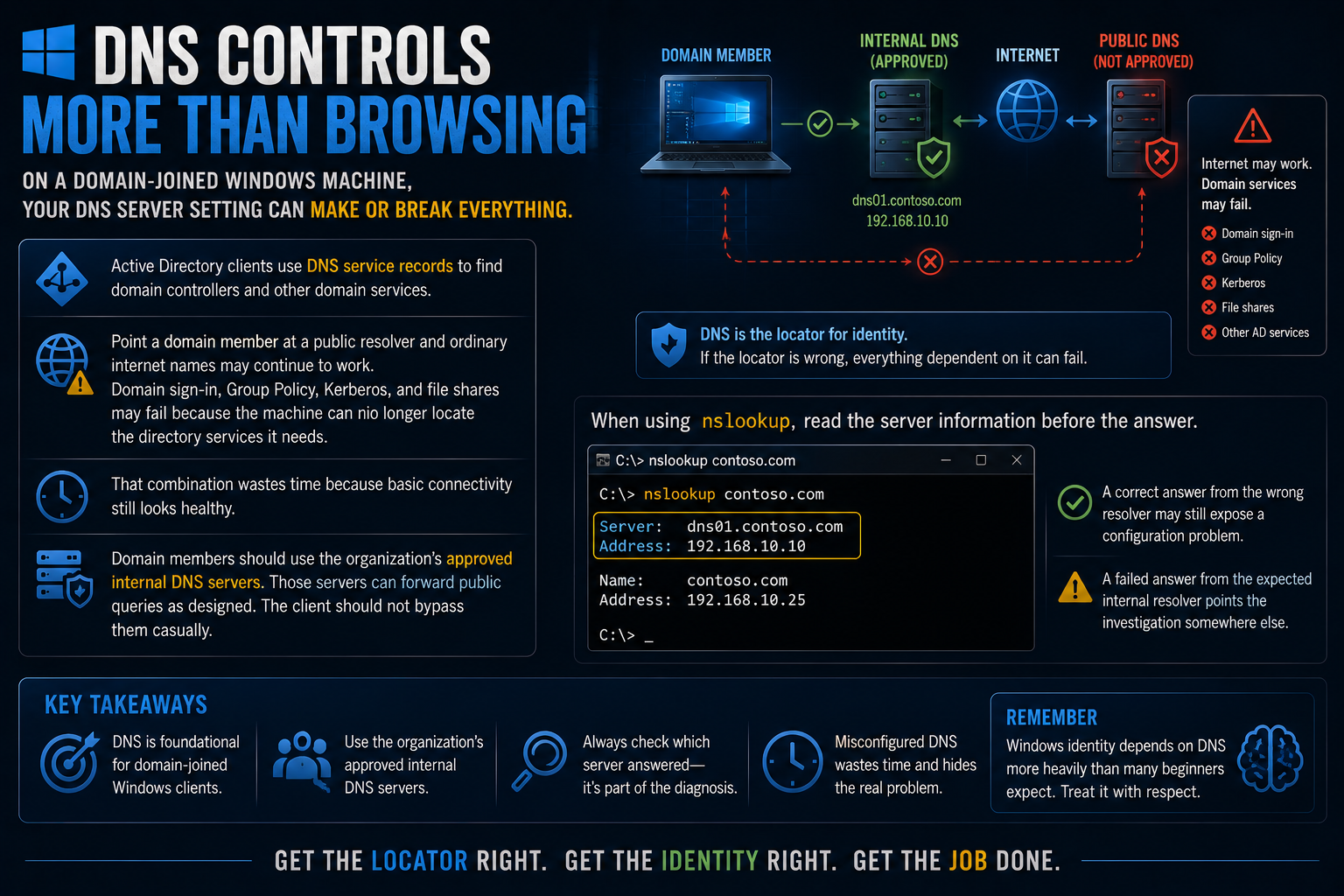
Point a domain member at a public resolver and ordinary internet names may continue to work. Domain sign-in, Group Policy, Kerberos, and file shares may fail because the machine can no longer locate the directory services it needs.
That combination wastes time because basic connectivity still looks healthy.
Domain members should use the organization's approved internal DNS servers. Those servers can forward public queries as designed. The client should not bypass them casually.
When using nslookup, read the server information before the answer. Which resolver answered is part of the diagnosis.
Server:  dns01.contoso.com
Address: 192.168.10.10
A correct answer from the wrong resolver may still expose a configuration problem. A failed answer from the expected internal resolver points the investigation somewhere else.
The mechanics of recursive and authoritative resolution belong in the names, addresses, and time material. For this module, remember that Windows identity depends on DNS more heavily than many beginners expect.
Connections and listeners
Get-NetTCPConnection answers two different security questions.
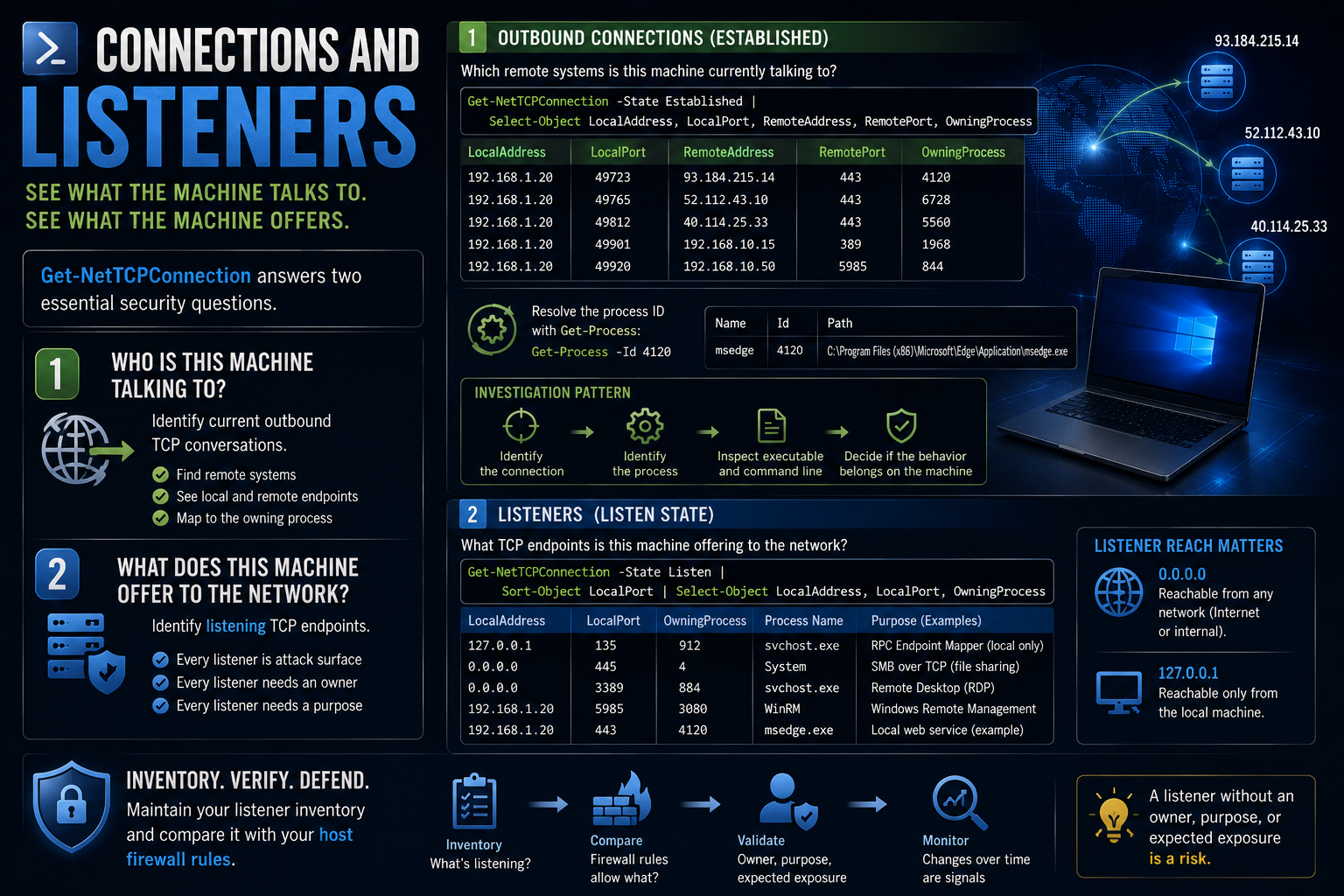
First, which remote systems is this machine currently talking to?
Get-NetTCPConnection -State Established |
    Select-Object LocalAddress, LocalPort, RemoteAddress, RemotePort, OwningProcess
Each row describes a TCP conversation. It identifies the local endpoint, the remote endpoint, and the process ID that owns the connection.
Resolve the process ID with Get-Process:
Get-Process -Id 4120
You can join the two steps for a selected connection:
$conn = Get-NetTCPConnection -State Established |
    Select-Object -First 1

Get-Process -Id $conn.OwningProcess
This is a career-long investigation pattern: identify the connection, identify the process, inspect the executable and command line, then decide whether the behavior belongs on the machine.
The second question is what the machine offers to the network:
Get-NetTCPConnection -State Listen |
    Sort-Object LocalPort |
    Select-Object LocalAddress, LocalPort, OwningProcess
Every listener is attack surface. Each should have an owner, a purpose, and an expected exposure. A listener bound only to 127.0.0.1 has a different reach than one bound to 0.0.0.0 or a routable interface address.
Keep that listener inventory. You will compare it with the host firewall rules later.
Remote management: choose what needs to travel
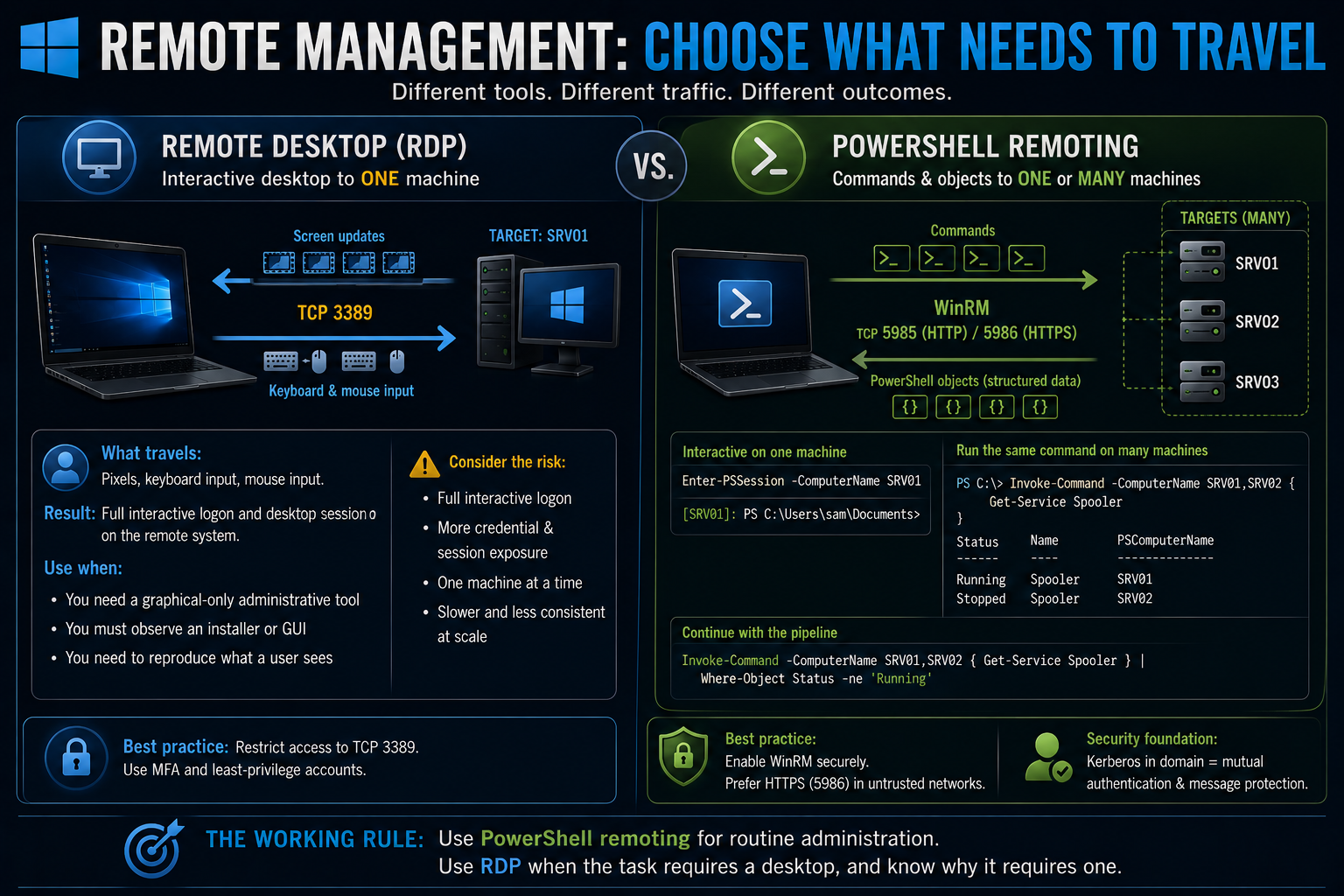
Side-by-side comparison of Remote Desktop and PowerShell remoting. RDP sends screen updates and input over TCP 3389 to one machine. PowerShell remoting sends commands and receives objects through WinRM on ports 5985 or 5986 across multiple machines.
Remote Desktop and PowerShell remoting solve different problems.
RDP gives you an interactive Windows desktop. It carries screen updates, keyboard input, and mouse input, normally over TCP 3389. Use it when you need a graphical-only administrative tool, must observe an installer, or need to reproduce what a user sees.
An RDP session creates a full interactive logon on the remote system. That increases credential and session exposure on a machine you may not fully trust. It also encourages one-server-at-a-time administration, which becomes slow and inconsistent as the environment grows.
PowerShell remoting sends commands to the remote machine and returns PowerShell objects. WinRM commonly listens on TCP 5985 for HTTP transport and 5986 for HTTPS transport. In a domain, Kerberos provides mutual authentication and message protection when the systems and names are configured correctly.
Use Enter-PSSession when you need an interactive shell on one machine:
Enter-PSSession -ComputerName SRV01
The prompt identifies the remote context:
[SRV01]: PS C:\Users\sam\Documents>
That prefix matters. A command entered there runs on SRV01, not on your workstation.
Use Invoke-Command when you need to run the same command on one or more machines:
PS C:\> Invoke-Command -ComputerName SRV01, SRV02 {
>>   Get-Service Spooler
>> }

Status  Name     PSComputerName
------  ----     --------------
Running Spooler  SRV01
Stopped Spooler  SRV02
The returned objects include PSComputerName, so you can identify the source of every result and continue using the pipeline:
Invoke-Command -ComputerName SRV01, SRV02 {
    Get-Service Spooler
} | Where-Object Status -ne 'Running'
That query finds the stopped service without opening either desktop.
The working rule is:
Use PowerShell remoting for routine administration. Use RDP when the task requires a desktop, and know why it requires one.
RDP controls that should not be negotiable
Network Level Authentication should remain enabled. NLA requires authentication before Windows creates the full remote desktop session. It reduces unauthenticated exposure and resource consumption. Do not disable it as a routine response to a connection failure.
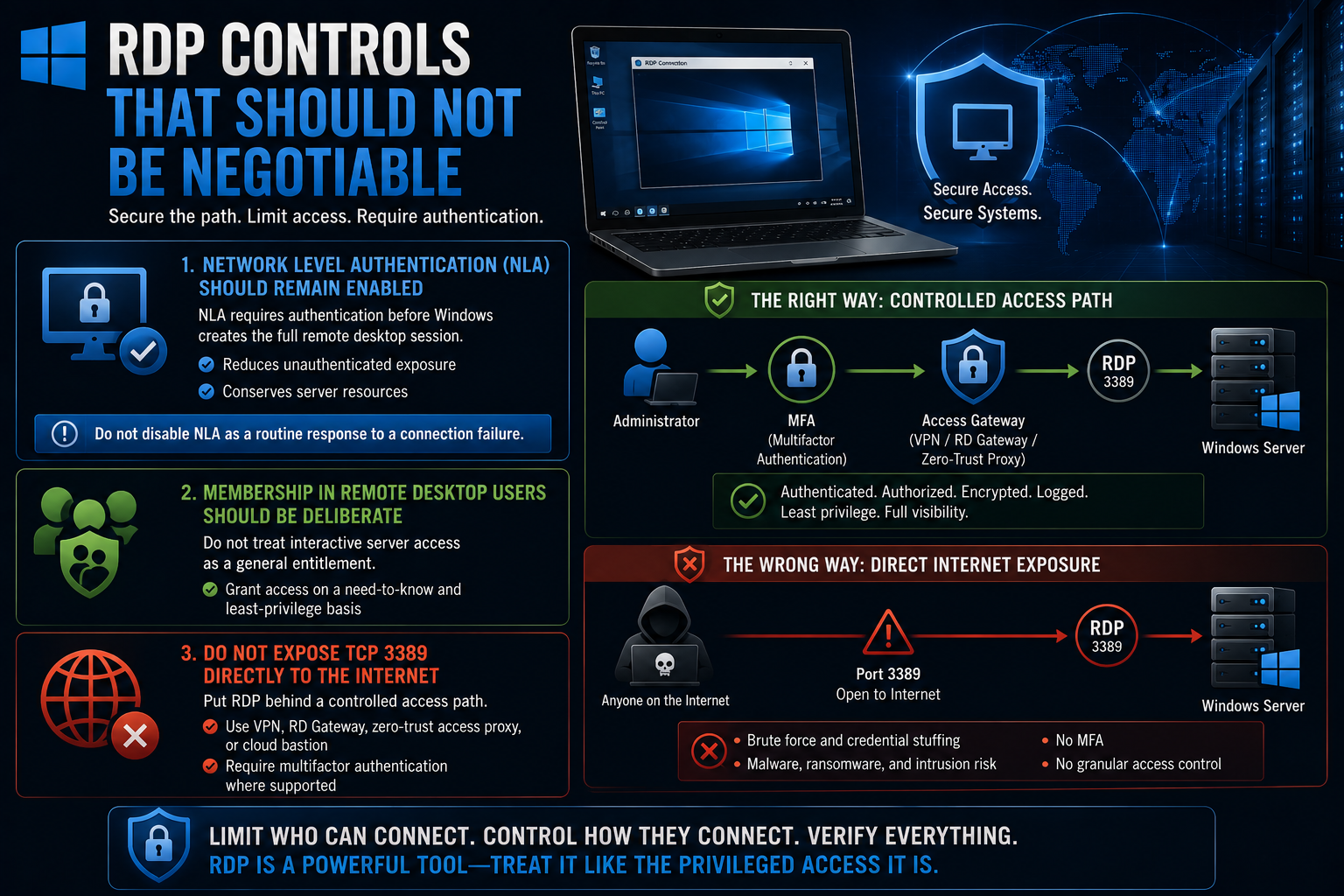
Membership in Remote Desktop Users should be deliberate. Do not treat interactive server access as a general entitlement.
Do not expose TCP 3389 directly to the internet. Put RDP behind a controlled access path such as a VPN, Remote Desktop Gateway, zero-trust access proxy, or cloud bastion. Require multifactor authentication where the chosen access system supports it.
Remoting trust in domains and workgroups
Domain remoting normally uses Kerberos. The client authenticates the server, the server authenticates the user, and the session receives message protection without inventing a separate trust mechanism for every host.
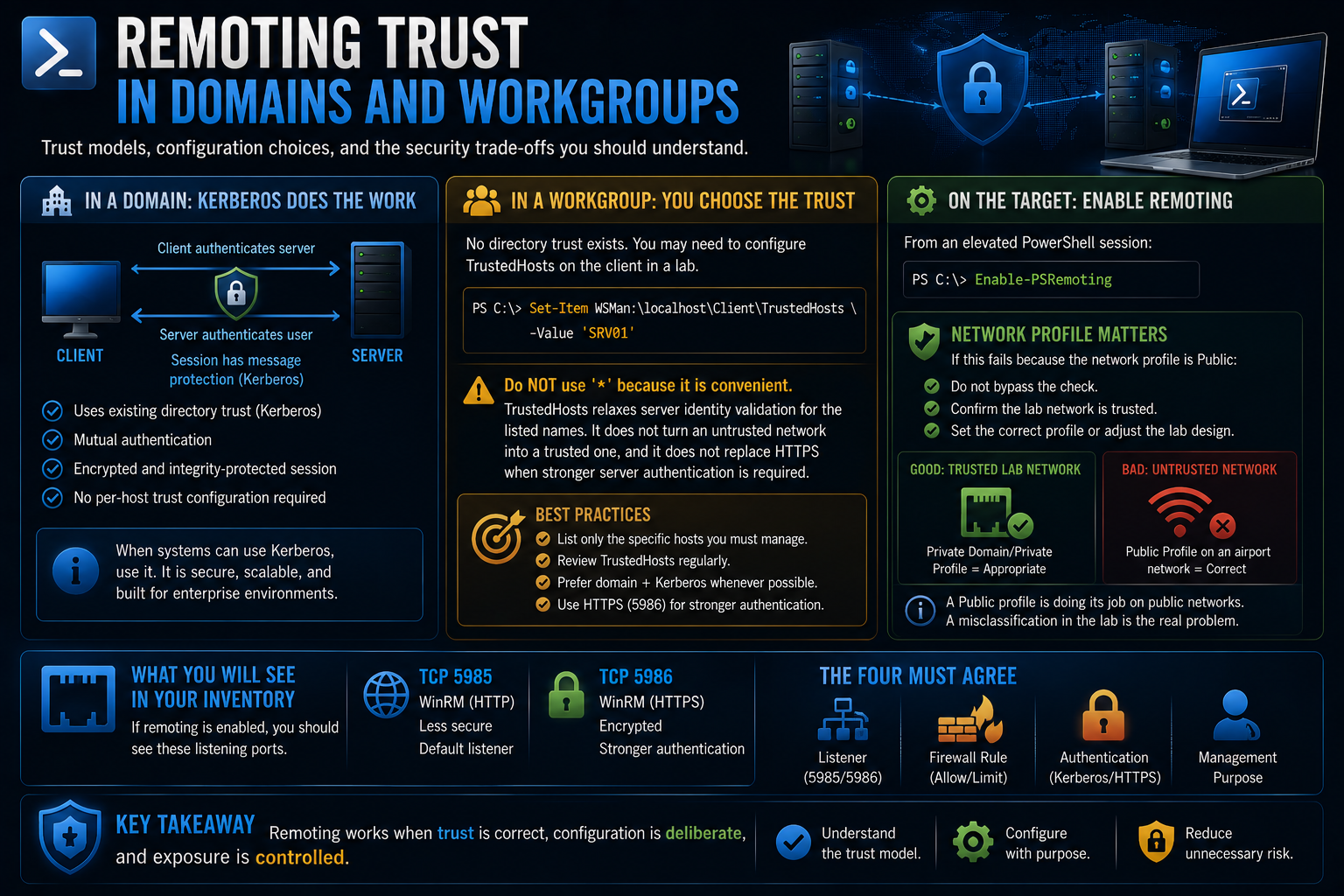
A workgroup does not have that directory trust. In a lab, you may need to configure TrustedHosts on the client. Do it narrowly and understand what it means.
Set-Item WSMan:\localhost\Client\TrustedHosts -Value 'SRV01'
Do not use * because it is convenient. TrustedHosts relaxes server identity validation for the listed names. It does not turn an untrusted network into a trusted one, and it does not replace HTTPS when stronger server authentication is required.
On the lab target, enable remoting from an elevated PowerShell session:
Enable-PSRemoting
If this fails because the network profile is Public, do not immediately bypass the check. Confirm that the lab network is actually trusted, then set the correct profile or adjust the lab design. A Public profile on an airport network is doing its job. A Public profile on an isolated lab network may be a classification problem.
If TCP 5985 appeared in your listener inventory, you now know why. The listener, firewall rule, authentication method, and management purpose should agree.
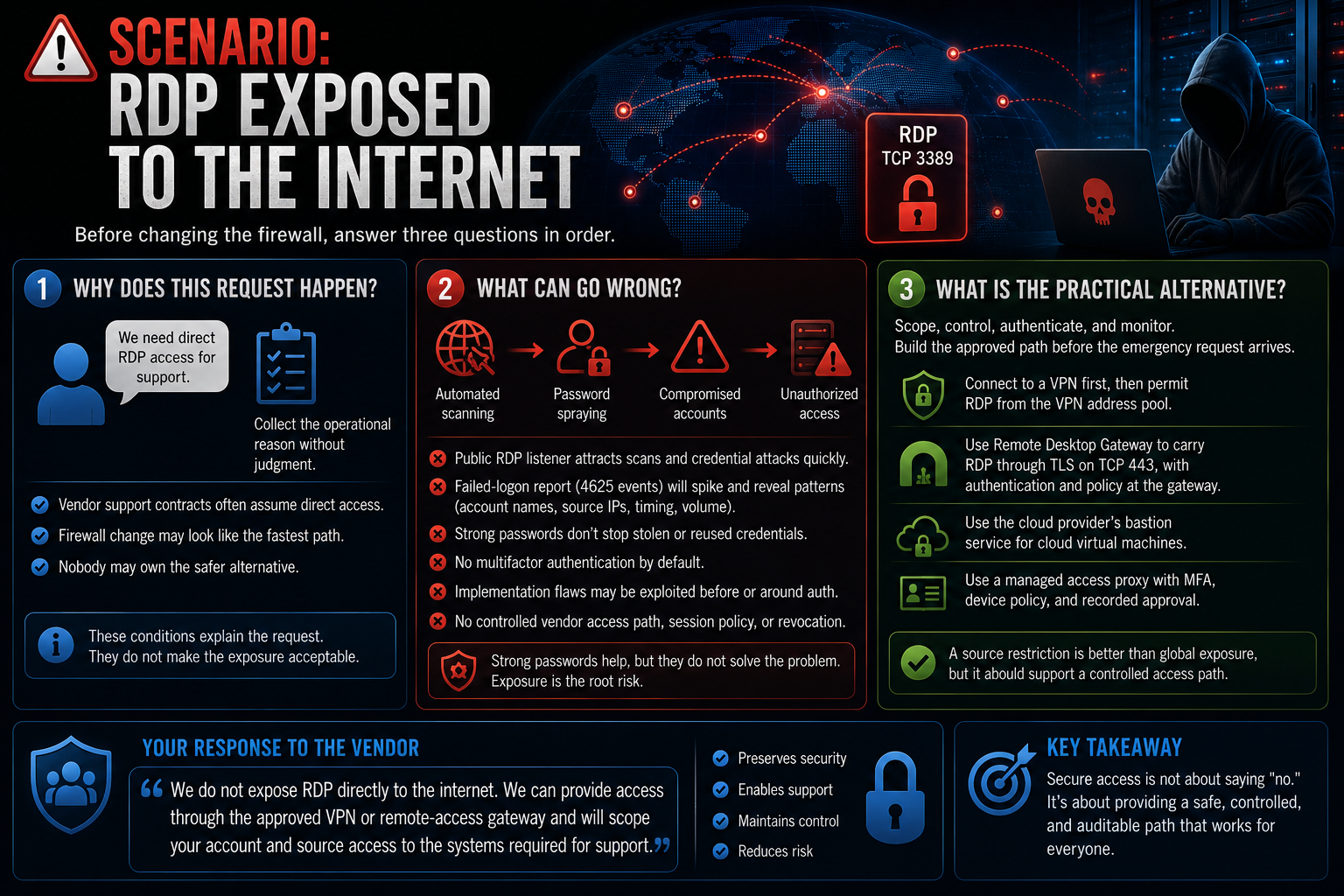
Scenario: RDP exposed to the internet
A vendor asks for direct internet access to RDP. Before changing the firewall, answer three questions in order.
Why does this request happen?
Collect the operational reason without mocking the requester. The vendor may have a support contract built around remote access. The firewall change may look like the fastest path. Nobody may own the safer alternative.
Those conditions explain the request. They do not make the exposure acceptable.
What can go wrong?
A public RDP listener attracts automated scanning and credential attacks quickly. Password spraying tests a small set of likely passwords across many accounts. Reused or previously exposed credentials make that attack more effective.
Your failed-logon report from Part 1 would begin collecting 4625 events. The account names, source addresses, timing, and volume would show the attack pattern.
Strong passwords help against guessing, but they do not resolve every risk. They do not protect a stolen valid credential. They do not add multifactor authentication. They do not address implementation flaws that may occur before or around authentication. They do not give you a controlled vendor access path with session policy and revocation.
What is the practical alternative?
If the vendor has fixed and verified source addresses, scope any temporary rule to those addresses. A source restriction is better than global exposure, but it should support a controlled access path rather than become the permanent design by itself.
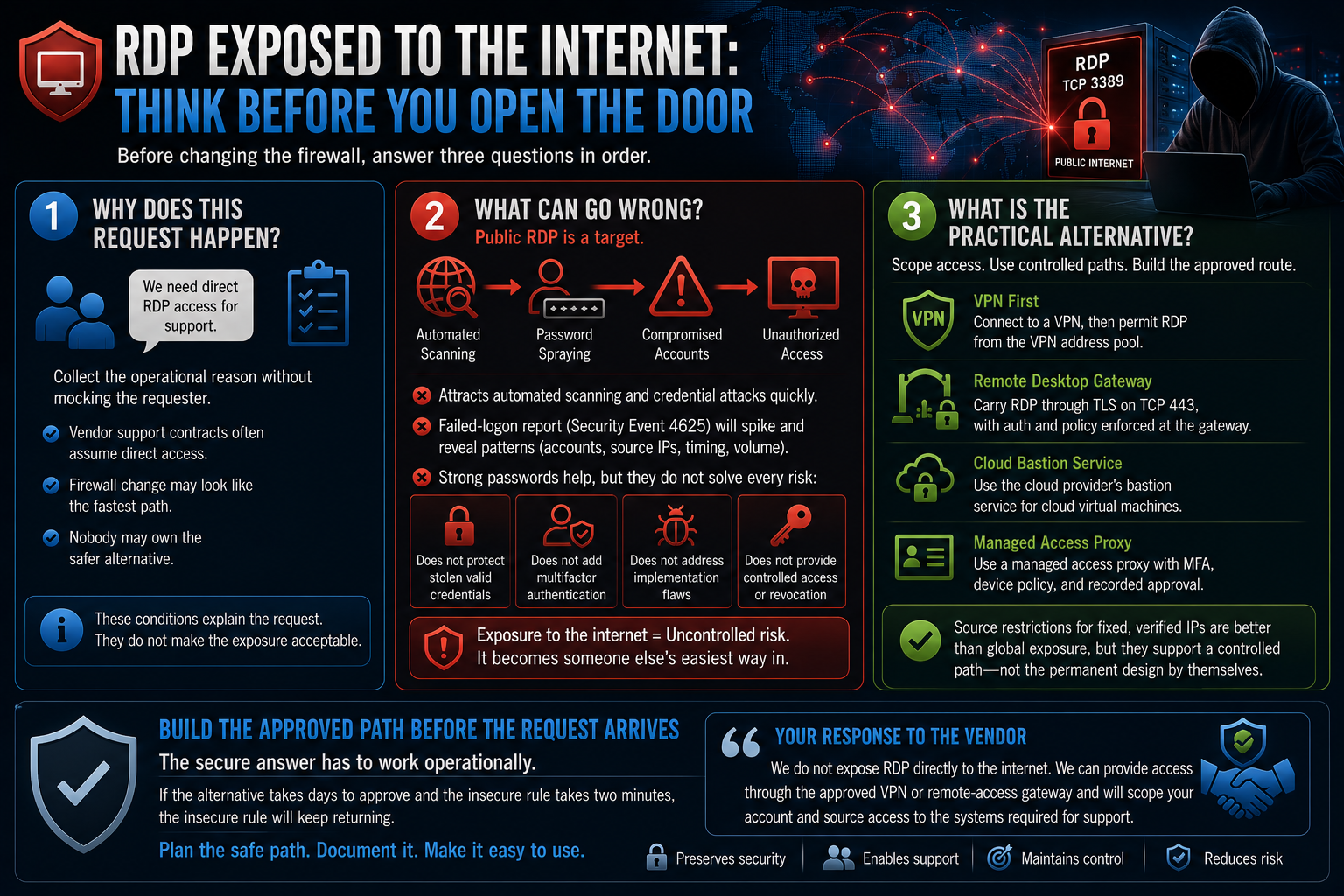
The normal patterns are:
- Connect to a VPN first, then permit RDP from the VPN address pool.
- Use Remote Desktop Gateway to carry RDP through TLS on TCP 443, with authentication and policy enforced at the gateway.
- Use the cloud provider's bastion service for cloud virtual machines.
- Use a managed access proxy with multifactor authentication, device policy, and recorded approval where the environment supports it.
The secure answer has to work operationally. If the alternative takes days to approve and the insecure rule takes two minutes, the insecure rule will keep returning. Build the approved remote-support path before the emergency request arrives.
A two-sentence vendor response can be direct:
We do not expose RDP directly to the internet. We can provide access through the approved VPN or remote-access gateway and will scope your account and source access to the systems required for support.
That is not obstruction. It preserves the vendor's ability to work without turning every protected server into a public authentication endpoint.
File sharing: two permission gates
SMB is the protocol behind a path such as:
\\server\share
The files still reside on NTFS. Network access adds a second permission layer.
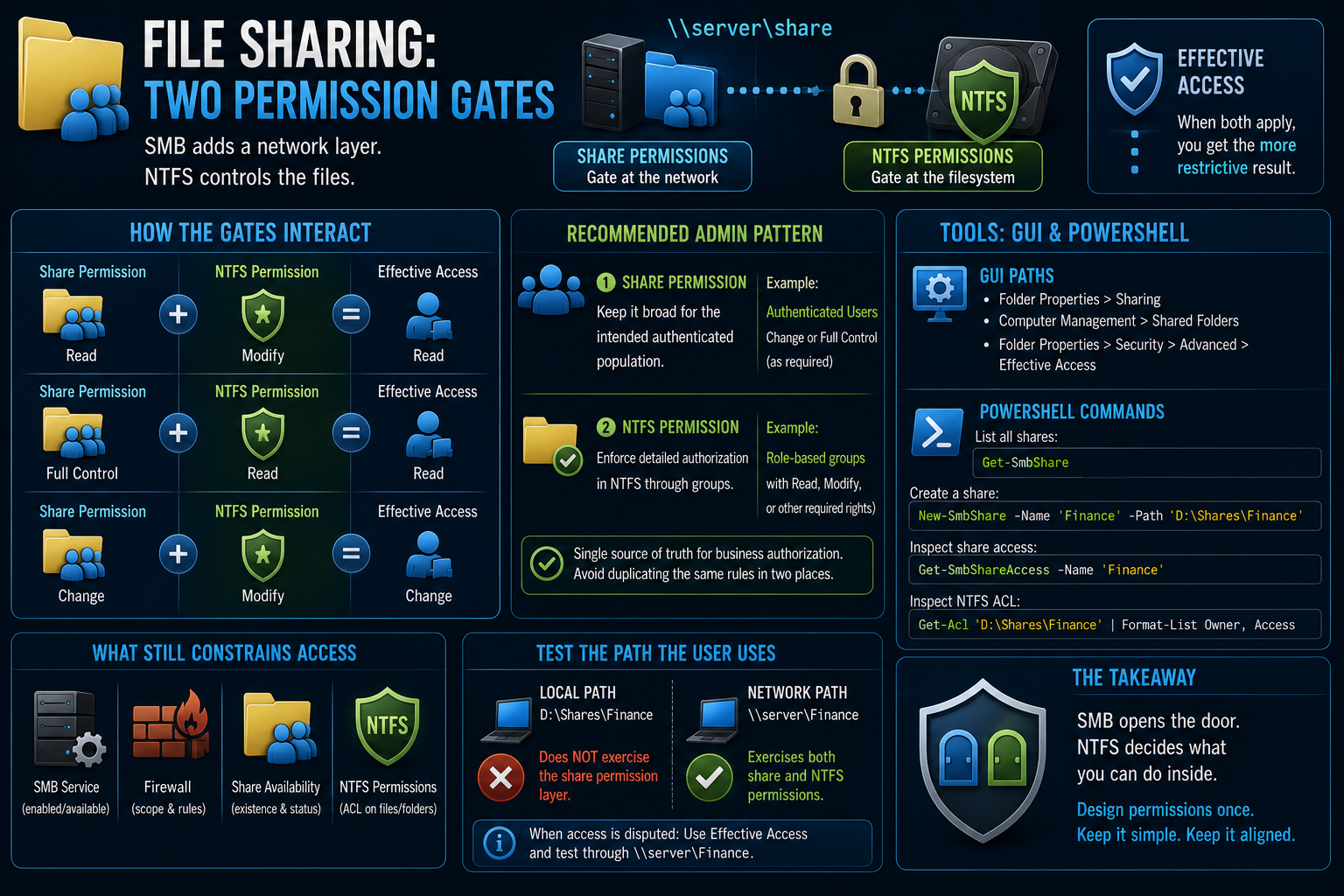
Share permissions control entry through the network share. NTFS permissions control access to the files and folders themselves. When both apply, the effective network access is the more restrictive result.
If the share grants Read and NTFS grants Modify, the user receives Read over the network.
If the share grants Full Control and NTFS grants Read, the user receives Read.
That interaction creates unnecessary troubleshooting when both layers contain complicated business rules. A common administrative pattern is to keep the share permission broad for the intended authenticated population and enforce the detailed authorization in NTFS through groups.
For example:
- Share permission: Authenticated Users, Change or Full Control as the design requires
- NTFS permission: role-based groups with Read, Modify, or other required rights
This leaves one primary place for business authorization instead of forcing administrators to calculate two independent policy structures.
The pattern is not permission without limits. The SMB service, firewall scope, share availability, and NTFS ACL still constrain access. The goal is to avoid duplicating the same user and role logic in both the share ACL and the filesystem ACL.
The graphical paths are:
- Folder Properties > Sharing
- Computer Management > Shared Folders
- Folder Properties > Security > Advanced > Effective Access
PowerShell provides:
Get-SmbShare
Create a share with:
New-SmbShare -Name 'Finance' -Path 'D:\Shares\Finance'
Inspect share access with:
Get-SmbShareAccess -Name 'Finance'
Then inspect the NTFS ACL separately:
Get-Acl 'D:\Shares\Finance' | Format-List Owner, Access
When someone disputes access, use Effective Access and test through the same path the user uses. Local access to D:\Shares\Finance does not exercise the share permission layer. Access through \\server\Finance does.
SMBv1 is a dependency finding
SMBv1 is obsolete and disabled or absent by default on current Windows releases. It lacks security capabilities expected from modern SMB and has a history that includes severe exploitation.
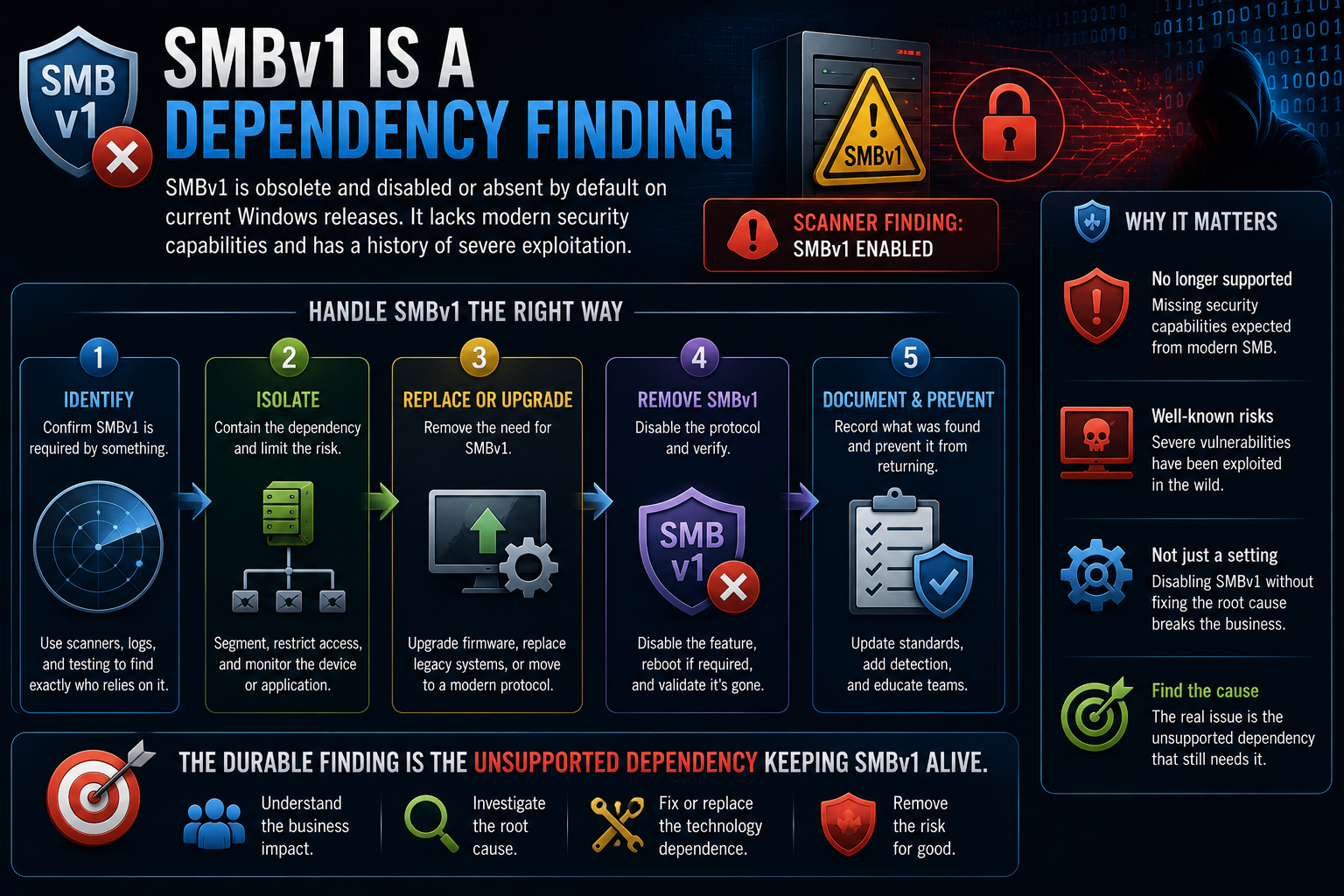
When a scanner finds SMBv1 enabled, do not close the ticket after disabling the feature and breaking the business process. Identify the device or application that still requires it, isolate that dependency, replace or upgrade it, and remove the protocol.
The durable finding is the unsupported dependency keeping SMBv1 alive.
Windows Firewall: policy on one machine
Windows Defender Firewall applies a sensible default posture:
- Block unsolicited inbound traffic unless a rule allows it.
- Allow outbound traffic by default unless policy says otherwise.
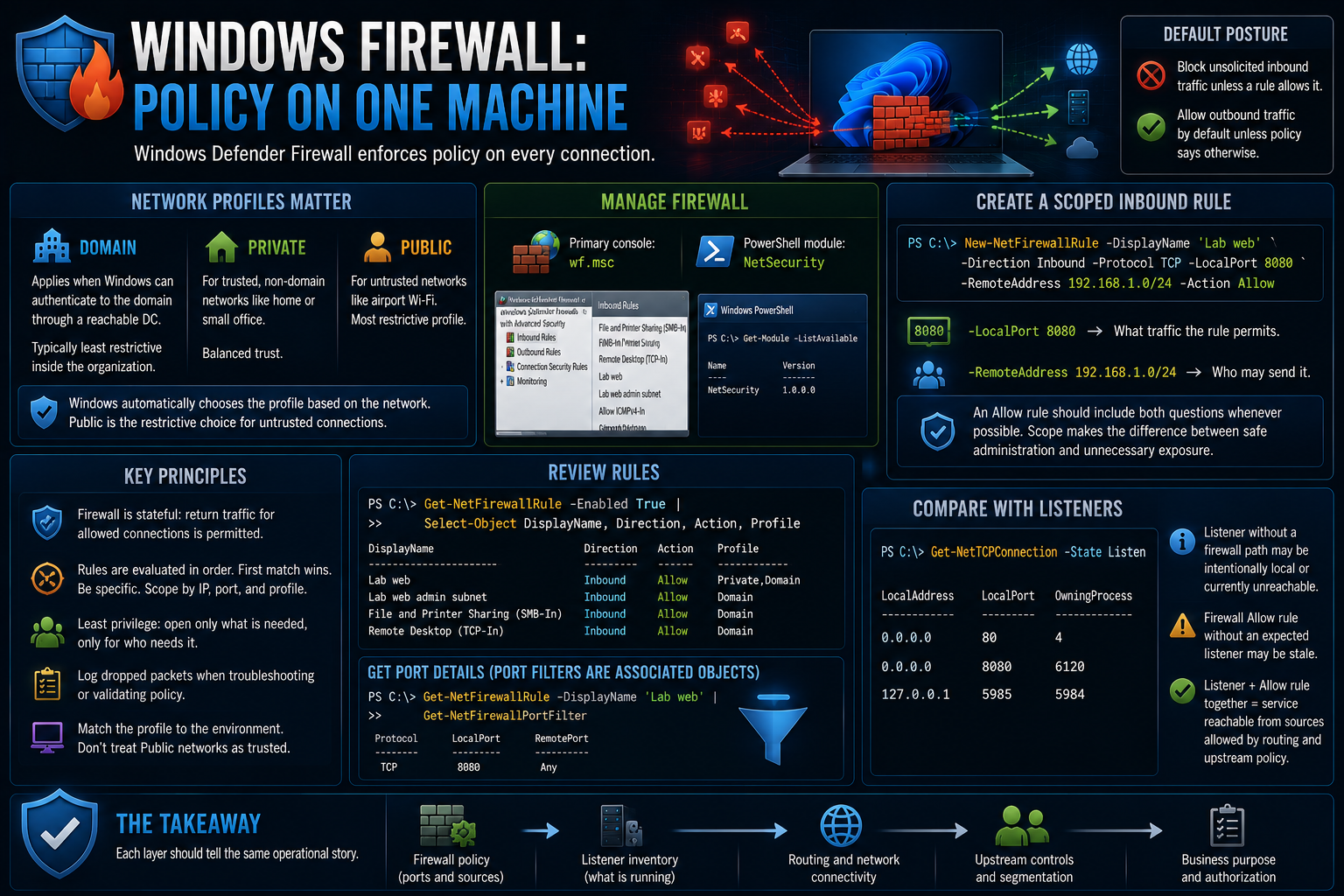
Windows uses Domain, Private, and Public profiles because the same laptop should not expose the same services on the corporate network and airport Wi-Fi.
The Domain profile applies when Windows can authenticate to the domain through a reachable domain controller. Private and Public are classifications for other networks. Public is the restrictive choice for an untrusted network.
The primary graphical console is:
wf.msc
The PowerShell commands are in the NetSecurity module.
Create a scoped inbound rule:
PS C:\> New-NetFirewallRule -DisplayName 'Lab web' `
>>   -Direction Inbound -Protocol TCP -LocalPort 8080 `
>>   -RemoteAddress 192.168.1.0/24 -Action Allow
The port answers what traffic the rule permits. -RemoteAddress answers who may send it.
An Allow rule should include both questions whenever the use case permits that scope. A rule for port 8080 from an administration subnet is different from a rule exposing port 8080 to every reachable source.
Review rules with:
Get-NetFirewallRule -Enabled True |
    Select-Object DisplayName, Direction, Action, Profile
Port filters are stored as associated objects, so query them when you need the port details:
Get-NetFirewallRule -DisplayName 'Lab web' |
    Get-NetFirewallPortFilter
Compare the firewall policy with the listener inventory:
Get-NetTCPConnection -State Listen
A listener without a firewall path may be intentionally local or currently unreachable. A firewall Allow rule without an expected listener may be stale. A listener and an Allow rule together make a service reachable from the sources covered by routing and upstream policy.
Each layer should tell the same operational story.
Host firewall and network firewall are different controls
Group Policy can configure Windows Defender Firewall across domain-joined computers. The policy applies a consistent rule set to each machine's local host firewall.
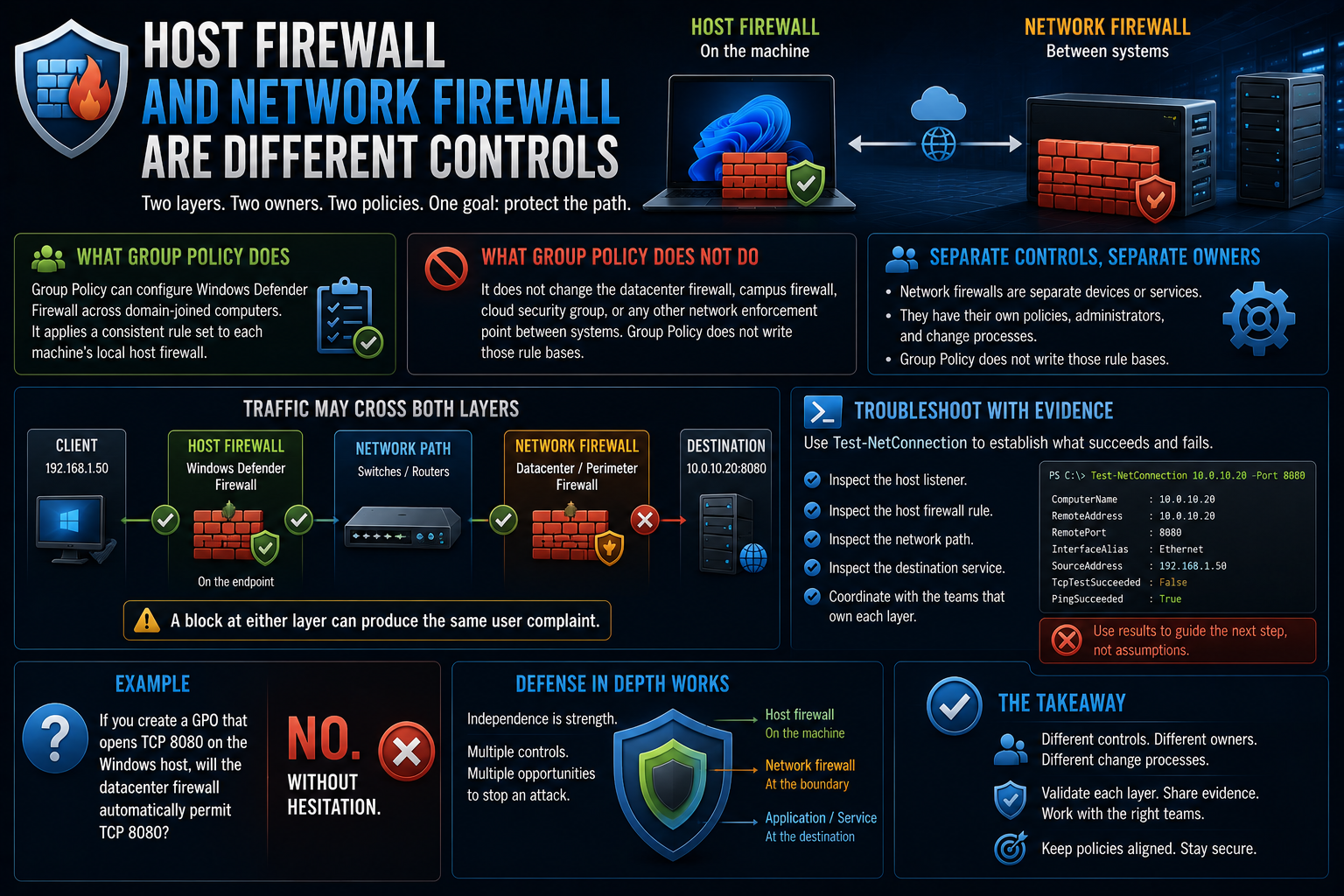
That does not change the datacenter firewall, campus firewall, cloud security group, or any other network enforcement point between systems.
Network firewalls are separate devices or services with their own policies, administrators, and change processes. Group Policy does not write those rule bases.
Traffic may cross both layers. A block at either layer can produce the same user complaint.
Use Test-NetConnection to establish what succeeds and fails. Then inspect the host listener, host firewall rule, network path, and destination service with the teams that own them.
If you create a GPO that opens TCP 8080 on the Windows host, the datacenter firewall does not automatically permit TCP 8080. The answer is no, without hesitation.
Defense in depth works because these controls remain independent.
Workgroup and domain: the orientation
Part 1 and most of the lab operate in a workgroup. Each machine has its own local accounts, local groups, and local policy. Ten computers can mean ten copies of the same account and ten separate places to change a setting.
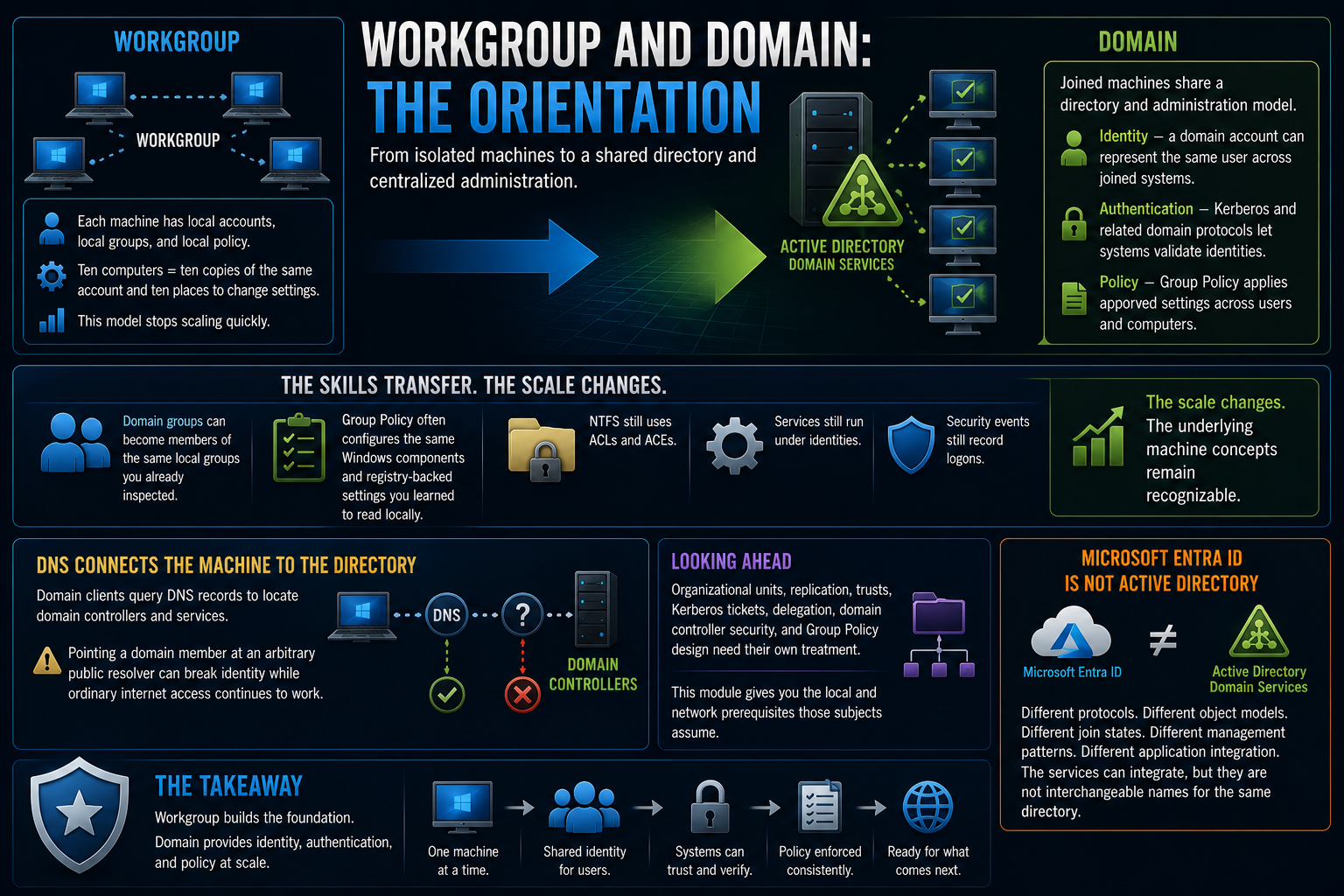
That model stops scaling quickly.
Active Directory Domain Services gives joined machines a shared directory and administration model. Three capabilities matter at this stage:
- Identity: a domain account can represent the same user across joined systems.
- Authentication: Kerberos and related domain protocols let systems validate those identities.
- Policy: Group Policy applies approved settings across users and computers.
The local skills from Part 1 still apply.
Domain groups can become members of the same local groups you already inspected. Group Policy often configures the same Windows components and registry-backed settings you learned to read locally. NTFS still uses ACLs and ACEs. Services still run under identities. Security events still record logons.
The scale changes. The underlying machine concepts remain recognizable.
DNS connects the machine to the directory. Domain clients query DNS records to locate domain controllers and services. That is why pointing a domain member at an arbitrary public resolver can break identity while ordinary internet access continues to work.
Organizational units, replication, trusts, Kerberos tickets, delegation, domain controller security, and Group Policy design need their own treatment. This module gives you the local and network prerequisites those subjects assume.
Microsoft Entra ID is not Active Directory placed behind a browser. It uses different protocols, object models, join states, management patterns, and application-integration methods. The services can integrate, but they are not interchangeable names for the same directory.
First exercises before the close
These exercises test the claims in the module. Save the evidence instead of relying on memory.
Exercise 1: explain a connection test
Run Test-NetConnection against TCP 443 on a site you trust.
Test-NetConnection www.example.com -Port 443
Write one sentence for each output field explaining what that line proves and what it does not prove.
Do not collapse the result into "the internet works." Identify the resolver result, interface, source address, ICMP result, and TCP result separately.
Exercise 2: use PowerShell remoting between two lab VMs
On the target VM, run from an elevated session:
Enable-PSRemoting
In a workgroup lab, add only the target name to TrustedHosts on the client:
Set-Item WSMan:\localhost\Client\TrustedHosts -Value 'SRV01'
Then run:
Invoke-Command -ComputerName SRV01 {
    Get-Service Spooler
}
Find PSComputerName in the result.
If the connection fails, use:
Test-NetConnection SRV01 -Port 5985
Check name resolution, the target's WinRM listener, the Windows Firewall rule, and the network profile. Diagnose the failed layer instead of repeating Enable-PSRemoting and hoping for a different result.
Exercise 3: prove effective SMB access
Create a test folder and share it. Grant the test user Read at the share and Modify in NTFS.
Before testing, write down what the user should be able to do over the network.
Use the Effective Access tab, then connect through the UNC path and prove the result. The expected network access is Read because the share permission is more restrictive.
A wrong written prediction followed by a correct test is useful. A copied answer teaches almost nothing.
Where these skills lead
Each skill in this pair is the local form of a larger architecture problem.
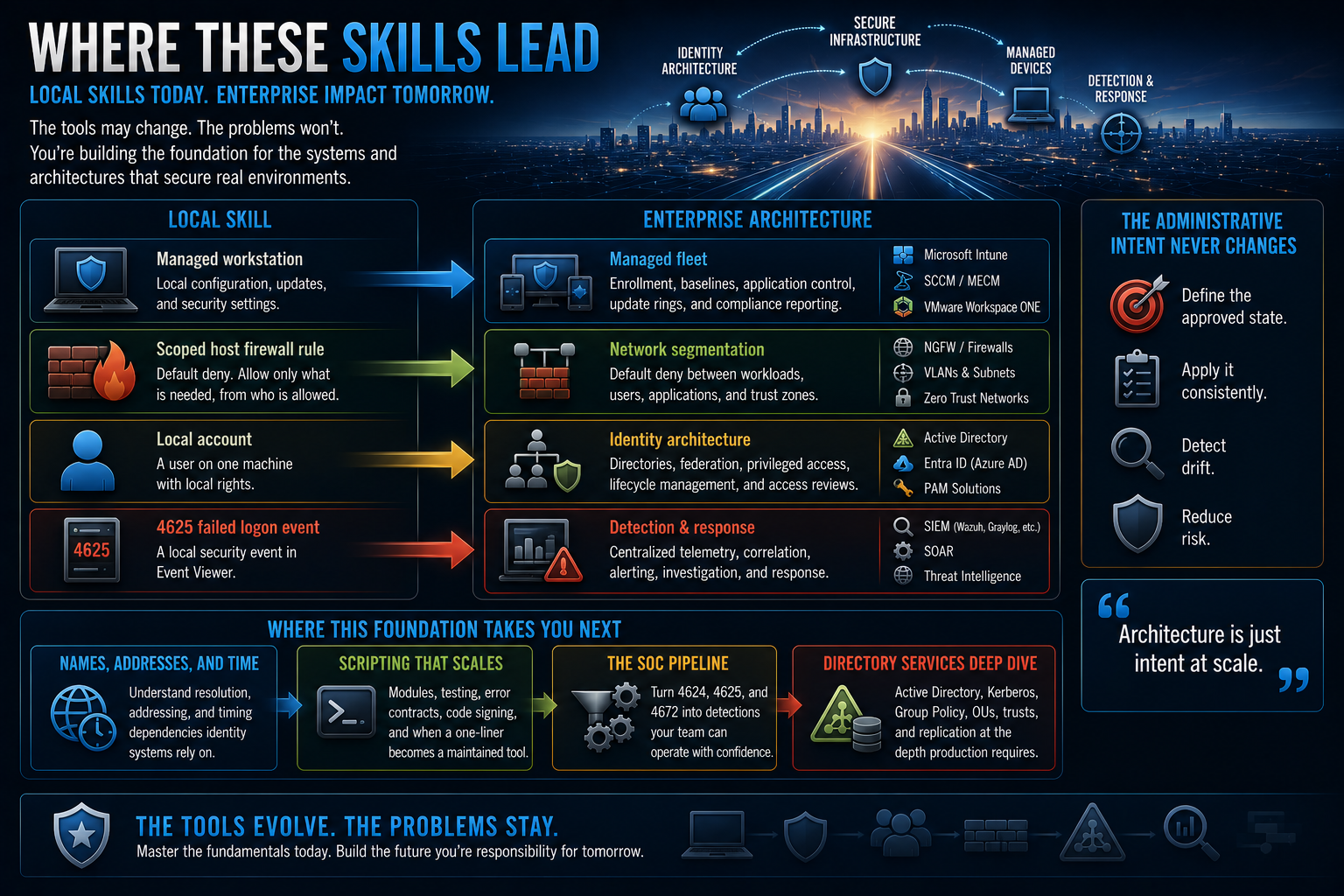
The workstation becomes a managed fleet with enrollment, security baselines, application control, update rings, and compliance reporting.
Local policy becomes Group Policy or cloud device management, depending on the estate. The administrative intent remains the same: define the approved state, apply it consistently, and detect drift.
A scoped host firewall rule becomes network segmentation. The same default-deny principle moves from one machine to the boundaries between workloads, users, applications, and trust zones.
A local account becomes part of identity architecture through directories, federation, privileged access, lifecycle management, and access reviews.
A 4625 event becomes detection logic. The event moves from a nightly text report into centralized telemetry, correlation, alerting, investigation, and response.
Products and names will change. These administrative and security problems will not.
The deeper material has clear destinations:
- Names, addresses, and time explains resolution, addressing, and the timing dependencies identity systems rely on.
- The scripting material covers modules, testing, error contracts, code signing, and the point where a one-liner should become a maintained tool.
- The SOC pipeline material turns 4624, 4625, and 4672 into detections a team can operate.
- The directory course covers Active Directory, Kerberos, Group Policy, organizational units, trusts, and replication at the depth production work requires.
The operational rule and the lab that teaches it
You cannot secure a Windows estate you cannot administer.
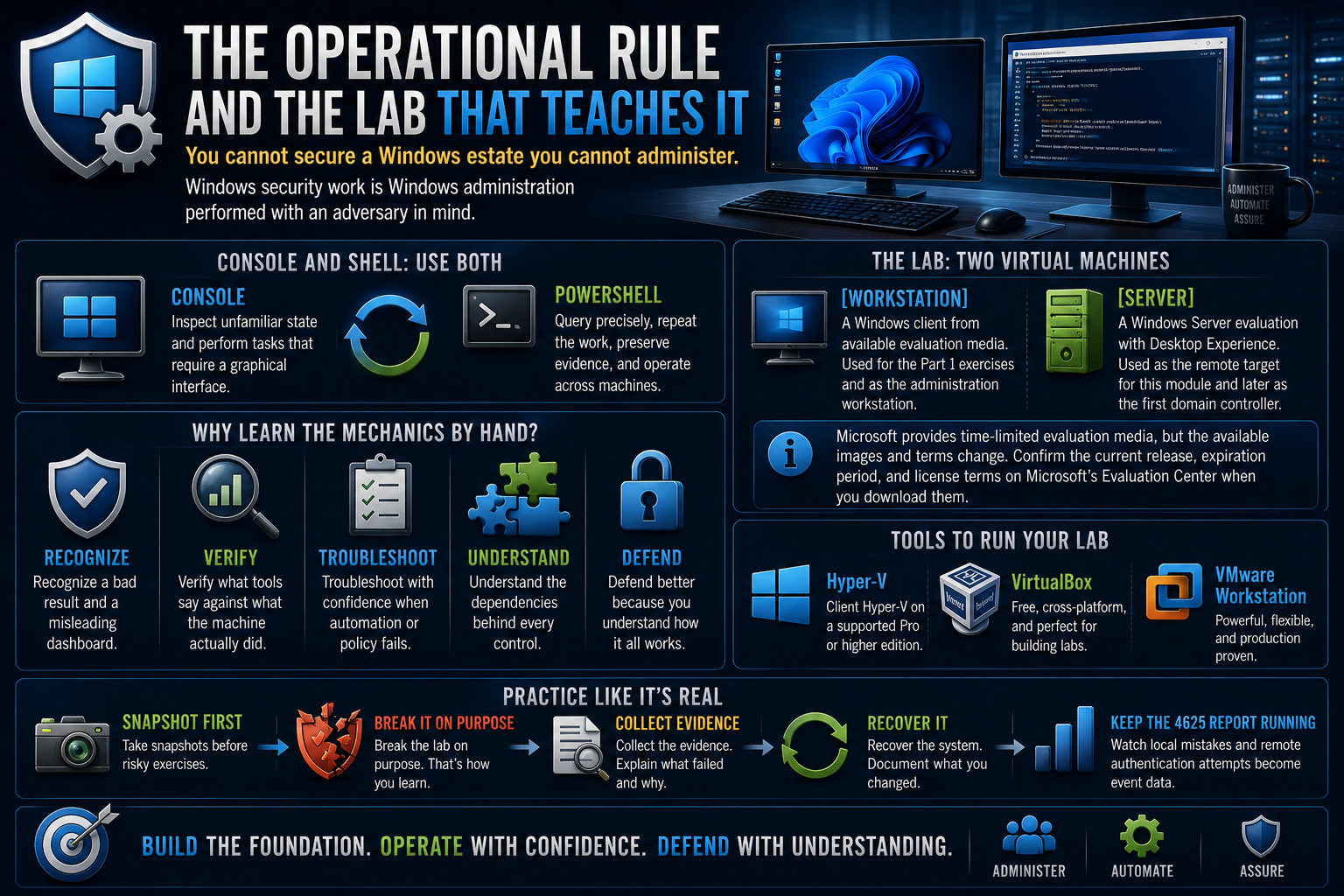
Learn the console and shell together. Use the console to inspect unfamiliar state and perform the few tasks that require a graphical interface. Use PowerShell to query precisely, repeat the work, preserve evidence, and operate across machines.
Windows security work is Windows administration performed with an adversary in mind.
The lab requires two virtual machines:
[Workstation]A Windows client from available evaluation media, used for the Part 1 exercises and as the administration workstation[Server]A Windows Server evaluation with Desktop Experience, used as the remote target for this module and later as the first domain controller
Microsoft provides time-limited evaluation media, but the available images and terms change. Confirm the current release, expiration period, and license terms on Microsoft's Evaluation Center when you download them.
Client Hyper-V on a supported Pro or higher Windows edition, VirtualBox, or VMware Workstation can run the lab without spare physical machines.
Take snapshots before risky exercises. Break the lab on purpose, collect the evidence, explain what failed, and recover it. Keep the 4625 report running while you work so you can watch local mistakes and remote authentication attempts become event data.
Enterprise fleet tools automate much of this work. The administrator who learned the mechanics by hand is better equipped to recognize a bad result, a misleading dashboard, or a policy that succeeded in the console but failed on the machine.
Where to go from here
- Windows Fundamentals for Cybersecurity, Part 1: The Machine and Its Evidence
- The Map and the Floor: the entrance to this skills series and the larger map these Windows modules support.
- The Terminal Is a Conversation: the Linux counterpart, with permissions, evidence, pipelines, and practical exercises.
- Names, Addresses, and Time: the resolution and time mechanics deferred from this module.
- From Log to Incident: the path from the 4625 report to a detection pipeline operated by a SOC.


