


My first Linux distribution no longer exists. I mention that because it lands two points at once: Linux is old enough to have history, and the skills transfer anyway. The terminal you are about to spend an evening in is not an exam. It is a conversation. You type, the machine answers, and the whole skill is learning to read the answer. By the end of this post the wall of text stops being a wall.
Security careers run through this terminal for a plain reason: most of the internet's servers, every Android phone, and nearly every security tool you will ever touch run on Linux. The analyst reading logs, the engineer hardening a server, and the pentester driving Kali are all having the same conversation with the same operating system. This post is the Linux floor of this site's skills series. It sits behind The Map and the Floor, and it converts my rebuilt Linux Essentials teaching deck into something you can work through at a terminal with no instructor in the room.
One convention governs everything here, and it is the deck's core promise: concepts are Linux concepts, taught distribution-generically. The examples are Debian-based because the course lab is Debian-derived, and that is a stated reason, not an unexamined default. The lineage takes three sentences. Debian is the parent, community-run since 1993, with stability and packaging discipline as its whole personality. Ubuntu takes Debian's base and adds a fixed release cadence and commercial backing. Kali takes Debian's base and adds the penetration-testing toolset and a rolling release, and our lab runs there. Both descendants inherit Debian's package format, its apt tooling, and most of its filesystem layout, so when a Stack Overflow answer written for Ubuntu works on Kali, that is the shared parent, not luck.
Every family-specific example in this post carries a visible [Debian-based] marker, and this table is the decoder ring. Screenshot it.
| Debian family | RHEL family | Arch | |
|---|---|---|---|
| Members | Debian, Ubuntu, Kali, Mint | RHEL, Fedora, Rocky, Alma | Arch and rolling kin |
| Package manager | apt (.deb) | dnf (.rpm) | pacman |
| Security log | /var/log/auth.log | /var/log/secure | journal only (journalctl) |
| Firewall frontend | ufw | firewalld (firewall-cmd) | nftables / iptables direct |
| Release model | Stable releases roughly every two years; Kali rolls | Enterprise releases, long support | Rolling, always current |
Same kernel, same filesystem hierarchy, same permissions, same systemd on nearly all of them. What changes is the packaging, a few file paths, and the release rhythm. Your first job will not ask which distribution you learned on, but it will assume you can sit down at any of these families and find your footing in an afternoon. The concepts transfer completely. The muscle memory transfers about ninety percent.
The book behind the blog. This post is the Linux floor. Cybersecurity Architect's Handbook, Second Edition carries the full map of the field and the architect's path across it; the essential-skills treatment this post compresses lives in the Handbook.
The machine and the terminal
Start with the two layers everyone conflates. The kernel, created by Linus Torvalds in 1991, sits between hardware and software: it schedules processes, manages memory, and mediates every device. A distribution wraps that kernel with a package system, default tools, and a release policy, and the wrapper is what differs between Debian, Fedora, and Arch. The kernel is the engine; the distribution is the car built around it. Two commands keep the layers separate, and keeping them separate is the first habit:
$ uname -sr
Linux 6.12.38-amd64
$ cat /etc/os-release | head -2
PRETTY_NAME="Debian GNU/Linux 13"
NAME="Debian GNU/Linux"
uname answers for the kernel. /etc/os-release answers for the distribution, and it is a standard file every modern distro ships, which is why scripts read it too.
Kali, the lab, and the rule that is not optional
Kali is Debian plus a curated security toolset, not a different Linux. Everything in this post applies to it unchanged, because underneath it is Debian; run the os-release check on a Kali box and the same file answers in the same format, Debian bones showing through. Kali does not make anyone a hacker any more than a scalpel makes someone a surgeon. It is a well-stocked toolbox that assumes you already know the Linux underneath, which is why the Linux comes first.
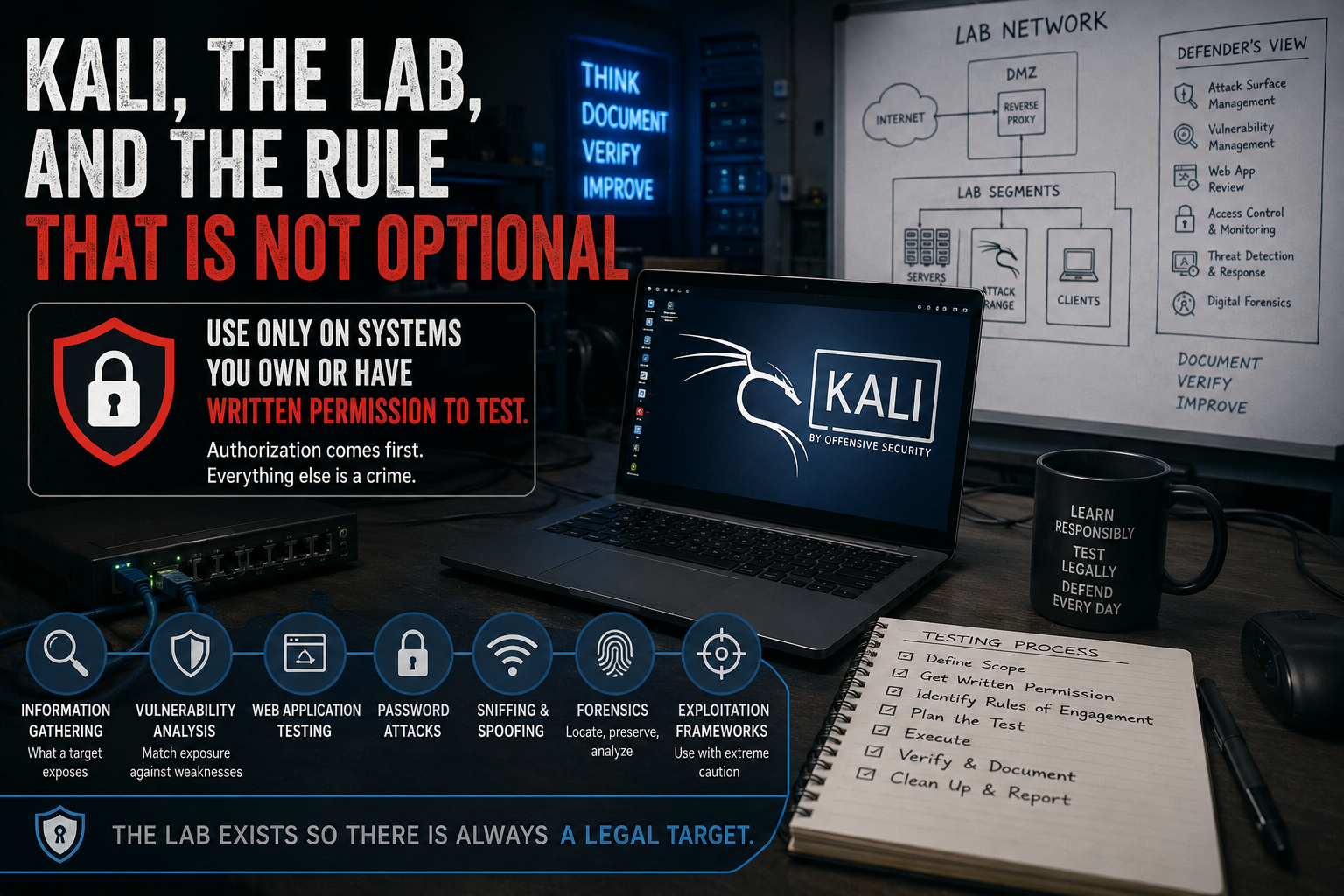
Learn Kali's menu as categories, not tool names, because tools rotate and categories persist: information gathering (what a target exposes), vulnerability analysis (matching exposure against known weaknesses), web application testing, password attacks, sniffing and spoofing, forensics, and exploitation frameworks, which is the category this post stays furthest from. When a job posting names a tool you have never heard of, the category tells you what it does. Each category also has a defender's counterpart: information gathering maps to attack-surface management, forensics to incident response. That defensive framing runs through this whole post.
Now the rule, in the body of the post and not a footnote, because students have ended careers before starting them by scanning a network they did not own: these tools are used on systems you own or have written permission to test. Full stop. Authorization comes first in any testing process because everything after it is a crime without it, and unauthorized-access laws do not carve out curiosity. The lab exists so there is always a legal target.
these tools are used on systems you own or have written permission to test.
The lab itself is a VM. VirtualBox or VMware Workstation, an official ISO or prebuilt image from kali.org only, and verify the checksum, because a tampered security distro is a special kind of irony. Two CPUs, 4 GB RAM, 25 GB of disk is comfortable. After first boot, update (sudo apt update && sudo apt full-upgrade -y), reboot, and then take a snapshot. The snapshot converts every future mistake from a disaster into a right-click. A second VM, plain Debian from debian.org, joins in the third module as your server.
The map of every Linux system
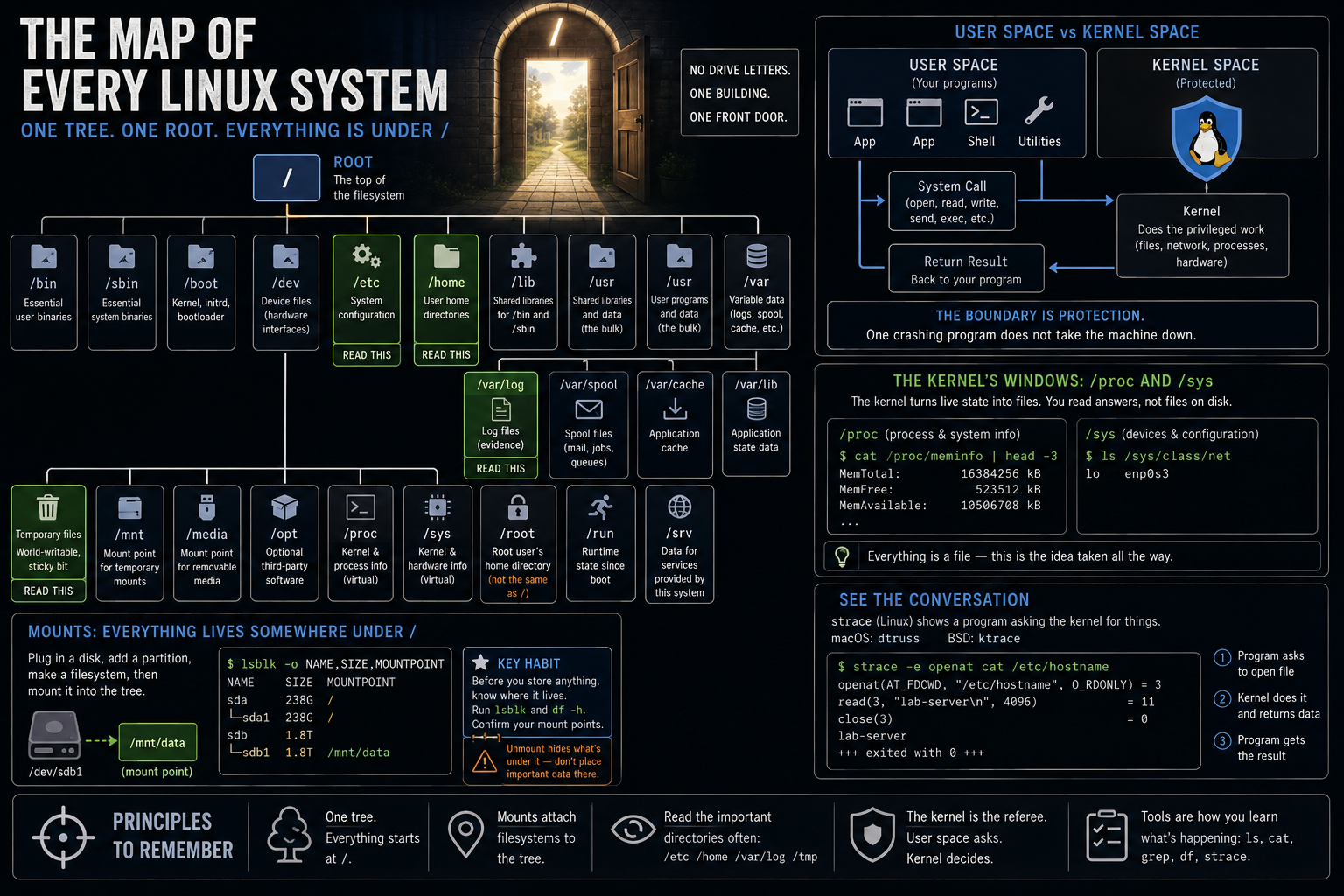
There are no drive letters. One building, one front door (/), and every room reachable by a path from it. The full hierarchy is the FHS; four rooms are the security student's beat. /etc because misconfiguration lives there. /home because user data lives there. /var/log because evidence lives there, and we grep it hard in the next module. /tmp because attackers love world-writable space, and the sticky bit that keeps users from deleting each other's files there is your first sighting of a special permission. Around them: /bin, /sbin, and /usr hold the programs, /boot holds the kernel and bootloader, /dev, /proc, and /sys are the kernel's windows, and /root is root's own home, which is not the same thing as /. That last confusion trips someone every single time.
One concept makes the windows real. Your programs run in user space and cannot touch hardware directly. To read a file, send a packet, or start a process, a program asks the kernel through a system call; the kernel does the privileged work in its own protected space and hands the result back. That boundary is why one crashing program does not take the machine down. You never walk into the kitchen; you hand your order to the waiter, and the plate comes back. /proc and /sys are the kernel turning its own live state into files: cat /proc/meminfo is the kernel answering at the moment you ask, not a file sitting on disk. "Everything is a file" is this idea taken all the way, and strace -e openat cat /etc/hostname makes the conversation visible if you want to watch a program place its orders. (strace is Linux; macOS calls its equivalent dtruss, BSD has ktrace.)
Essential commands
A blog reader scans commands and reads concepts, so the commands travel as tables. Every one of these deserves reps in your VM tonight.
| Command | What it does |
|---|---|
pwd |
Prints your working directory, your you-are-here marker |
ls -la |
Lists everything, long view, dotfiles included |
cd |
Changes directory; bare cd goes home, cd .. goes up one |
mkdir -p |
Builds a whole directory path in one go |
cp -r |
Copies; -r required for directories |
mv |
One verb for two jobs, moving and renaming |
rm |
Removes permanently; the terminal has no recycle bin |
cat, head, tail |
Dump a file, or its first or last lines; tail -f follows a growing log |
less |
The pager: / to search, q to quit; the right default past one screen |
grep |
Finds text inside files; -i ignores case, -r recurses, -v inverts |
find |
Finds the files themselves, by name, type, age, size, permissions |
ln -s |
Makes a symbolic link; plain ln makes a hard link |
man, --help |
The documentation, on the machine, for the version you actually run |
nano, vim |
Editors: nano to work, vim to survive |
A few of those rows carry weight the table cannot hold. Paths that start with / are absolute; anything else is relative to where you stand, and Linux filenames are case-sensitive, full stop. Dotfiles are hidden by convention, not by security; .bash_history has embarrassed many people who thought otherwise. rm gets the sermon once and seriously: gone means gone, so pause one beat before any rm that contains a * or a -r, list first with ls, and remember the snapshot behind you. grep is the command I most want you to keep; half of professional security work is grep with context. And find /home -mtime -1 -type f is already a forensic question: what changed on this box in the last day? The same command an instructor uses to check homework is the one an incident responder runs on a compromised host.
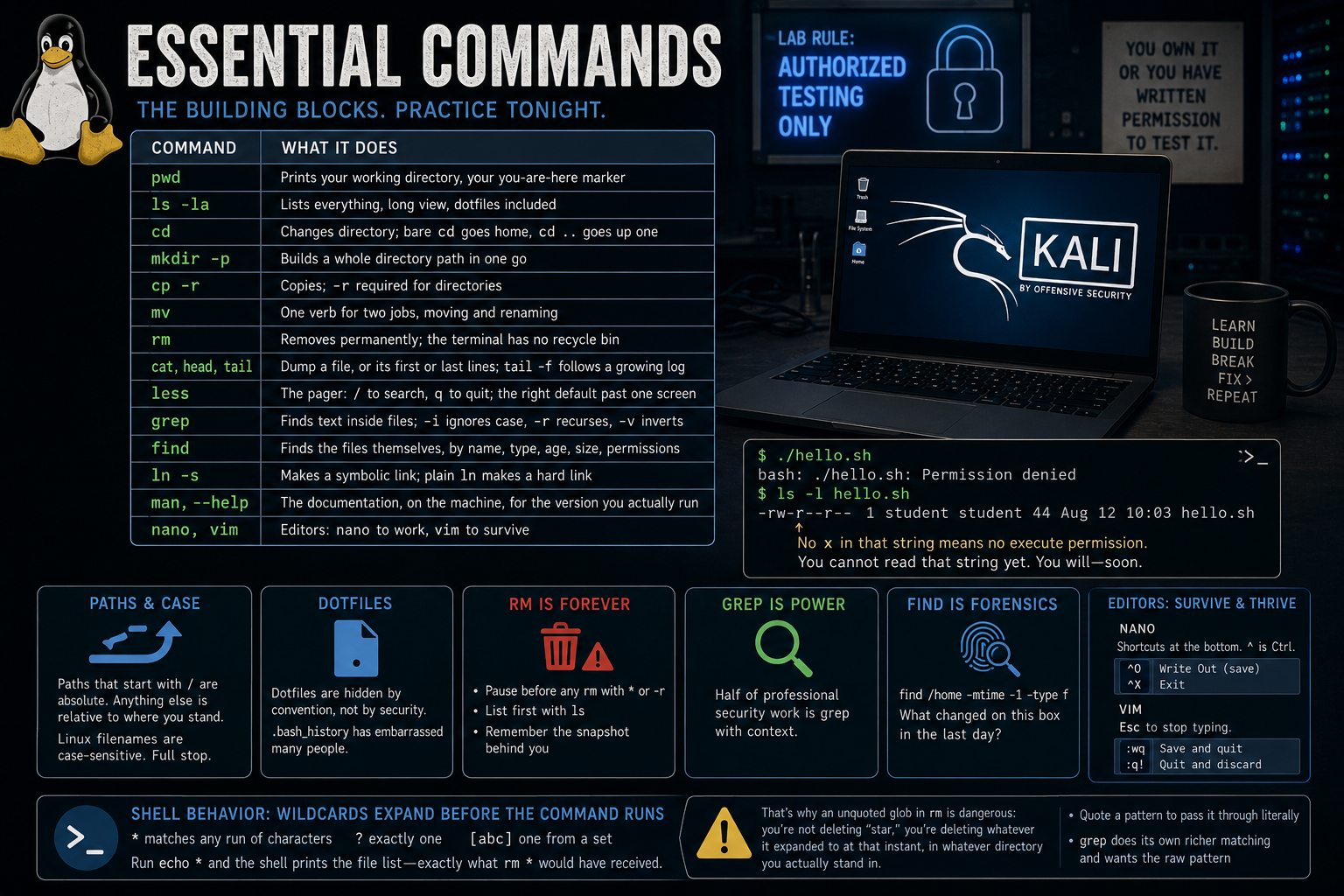
The editors row is not optional polish. Every sshd_config and crontab in this post goes through an editor on a machine with no GUI. nano prints its shortcuts at the bottom of the screen (^ means Ctrl; ^O saves, ^X exits). vim is modal, and the three commands that free you from any jam are Esc (stop typing), :wq (save and quit), and :q! (quit and discard). Practice the escape once, as a fire drill, before you land in vim by accident.
One worked example, because errors are the machine talking and reading them is the skill:
$ ./hello.sh
bash: ./hello.sh: Permission denied
$ ls -l hello.sh
-rw-r--r-- 1 student student 44 Aug 12 10:03 hello.sh
No x in that string means no execute permission. You cannot read that string yet. Two sections from now you will, and this exact failure returns in the scripting module as a two-second diagnosis.
One shell behavior underneath several rows: the shell expands wildcards before the command ever sees them. * matches any run of characters, ? exactly one, [abc] one from a set. Run echo * and the shell prints the file list, which is exactly what rm * would have received. That is why an unquoted glob in an rm is dangerous: you are not deleting "star," you are deleting whatever it expanded to at that instant, in whatever directory you actually stand in. Quote a pattern to pass it through literally; grep does its own richer matching and wants the raw pattern.
The filesystem from the inside
Here is the concept that dissolves a cluster of mysteries: a filename is a label on a shelf, and the file itself is the inode. An inode is a numbered record holding owner, permissions, timestamps, size, and pointers to the data blocks. Everything except the name. Names live in directories, which are just tables mapping names to inode numbers. That single fact explains hard links (a second name pointing at the same inode; the file lives until the last name is gone), symbolic links (a separate small file holding a path, a signpost that dangles when its target is deleted), and why mv inside one filesystem is instant (only the name table changes) while mv across filesystems is a copy and delete wearing the same verb.
$ ln notes.txt backup.txt
$ ls -li notes.txt backup.txt
1835023 -rw-r--r-- 2 doc doc 4096 Aug 12 notes.txt
1835023 -rw-r--r-- 2 doc doc 4096 Aug 12 backup.txt
Same inode number, link count 2: one file wearing two names. The model also explains a genuinely confusing failure. A disk can run out of inodes while it still has free bytes, so a mail spool or build cache spawning millions of tiny files produces "No space left on device" on a disk df -h calls half empty. df -i checks the inode count, and the fix is finding what made the files, not adding disk. This inode model is Unix-wide, though ZFS and Btrfs implement the idea differently underneath.
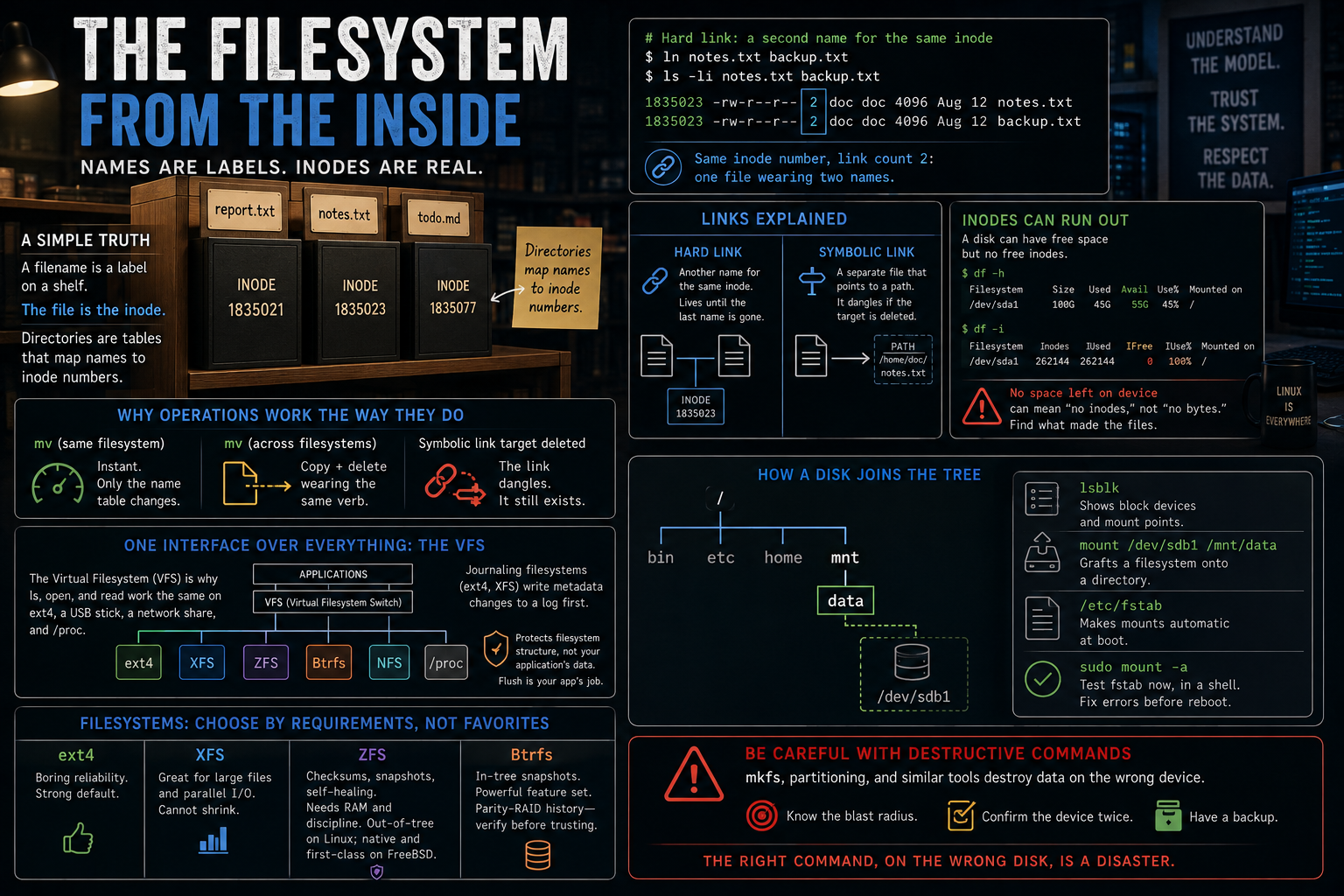
One interface sits over all of it. The VFS is why ls, open, and read work identically on ext4, a USB stick, a network share, and /proc: every filesystem implements one shared interface. Journaling filesystems like ext4 and XFS write metadata changes to a log first, so a crash mid-write replays cleanly. That protects the filesystem's structure, not the document your application never flushed; durability of your writes is a separate promise the application makes. When you choose a filesystem for the server later, it is a decision table, never a favorite: ext4 is boring reliability and the strong default, XFS handles large files and parallel I/O but cannot shrink, ZFS buys checksums and snapshots at the cost of RAM and its own discipline (and is out-of-tree on Linux, while native and first-class on FreeBSD), and Btrfs offers in-tree snapshots with a parity-RAID history you verify before trusting.
And here is how a disk joins the tree, completing the promise the map made. lsblk shows the block devices and where each is mounted. mount /dev/sdb1 /mnt/data grafts a filesystem onto a directory; while mounted, anything already in that directory hides behind it. /etc/fstab makes mounts automatic at boot, and the load-bearing habit is writing fstab entries by UUID, not /dev/sdX, because device names can reorder between boots. Test with sudo mount -a before you reboot: it replays fstab now, in a shell where a bad line is a fixable error message, instead of at boot where it hangs the machine. I deliberately do not teach mkfs or partitioning here. Formatting destroys data on the wrong device without asking, the classic disaster is the right command aimed at the wrong disk, and those tools belong to the storage material with verify-the-device-twice guardrails attached. Have the blast radius stated, the device confirmed twice, and the backup in hand before you ever run them.
The permission string, decoded
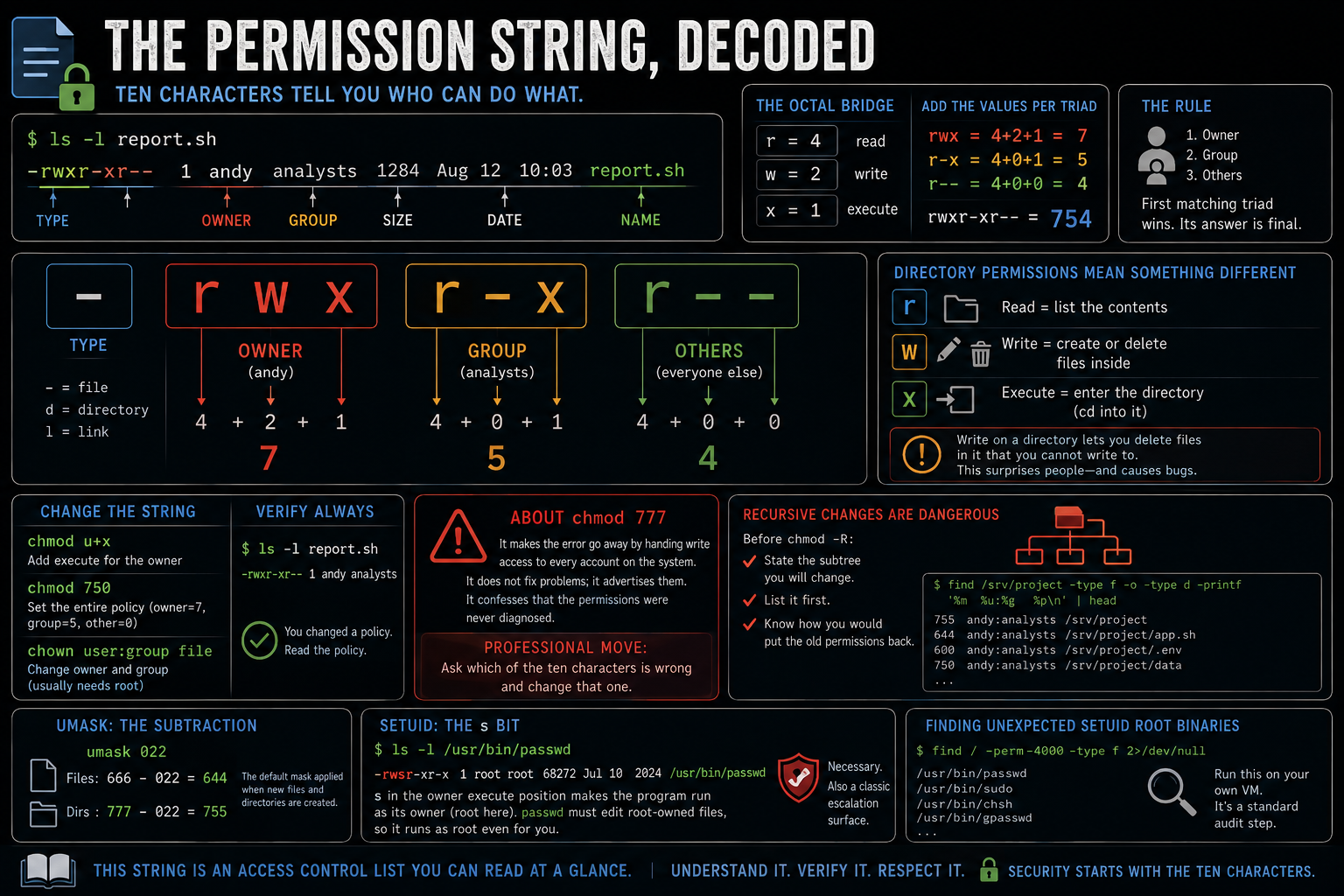
Ten characters tell you who can do what. This is the post's most load-bearing figure.
$ ls -l report.sh
-rwxr-xr-- 1 andy analysts 1284 Aug 12 10:03 report.sh
Walk it left to right. The first character is the type: - for a file, d for a directory, l for a link. Then three triads in owner, group, other order, each triad read-write-execute with a dash for absent. Here the owner (andy) has rwx, the group (analysts) has r-x, and everyone else has r--. The octal bridge: r is 4, w is 2, x is 1, summed per triad, so this string is 754, and chmod 755 stops being an incantation you paste from the internet. One question checks whether you really have it: if you are the owner and in the group, which triad applies? The owner triad. The first matching triad wins, checked in order, and its answer is final even if a later triad would grant more.
On a directory the letters shift meaning: r lists it, x enters it, and w creates or deletes inside it, which means write on a directory lets you delete files in it that you cannot write to. That surprise is a genuine source of security bugs. This string is an access control list you can read at a glance, and it is the first security model most people ever meet.
chmod changes the string (symbolic u+x edits one piece, octal 750 states the whole policy; prefer octal in scripts), chown user:group changes the names and usually needs root, and the verification habit is absolute: every chmod is followed by ls -l, because you changed a policy, so read the policy. About chmod 777, said with sympathy since every beginner reaches for it: it makes the error go away by handing write access to every account on the system, including the compromised one. It does not fix problems; it advertises them, and it confesses that the permissions were never diagnosed. The professional move is to ask which of the ten characters is wrong and change that one. Recursive chmod -R gets the same ceremony as rm with a glob: state what subtree you are about to rewrite, list it first, and know how you would put the old permissions back.
Two more pieces complete the model. umask is the subtraction applied at creation time; 022 is why new files arrive as 644 instead of 666. And setuid, the s you can see in ls -l /usr/bin/passwd, makes a program run as its owner: passwd must edit root-owned files, so it runs as root even for you. The mechanism is legitimate and necessary, and it is simultaneously a classic escalation surface, because every setuid-root binary is a door through the permission model. Finding unexpected ones (find / -perm -4000 -type f) is a standard audit step, and running it on your own VM is worth doing tonight.
The shell, and how commands compose
The terminal is the window, the shell is the program reading your keystrokes, and bash is the most common such program. The prompt itself reports user@host:directory, and reading it before every command is the habit I push hardest, because half of all mistakes are the right command in the wrong place, and in the third module, misreading the hostname while SSH'd into another box is how files die on the wrong machine. Environment variables ($HOME, $USER, $PATH) are values the shell hands to every program it starts. history, the up arrow, and Tab completion are why professionals type less than beginners, not more.
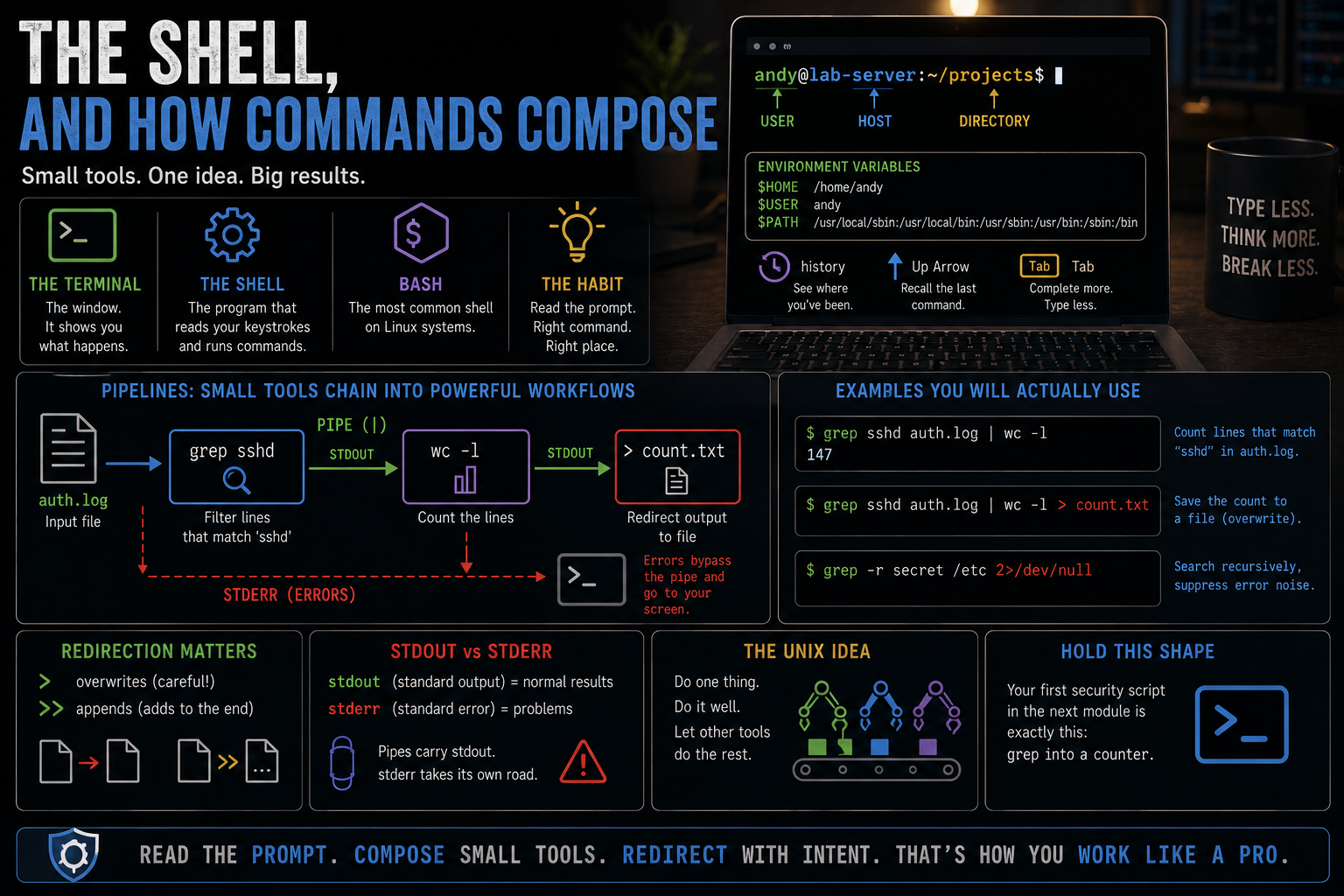
Flow diagram showing auth.log entering grep sshd, its stdout piped into wc dash l, and the result redirected into count.txt, with a separate stderr branch bypassing the pipe.
$ grep sshd auth.log | wc -l
147
$ grep sshd auth.log | wc -l > count.txt
$ grep -r secret /etc 2>/dev/null
This is the Unix idea in one picture: each tool does one job, and the pipe makes them a team. An assembly line, with each station doing one operation and the conveyor handing work along, and the finished piece dropping into a bin when you redirect. Two details bite beginners. > silently overwrites and >> appends, and the difference has destroyed real log files. And errors travel on their own stream, stderr, which skips the pipe and lands on your screen unless you send it elsewhere with 2>, which is why a pipeline can carry clean results while the errors still reach your eyes. Hold on to the shape of that first pipeline. Your first security script in the next module is exactly grep into a counter.
First reps, module one
Tonight, free, on your own VM, under an hour. Install the Kali VM from the official ISO, verify the checksum, update it, and snapshot the clean state with an honest name. Walk the tree: visit /etc, /home, /var/log, /tmp, and /usr/bin, and in each one run pwd and ls and say out loud, actually out loud, what lives there and why, because retrieval is the rep and narrating a directory's purpose is retrieval. Then run ls -ld ~ and ls -la ~ and decode the permission string on your home directory and on .bashrc, character by character, without looking at the figure. Then check yourself against it.
Administering it
Module one taught you to read the system. This module teaches you to run it, and administration and security are the same walk viewed from different sides: the admin creates the account the attacker covets, and the admin reads auth.log for troubleshooting while the analyst reads it for intrusions. Every topic here does double duty.
Users, groups, and the files that define them
Every account is a row in /etc/passwd, and Linux runs on three kinds of them: root (UID 0, total authority, and the number is what matters, not the name), regular users (humans, UID 1000 and up by convention), and system users (accounts services run as, like www-data, with a nologin shell because they exist to own processes, not to log in, which is deliberate attack-surface reduction). Read one row aloud, field by field:
$ grep student /etc/passwd
student:x:1000:1000::/home/student:/bin/bash
Name, then x where the password used to be, UID, GID, comment, home directory, shell. The x is a forty-year-old lesson in least privilege: hashes moved to /etc/shadow, readable by root only, precisely so passwd could stay world-readable without leaking them. Groups collect users so permissions can be granted once, and the middle triad from the permission string finally has its audience. One audit question to carry: could a second account have UID 0? Yes, and a non-root-named UID 0 account is a classic backdoor, which makes awk -F: '$3==0' /etc/passwd a real audit line.
Behind every login, sudo, and SSH authentication sits PAM, the pluggable authentication stack. This post only orients you to it: PAM is where account lockouts and password expiry live, and where the maddening "my password is right but login still fails" gets diagnosed. Know the name now so it is not a stranger later.
| Command | What it does | Family |
|---|---|---|
adduser / deluser |
Friendly, interactive account creation and removal | [Debian-based]; portable pair is useradd -m / userdel, everywhere |
usermod -aG group user |
Appends a user to a group | universal |
groups, id |
Show a user's group memberships | universal |
deluser --remove-home |
Removes the account and its home directory | [Debian-based] |
The -aG trap deserves its drumbeat: usermod -G sudo alone, without -a, replaces the user's entire group list, and people have locked accounts out of their own workflows this way. The offboarding note carries security weight too: deleting a user without removing the home directory leaves orphaned files owned by a recyclable UID, and stale accounts with leftover files are genuinely how real breaches begin. After every change, ask the files: groups, id, grep on /etc/passwd.
sudo, borrowed authority
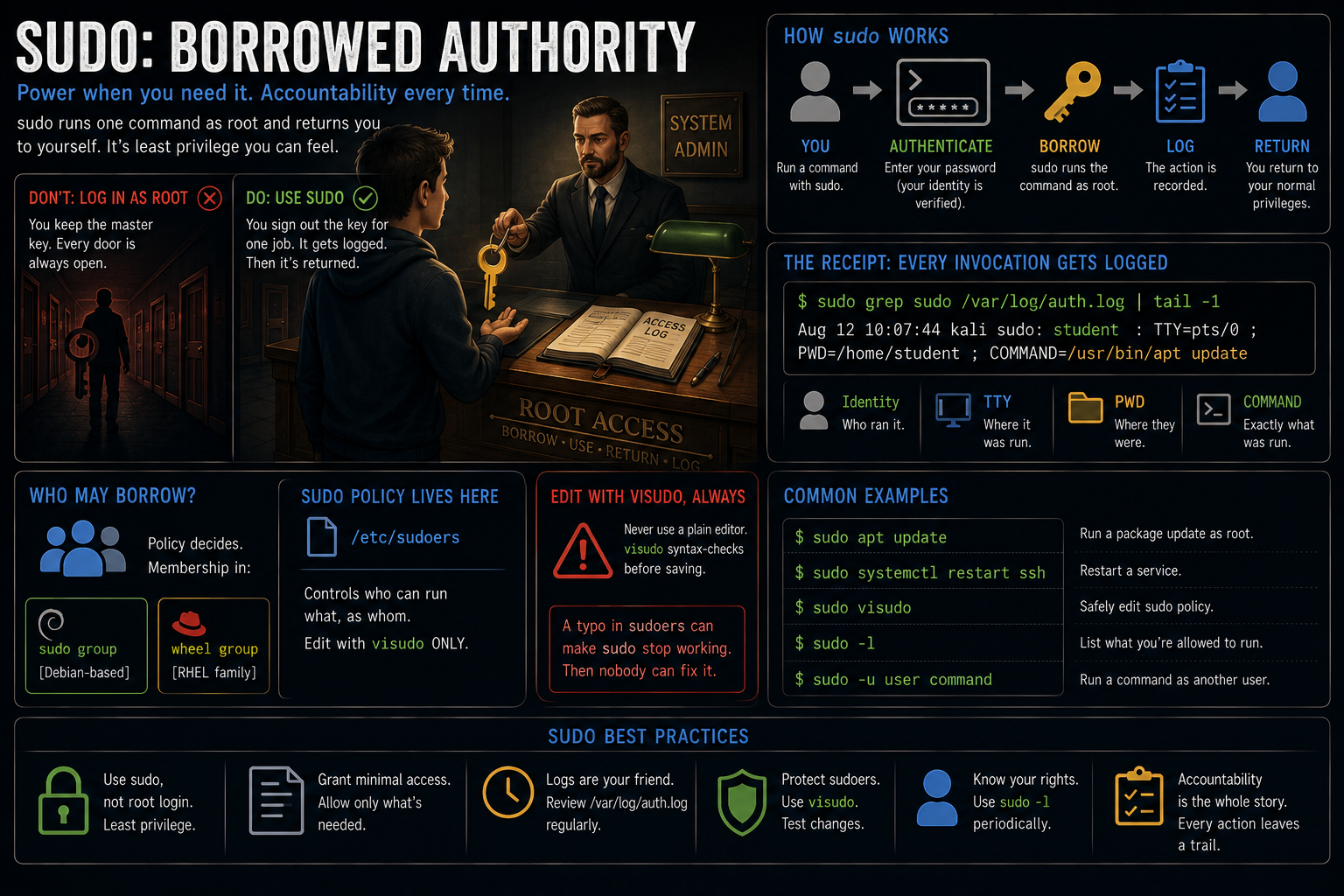
sudo runs one command as root and returns you to yourself, which against logging in as root is least privilege you can feel. The building manager does not hand you the master key permanently; you sign it out for one job, and the logbook records the loan. Who may borrow is policy: membership in the sudo group [Debian-based; wheel on the RHEL family], defined under /etc/sudoers. And every invocation leaves a receipt:
$ sudo grep sudo /var/log/auth.log | tail -1
Aug 12 10:07:44 kali sudo: student : TTY=pts/0 ;
  PWD=/home/student ; COMMAND=/usr/bin/apt update
Identity, terminal, working directory, exact command. That one line is the whole security story of sudo: accountability, and the log line an analyst reads after an incident. Edit sudo policy with visudo only, never a plain editor, because visudo syntax-checks before saving and a single typo in sudoers can make sudo itself refuse to run, at which point nobody can fix the file that broke sudo.
Packages, and updates as hygiene
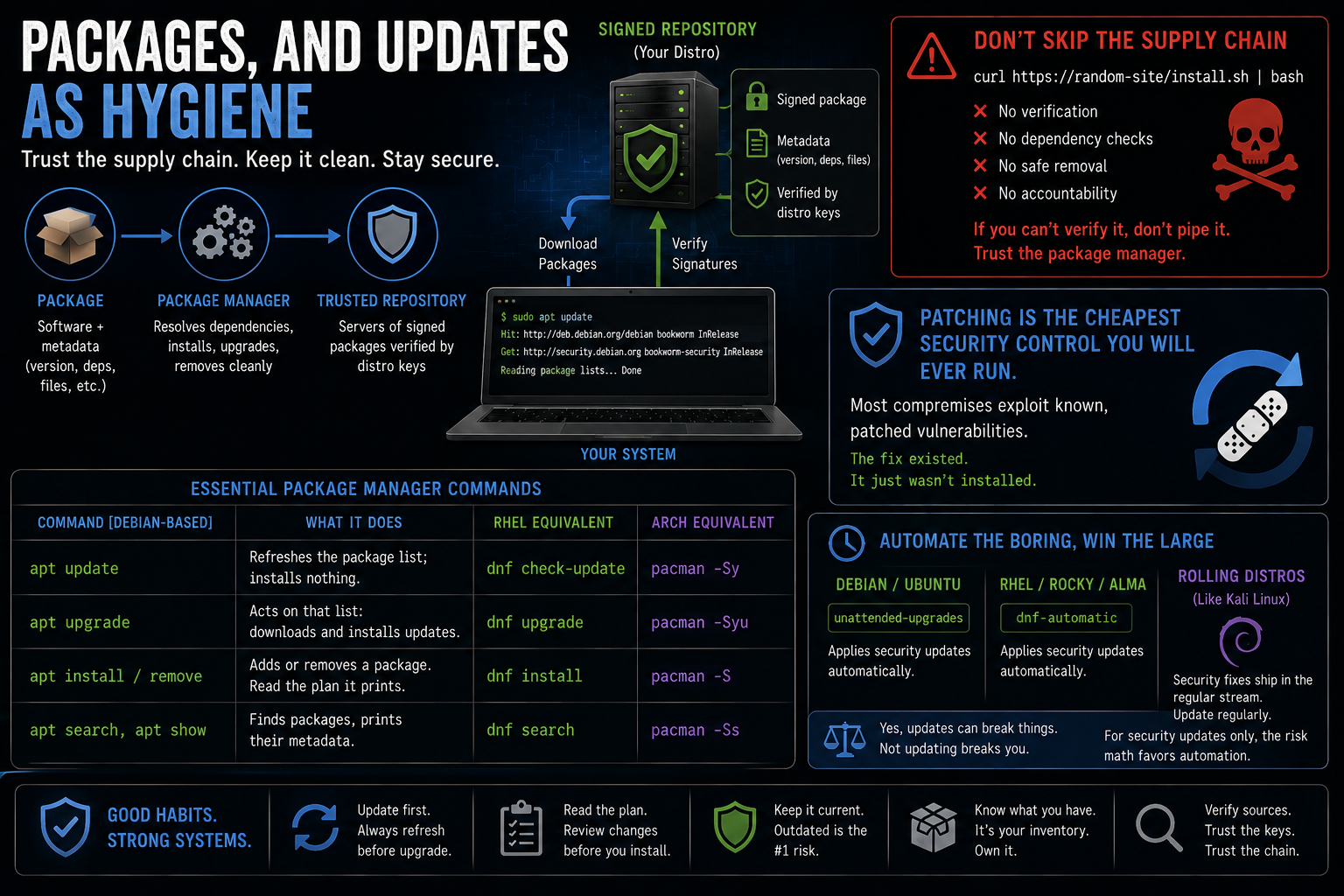
A package manager is a supply chain you have decided to trust. A package is the software plus metadata (version, dependencies, file locations), the manager resolves dependencies and can cleanly remove, and repositories are servers of signed packages your distro's keys vouch for. Installation is a trust decision made once and verified cryptographically every time, which is the exact opposite of piping a random URL into bash, a pattern that skips every check the package system runs and one you should distrust on sight even when a project's own docs suggest it. The dependency metadata is also an inventory: a machine that knows what is installed can answer "are we exposed to this CVE," and one that does not, cannot.
| Command [Debian-based] | What it does | RHEL / Arch equivalent |
|---|---|---|
apt update |
Refreshes the package list; installs nothing | dnf check-update / pacman -Sy |
apt upgrade |
Acts on that list | dnf upgrade / pacman -Syu |
apt install / remove |
Adds or removes a package; read the plan it prints | dnf install / pacman -S |
apt search, apt show |
Finds packages, prints their metadata | dnf search / pacman -Ss |
Update and upgrade are a rhythm, not a redundancy: update fetches the new catalog, upgrade goes shopping from it, and running upgrade against a stale catalog buys old stock. Now the security thread, stated as plainly as I know how: patching is the cheapest security control you will ever run. Most compromises exploit known, patched vulnerabilities; the fix existed, it just was not installed. The only question is whether a human or a timer applies updates, and for servers the standard answer is unattended-upgrades [Debian-based; dnf-automatic on the RHEL family] applying security updates automatically. The honest trade-off: automatic updates occasionally break things, and not updating reliably breaks you, and for security-updates-only the risk math favors automation on almost every server. Rolling distros like Kali fold security fixes into the general stream, so updating regularly is the patch policy.
From power button to login prompt
Nothing else in a basics course explains what happens before the login prompt, and the payoff is that "it won't boot" stops being a symptom. Which stage it stopped at is the diagnosis. Four stages bring the machine up [Debian-based where marked]: firmware (UEFI finds a boot target), bootloader (GRUB loads the kernel), kernel plus initramfs (a tiny root filesystem mounts, then pivots to the real disk), and init, which on nearly every modern distro means systemd becoming PID 1, the first process and parent of all the rest.
Each stage fails in its own place with its own signature. A black screen or "no bootable device" is firmware. A grub rescue> prompt is the bootloader. A kernel panic, classically "VFS: unable to mount root fs," means the initramfs lacks the driver for the disk controller. A hang on "a start job is running for..." is systemd, and it is almost always a bad fstab line pointing at something that no longer exists, which is exactly why the mount section told you to run mount -a before rebooting. Recovery has a fixed opening move: at the GRUB menu press e and append systemd.unit=rescue.target for a root shell, and in emergency mode the first command is always journalctl -xb, then systemctl --failed. GRUB's config is generated, not hand-edited: change /etc/default/grub, then update-grub [Debian-based] or grub2-mkconfig [RHEL-family]. For Unix honesty: BSD boots its loader into the rc script system and Solaris into SMF, the same four-stage shape with different parts.
Services
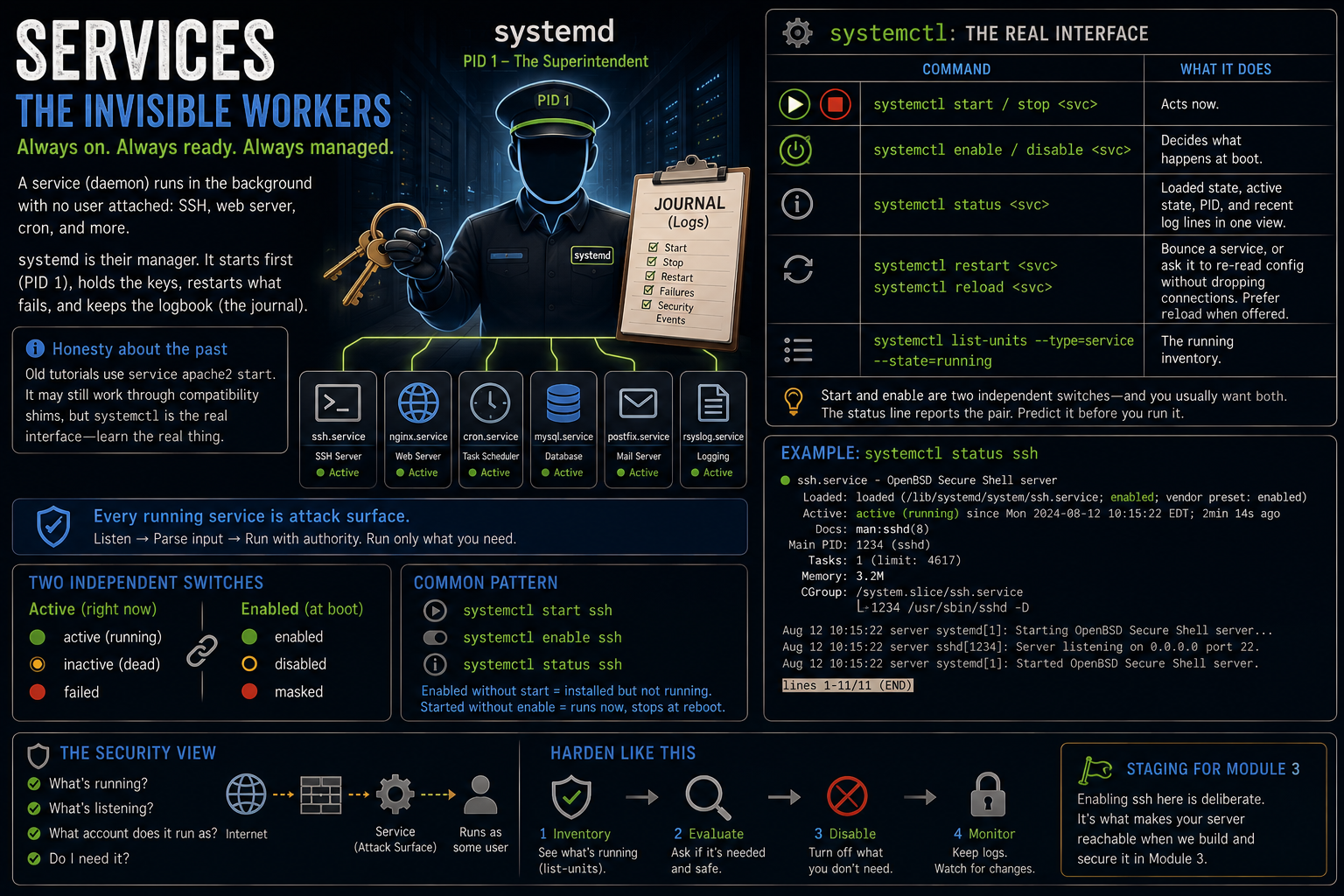
A service, or daemon, runs in the background with no user attached: the SSH server, the web server, cron itself. systemd is their manager, and because the boot chain ends by starting it as PID 1, it is the parent of everything, the building superintendent who is first in, holds keys to every room, restarts the boiler when it dies, and keeps the logbook. That logbook is the journal, two sections from now. Deprecation honesty, same shape as ifconfig's later: decade-old tutorials say service apache2 start and it often still works through compatibility shims, but systemctl is the real interface and the one worth wiring into your hands.
| Command | What it does |
|---|---|
systemctl start / stop |
Acts now |
systemctl enable / disable |
Decides what happens at boot |
systemctl status |
Loaded state, active state, PID, and recent log lines in one view |
systemctl restart / reload |
Bounces a service, or asks it to re-read config without dropping connections; prefer reload when offered |
systemctl list-units --type=service --state=running |
The running inventory |
Start and enable are two independent switches, and you usually want both; the status line reports the pair, so predict what it will say before you run it. Security reads this table differently and asks the same question: every running service is attack surface. It listens, it parses input, it runs with some account's authority, so "what's running" and "what's exposed" are the same question, and disabling what you do not need is hardening's first move. Enabling ssh here is deliberate staging: it is what makes your server reachable in module three.
Logs, where evidence lives
Walk /var/log once and you will never wonder where to look [Debian-based paths]. auth.log holds every login, sudo, and authentication event [RHEL family writes /var/log/secure; Arch keeps it in the journal only]. syslog and kern.log carry general system and kernel messages. dpkg.log records every package installed or removed with timestamps, a change history for free, and "what changed on this machine recently" is both the troubleshooter's and the responder's first question. Log lines share a grammar: timestamp, host, process and PID, message. Learn it once and you can read them all.
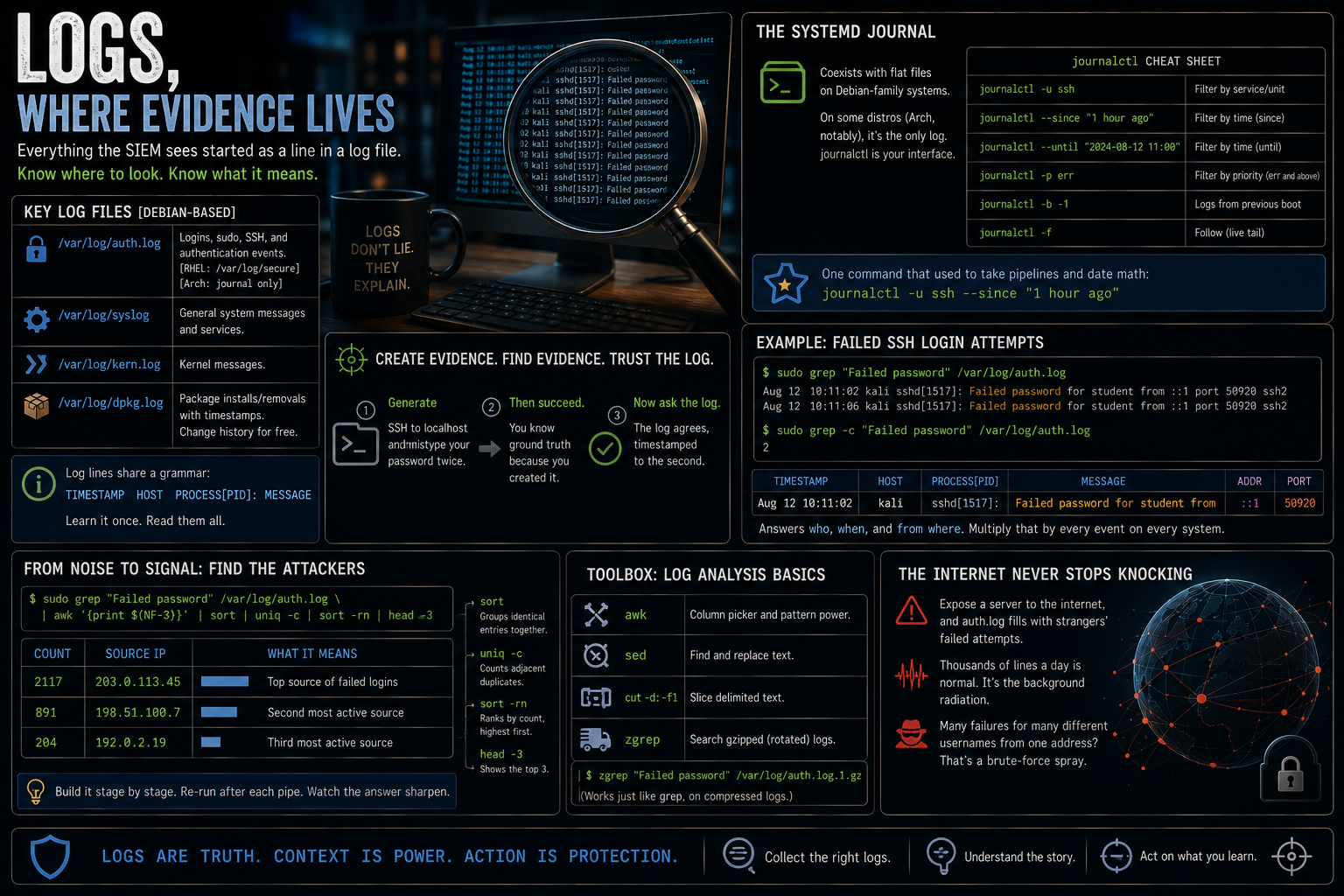
The systemd journal coexists with those flat files on Debian-family systems, and journalctl is the query interface: -u unit filters by service, --since and --until by time, -p err by priority, -b by boot, -f follows live. journalctl -u ssh --since "1 hour ago" answers in one line what used to take a grep pipeline and date math, and on some distros, Arch notably, the journal is the only log, which makes journalctl the portable skill. One pointed sentence to carry into the SOC material: everything the SIEM sees started as a line in a log file here. Every dashboard, alert, and correlation rule is downstream of files like these being shipped off the host, and From Log to Incident picks up exactly there.
Now the demo I refuse to cut, promoted here in full, because generating your own evidence and then finding it collapses the abstraction. SSH to localhost and mistype your password twice, on purpose, then succeed. You know ground truth because you created it. Now ask the log:
$ sudo grep "Failed password" /var/log/auth.log
Aug 12 10:11:02 kali sshd[1517]: Failed password for student from ::1 port 50920 ssh2
Aug 12 10:11:06 kali sshd[1517]: Failed password for student from ::1 port 50920 ssh2
$ sudo grep -c "Failed password" /var/log/auth.log
2
The log agrees, timestamped to the second: two failures, both yours. Read the line in its grammar, timestamp, host, process and PID, then the event, an address, a port. That line answers who, when, and from where, and multiplied by every event on every system it is the raw material of all security monitoring. Now scale the thought: the moment a server has a public address, auth.log fills with strangers' failed attempts, thousands of lines a day, the background radiation of the internet. Alarming the first time, information forever after. And ask yourself what many failures for many different usernames from one address would look like. You just named a brute-force spray before anyone taught it to you.
Counting is not enough at that scale, so here is the single most useful log-analysis pipeline you will learn. sort | uniq -c is the counting idiom (uniq only sees adjacent duplicates, so the sort is required, not optional), and sort -rn ranks the counts:
$ sudo grep "Failed password" /var/log/auth.log \
  | awk '{print $(NF-3)}' | sort | uniq -c | sort -rn | head -3
   2117 203.0.113.45
    891 198.51.100.7
    204 192.0.2.19
Top sources of failed logins, ranked: the exact question a defender asks, answered in one line. Build it stage by stage, re-running after each pipe, and watch the answer sharpen from a wall of lines to three addresses. At this depth, awk is the column picker, sed is find-and-replace, cut -d: -f1 slices delimited text, and the full treatment lives in the scripting materials. Rotated logs arrive gzipped, and zgrep runs this same pipeline straight against compressed evidence without unpacking it.
Processes, signals, and the tree
Here is what ps and top are actually showing you. A process is a running program with its own memory, an owner, and a PID, and every process is started by another, so they form a tree rooted at PID 1. A program is the file on disk; a process is one running instance of it, which is why nginx can be one program and five processes. New processes are made by fork (the parent duplicates itself) then exec (the copy loads the new program), and that one mechanism explains three things at once: why a child inherits its parent's environment, open files, and working directory; why export works; and why cd must be built into the shell, because an external cd would change its own directory and then exit, leaving yours untouched. pstree -p draws the tree, and ps -o pid,ppid,comm -p $$ shows your own shell's parent, usually sshd or a terminal, with the chain running all the way up to PID 1.
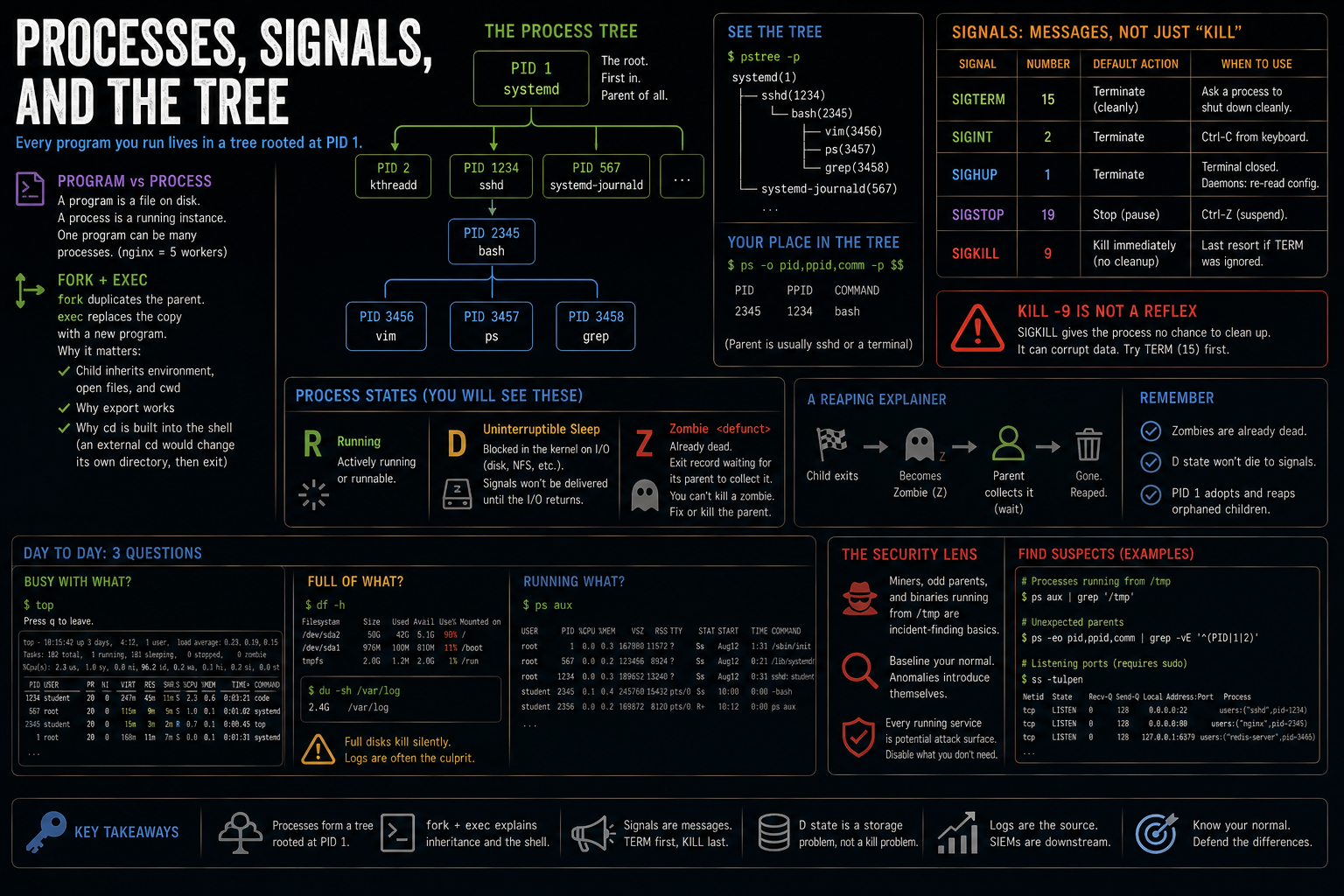
kill is the wrong name for what it does: it sends a signal, a short message to a process, and most signals are not fatal. SIGTERM (15), what plain kill sends, asks a process to shut down cleanly, flushing buffers and closing files. SIGKILL (9) tells the kernel to remove it with no chance to clean up, which is exactly why -9 can corrupt data a clean shutdown would not; it is the last resort after TERM was ignored, never the reflex first move. Ctrl-C is SIGINT, Ctrl-Z suspends, and closing your terminal sends SIGHUP, which daemons repurpose as "re-read your config." Two honest edge cases save you real time. A process in state D, uninterruptible sleep, is blocked in the kernel on I/O, usually a hung NFS mount or a dying disk, and no signal is delivered until the I/O returns, so escalating to harder -9s does nothing; that is a storage problem, not a kill problem. And a zombie (Z, <defunct>) is already dead, an exit record waiting for its parent to collect it. You cannot kill what is dead; you fix or kill the parent, and PID 1 adopts and reaps the record.
Day to day, three questions cover most monitoring: busy with what (top, and press q to leave), full of what (df -h for disks, du -sh for one directory, and full disks are the classic silent killer with logs often the culprit), and running what (ps aux). The security read on the process list: miners, odd parents, and binaries running from /tmp are bread-and-butter incident findings. The underlying instinct is baseline: know your machine's normal, and anomalies introduce themselves.
The most misread number in Linux
$ free -h
        total  used  free  buff/cache  avail
Mem:     31Gi  4.2Gi 1.1Gi     26Gi     26Gi
Every new admin reads that and panics: the RAM looks full. It is not, and this is the most common Linux misconception there is. free is RAM doing nothing. buff/cache is RAM doing useful work, holding recently used file data so reads come from memory instead of disk, and the kernel hands it back the instant a real allocation needs it. The kernel caches with idle RAM because unused RAM helps no one. The number that answers "how much can I actually use" is available, and a box with 1.1 Gi free and 26 Gi available is healthy, not starving. Dropping caches to "free memory" is a benchmarking trick, not a fix; do it and the box is simply slower, which is the whole lesson. Killing processes to free the cache is treating the performance as a leak.
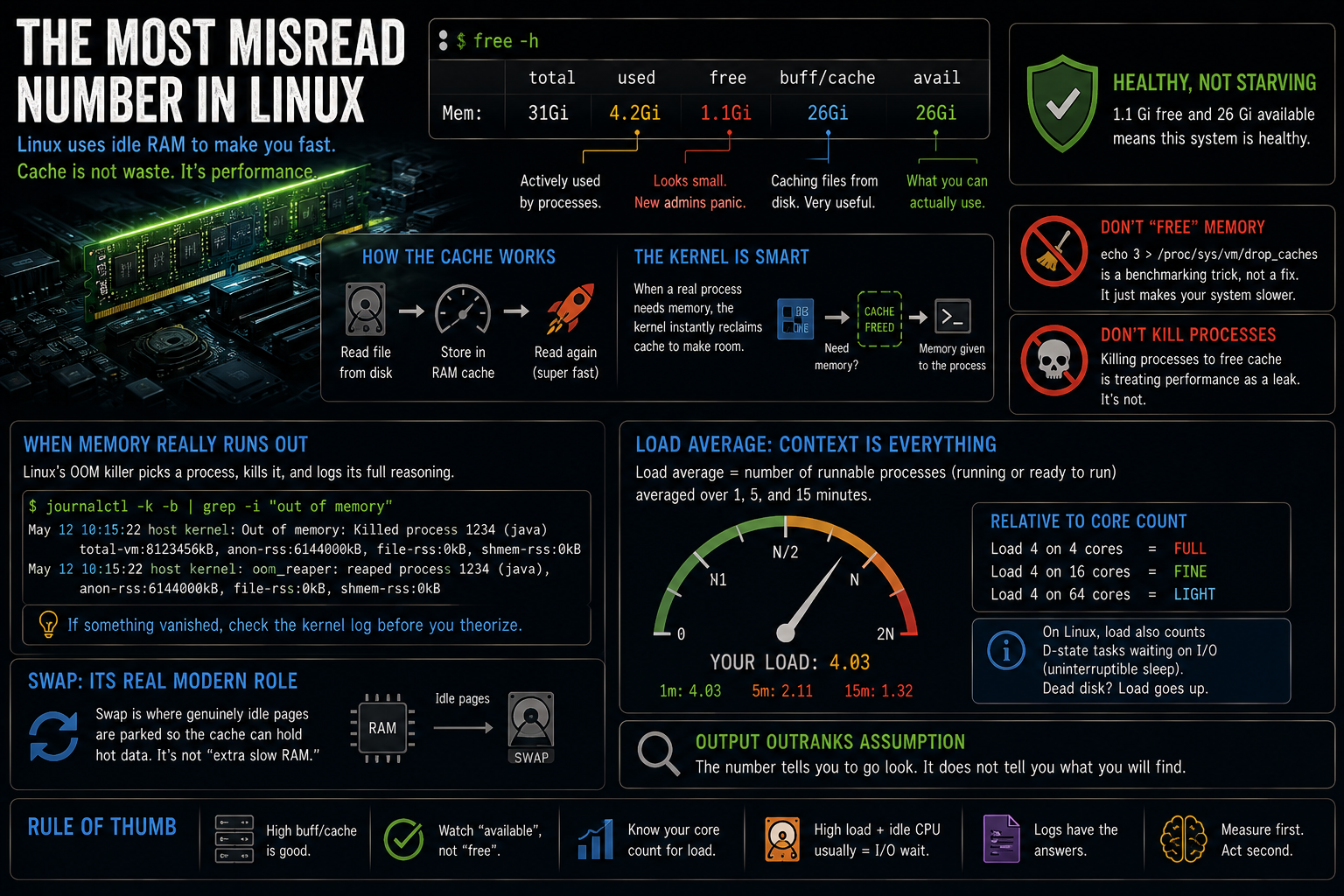
When memory genuinely runs out, Linux's OOM killer picks a process, kills it, and logs its full reasoning to the kernel ring buffer. If something vanished from your server without a trace, journalctl -k -b | grep -i "out of memory" is where the answer lives, before any theorizing. Swap's real modern role corrects another myth: it is somewhere to park genuinely idle pages so the cache can hold hot data, not "extra slow RAM."
The load average deserves the same honesty, because it is the number people quote most and understand least. It is the count of runnable processes averaged over one, five, and fifteen minutes, and "high" is relative to core count: a load of 4 on a 4-core box is full, on a 16-core box it is a Tuesday. On Linux specifically, the load average also counts those D-state tasks waiting on I/O, which is why a box can sit at load 8 with idle CPUs and one dead disk. Output outranks assumption. The number tells you to go look; it does not tell you what you will find.
Scripting, the multiplier
A script is a skill you only have to perform once. Everything this module taught by hand, a script does at scale: the loop that creates fifty accounts from a roster, the pipeline that reads a log faster than eyes can, the scheduled job that does the boring thing nightly. A shell script is nothing exotic, just the commands you have been typing, saved to a file, run in order, and automation is also consistency: the script does it the same way at 3 a.m. as at 3 p.m., which is more than can be said for us.
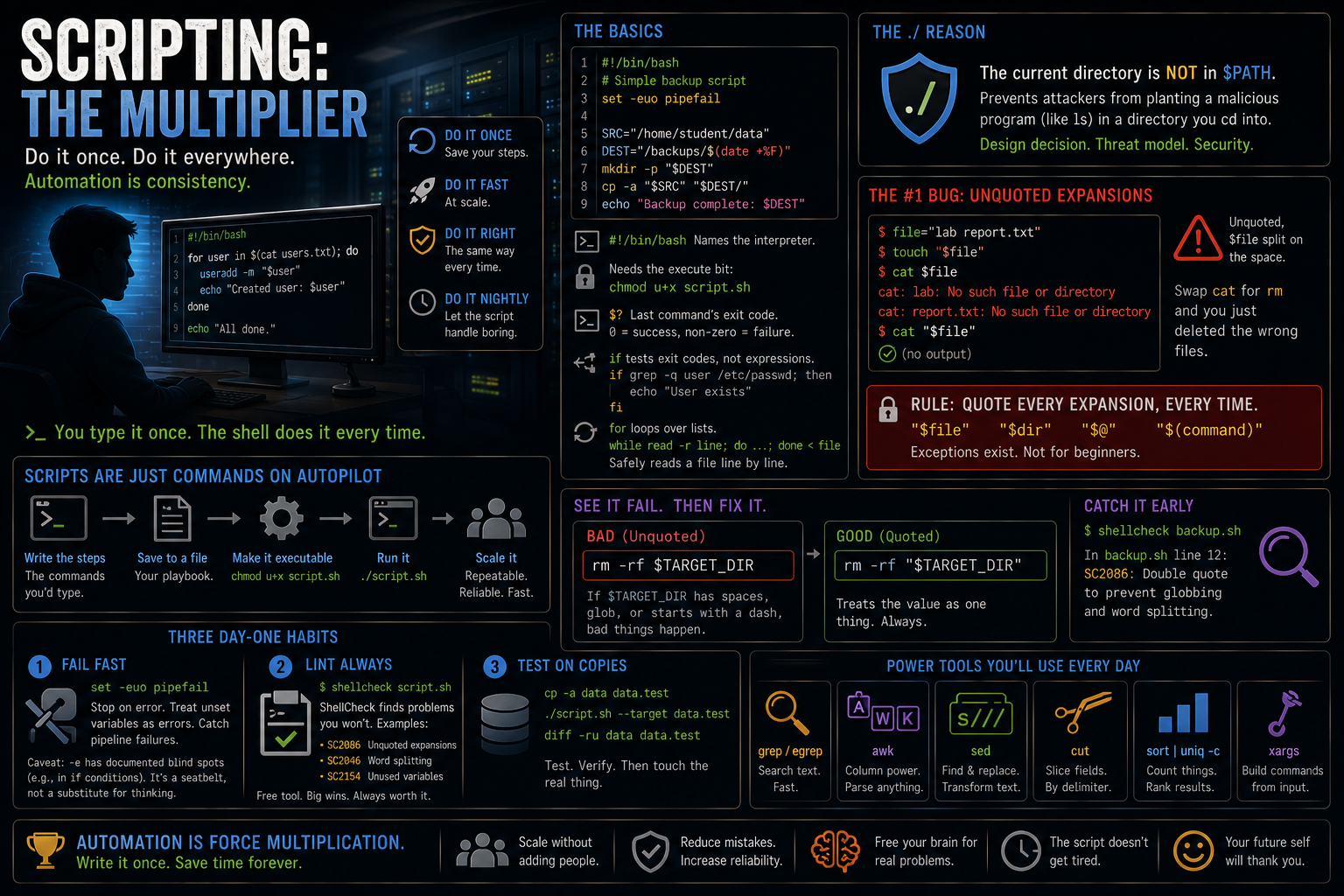
The mechanics compress well. #!/bin/bash on line one names the interpreter. The file needs the execute bit, and you can now read exactly why ./hello.sh fails before chmod u+x and works after. The ./ exists for a security reason worth giving in full: the current directory is deliberately absent from $PATH, so an attacker who can write to a directory you cd into cannot plant a malicious ls that shadows the real one. That is a design decision with a threat model, and it is also why PATH hijacking works when someone breaks the design. $? holds the last command's exit code, 0 for success and anything else naming a failure, and if does not test expressions, it runs commands and reads their codes, which is why if grep -q user /etc/passwd needs no brackets at all. for loops over lists, and while read -r line; do ...; done < file is the safe idiom for walking a file line by line.
One defect class outranks all others, so watch it fail:
$ file="lab report.txt"
$ touch "$file"
$ cat $file
cat: lab: No such file or directory
cat: report.txt: No such file or directory
$ cat "$file"
Unquoted, $file split on the space and cat received two words. Swap cat for rm and unquoted expansion deletes files you never named, and this is the number-one defect class in shell scripts, including scripts running as root in production right now. The rule is absolute on purpose: quote every expansion, "$file", every time. The exceptions exist and are not worth a beginner's attention.
Three day-one habits, installed before the habit has to save you. First, set -euo pipefail at the top of every script makes it stop at the first surprise instead of barreling on, with the honest caveat that -e has documented blind spots (commands inside if conditions, for one), so it is a seatbelt, not a substitute for thinking. Second, ShellCheck is non-negotiable: shellcheck backup.sh flags SC2086, the unquoted expansion, on an rm -rf $TARGET_DIR line before the script ever runs, and if a free tool catching that bug in one second does not sell linting, nothing will. Third, test on copies: cp the data, run against the copy, diff the result. Destructive scripts earn trust before touching originals.
Work it through: the inherited server
You inherit a server nobody documented. First five commands you run, in order, and every command must answer a stated question. Five only, because scarcity forces priorities, and the order is the argument.
Work it before reading on. Here is how the walk-back usually goes. Strong candidates: whoami and id (who am I on this box, and what may I do), cat /etc/os-release and uname -a (what is this machine), df -h (am I about to run out of disk, because a full disk turns every other step into a fire), systemctl list-units --state=running or ss -tlnp (what is this box for, asked as what it runs or what it exposes), last or w (who else is here), and ps aux. Someone always proposes history | head, and it deserves its defense: someone else's history is reconnaissance, a map of what the last admin cared about, and whether to trust it is a genuinely good argument. There is no canonical answer. What matters is questions-before-commands reasoning: every command earns its slot by the question it answers, and identity before inventory, inventory before judgment, is a defensible spine. Then the twist: same server, but you suspect compromise. Watch your own list reorder toward evidence preservation, reading before touching, and suddenly find / -mtime -1 moves up and anything that writes moves out.
First reps, module two
Three reps, one story: create an identity, find its evidence, automate the finding. Create a user with adduser, grant sudo with usermod -aG sudo (mind the -a), log in as them, run one sudo command, log out, then delete the account cleanly, home directory too. Read your own auth.log for the login and the sudo you just performed, and find the exact lines, reading them in the grammar. Then write the ten-line script: count failed logins in auth.log and print the total with a timestamp. set -euo pipefail at the top, ShellCheck before you run it, and a working version is grep -c piped into an echo with $(date); ten lines is permission to be unclever. Keep the script. Module three schedules it, and that thread is the unit in miniature: the log you grep becomes the log your first script parses becomes the job your first timer runs nightly.
Working outward
The framing sentence for this whole module: none of this makes you a network engineer; all of it makes you the Linux administrator a network engineer can work with. Each tool gets exactly enough protocol depth to use it well and read its output honestly, and the full networking treatment lives in its own materials. Your second VM, plain Debian, comes online here as the server.
The toolset
| Command | What it does |
|---|---|
ip -br addr |
Every interface, its state, its addresses; the /24 is the subnet mask in CIDR form |
ip route |
The machine's decision table: local subnets delivered directly, everything else to the default gateway |
ping -c 3 host |
Sends ICMP echo requests and times the replies; gaps in the sequence mean loss |
traceroute -n host |
Sends probes with increasing TTLs so each router gives itself away as it discards them |
dig name +short |
Asks DNS directly; bare dig shows the working, @server asks a resolver you choose |
ss -tlnp |
Who is listening: TCP, listening, numeric, with process; say it as one word |
curl -I url |
Just the response headers: is it up, and what is it serving |
wget url |
Downloads to a file, resumes, mirrors |
sudo tcpdump -i eth0 -c 4 port 53 |
Captures packets, filtered, capped; the ground truth under every packet tool |
Deprecation honesty, stated once and meant: ip replaced ifconfig and ss replaced netstat years ago, older tutorials notwithstanding. Modern Debian-family installs often omit ifconfig entirely, and the standard is recognize, don't write: you will still meet the old output constantly in decade-old writeups and on ancient boxes, so read it fluently and build habits on the modern tools.
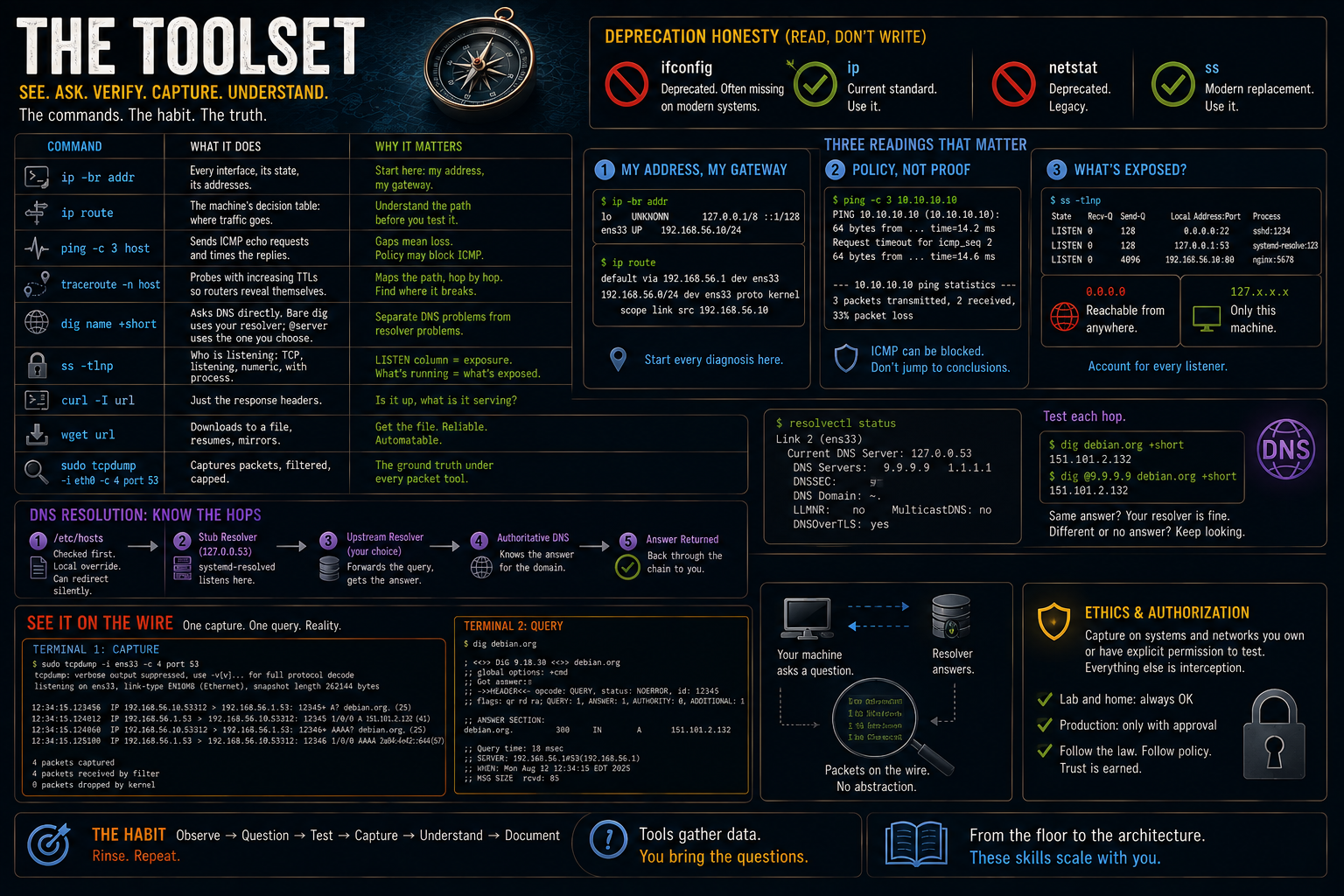
Three readings from that table matter more than the flags. First, ip addr plus ip route answer "my address, my gateway," which is the start of every connectivity diagnosis. Second, a failed ping never equals a dead host by itself; firewalls drop ICMP all the time, so silent traceroute hops and blocked pings are policy, not proof of failure, and that is your first taste of reading network output with policy in mind. Third, and this is the module's quiet centerpiece, the LISTEN column of ss -tlnp is an exposure statement: 0.0.0.0 means every interface, reachable from the network, while 127.x means this machine only. Module two's "what's running" and this module's "what's exposed" are the same question. Run it on your own VM and account for every listener; an unaccountable one is the day's best lesson.
Resolution deserves its own minute because your machine's answers do not come from where you think. /etc/hosts is checked before DNS, a local override, which makes it both a handy lab trick and a classic malware target: because it wins before DNS, an edited hosts file can silently redirect a bank's name, and checking it is an incident-response reflex. On a modern Debian-family system, systemd-resolved may run a stub resolver at 127.0.0.53, which is why dig reports that surprising SERVER line and why /etc/resolv.conf may be a symlink into systemd's runtime files, and why hand-editing it never sticks. The diagnostic habit is resolvectl status, and the Linux skill is being able to name each hop of a lookup (hosts file, stub, upstream) and test each one. dig @9.9.9.9 name separates "DNS is broken" from "my resolver is broken." The mechanics underneath (recursion, caching, record types, TTLs) get their full treatment in Names, Addresses, and Time; here dig is the working habit.
Then one capture, at first-contact depth. Two terminals: tcpdump waiting in one, dig debian.org in the other, and the moment the capture prints your own query is reliably the best gasp of the course. The abstraction "DNS query" becomes visible bytes: your address and port asking the resolver an A? question, and the resolver answering with the address dig printed. Wireshark is this with a GUI, and the packet-capture discipline builds from here. The ethics callback is brief and firm: capture on your own machine and lab, always; other people's traffic is interception, and the authorization standard from module one applies verbatim.
SSH done properly
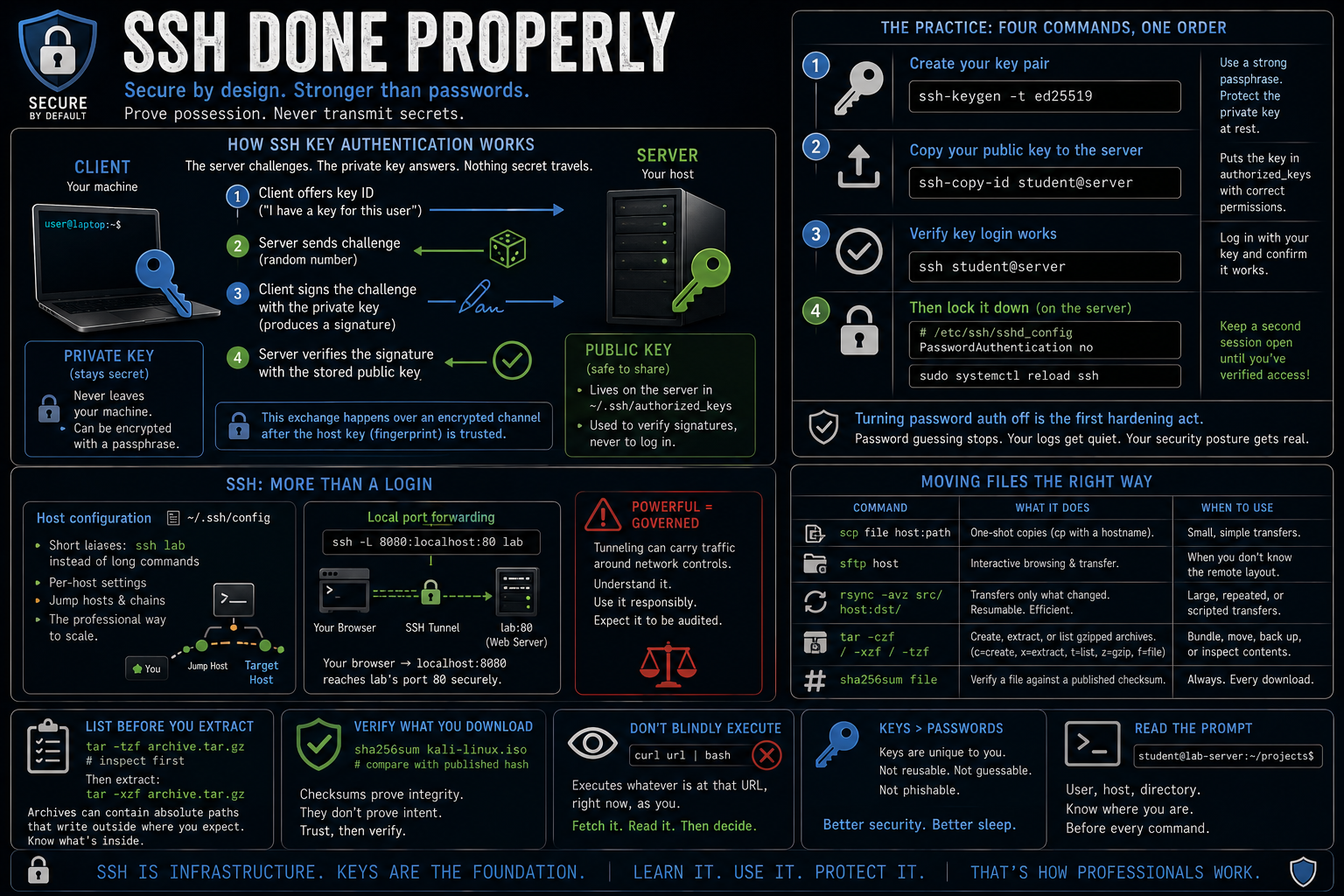
Diagram of SSH key authentication: the client offers a key ID, the server sends a random challenge, the client signs it with the private key that never leaves the machine, and the server verifies the signature against the stored public key.
Passwords travel (encrypted, but guessable forever). Key authentication proves possession without transmission, and that asymmetry is the whole argument. The server keeps a wax impression of your signet ring, the public key, harmless to publish, and challenges you to stamp fresh wax, a random number. Only the ring itself, the private key, can make the mark, and the ring never leaves your hand. Two sentences of protocol honesty: the channel is already encrypted before this exchange happens (that is the host-key step, where a first connection asks you to trust a fingerprint), and the figure draws only the user-authentication exchange. One misconception to kill now: the private key never travels, and any workflow that involves emailing it or copying it to a server "to make it work" is wrong.
The practice is four commands and one non-negotiable order of operations. ssh-keygen -t ed25519 makes the pair, and a passphrase encrypts the private key at rest, so use one. ssh-copy-id student@server places your public key in the server's authorized_keys with permissions handled correctly. Verify the key login works. Then, and only then, on the server, set PasswordAuthentication no in /etc/ssh/sshd_config and sudo systemctl reload ssh, with a second session held open the whole time as the escape rope in case the edit went wrong. Turning password auth off is the first hardening act on any server you own: guessing attacks against your box die that minute. And your module-two skill now measures your module-three hardening. Run the failed-password grep after a day exposed and watch the noise be gone; password failures stop, key acceptances remain.
Beyond the login, two abilities turn SSH from a login into infrastructure. ~/.ssh/config stores per-host settings so ssh lab replaces the whole ssh student@192.168.56.20, and it scales to dozens of hosts and jump-host chains, the standard way you reach machines with no direct route from your desk. Local port forwarding (ssh -L 8080:localhost:80 lab) threads a private wire through the encrypted connection, so a browser on your box reaches the server's port 80 without a firewall port ever opening for it. The honest caution rides along: tunneling can carry traffic around network controls, which is precisely why it is governed on managed networks, and a security person should understand it from both sides.
Moving files rides the same keys:
| Command | What it does |
|---|---|
scp file host:path |
One-shot copies, cp with a hostname in it; fine for small tosses |
sftp host |
Interactive browsing when you don't know the far side's layout |
rsync -avz src/ host:dst/ |
Transfers only what changed, survives interruption; the honest choice for anything repeated, large, or scripted |
tar -czf / -xzf / -tzf |
Creates, extracts, or lists a gzipped archive; the flags read as a sentence |
sha256sum file |
Verifies a download against the published checksum |
One worked habit from that table: list before you extract (tar -tzf before -xzf), because a careless or hostile archive with absolute paths can drop files outside where you meant to unpack. And every download gets the checksum habit you learned with the Kali ISO, which is the same trust argument as the package-manager section: curl url | bash executes whatever is at that URL, right now, as you, with no signature and no review. Fetch it to a file, read it, then decide.
Work it through: password or key, on a server only you use
Argue the lazy answer in good faith first, because it is real and pretending otherwise costs credibility: it's just me, the password is strong and unique, and nobody cares about my box. Now the walk-back, on three facts you can verify yourself. Nobody-cares-about-my-box is false, and your own auth.log proves it after one day on a public address; scanners care about every box, indiscriminately, forever. A password is guessable forever, while a key is not guessable at all; the attack surface is not smaller, it is a different shape entirely. And the cost asymmetry is absurd: two minutes of ssh-copy-id, once, against a permanent guessing surface, with the locked-out failure mode fully managed by the keep-a-session-open habit. The closer converts the debate into evidence: under each policy, what does your auth.log look like after a week on the internet? Under passwords, thousands of failure lines, any of which could someday be an acceptance. Under keys, silence where the guessing used to be. Go collect that evidence tonight.
Scheduling
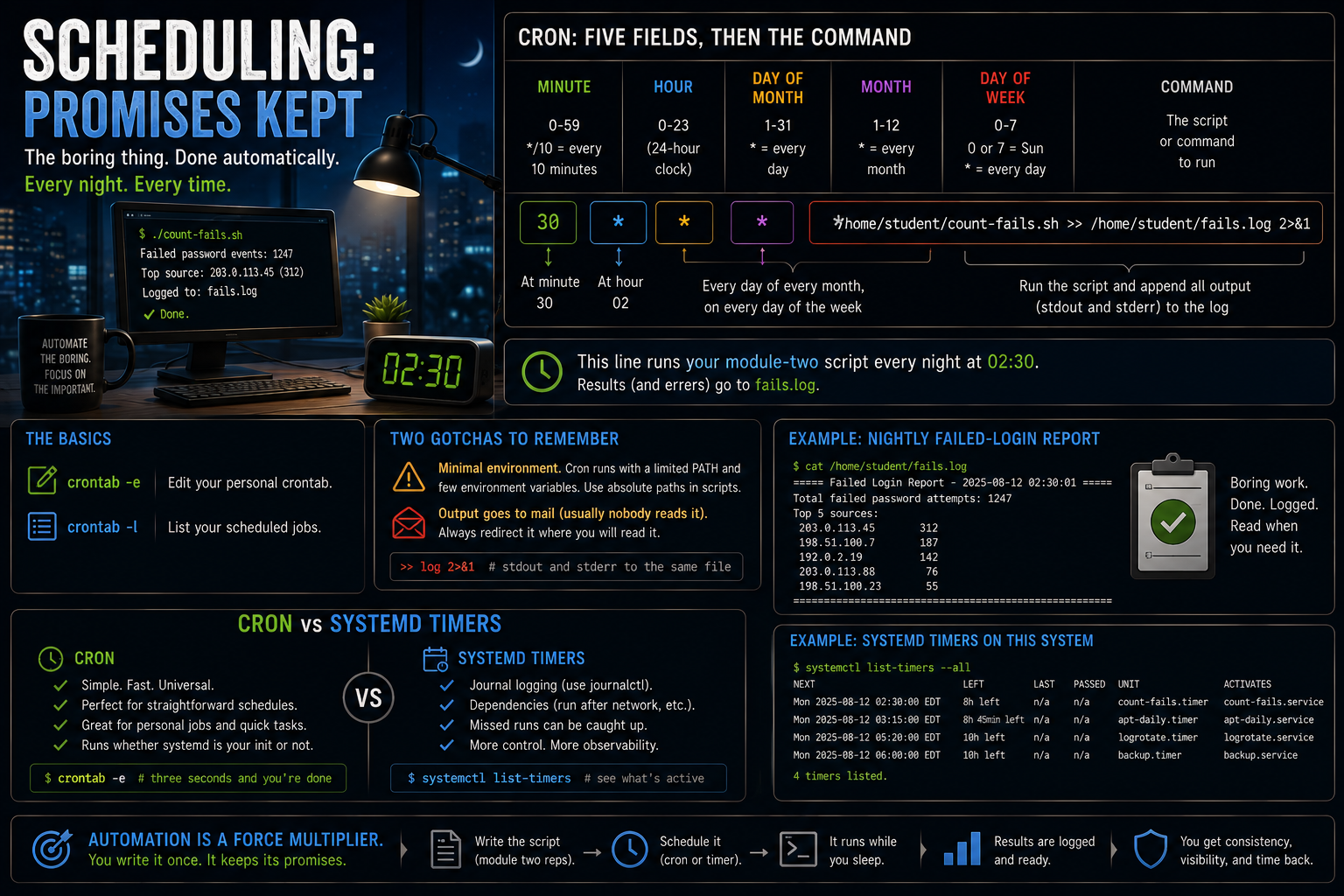
A crontab line decoded field by field: minute, hour, day of month, month, day of week, then the command path, with the example thirty, two, star, star, star running count-fails.sh.
crontab -e edits your schedule and crontab -l lists it, both universal. The five fields are minute, hour, day of month, month, day of week, with * meaning every and */10 in the minute field meaning every ten minutes. The running thread pays off here: the count-fails.sh you wrote in module two's reps is the command field, and the promise (the boring thing, done nightly) is kept:
30 2 * * * /home/student/count-fails.sh >> /home/student/fails.log 2>&1
Two gotchas bite everyone once. Cron's environment is minimal and its PATH is short, so scripts it runs use absolute paths. And unredirected output historically went to local mail nobody reads, hence the >> log 2>&1 idiom, which is the pipe figure's stderr lesson cashing in: results and errors, folded into one file you will actually read. systemd timers are the modern pair to cron, not a tribal war: both are current, timers win when you want journal logging, dependencies, and catch-up runs after downtime, cron wins on three-second simplicity. systemctl list-timers shows your system already using them.
The firewall, policy in miniature
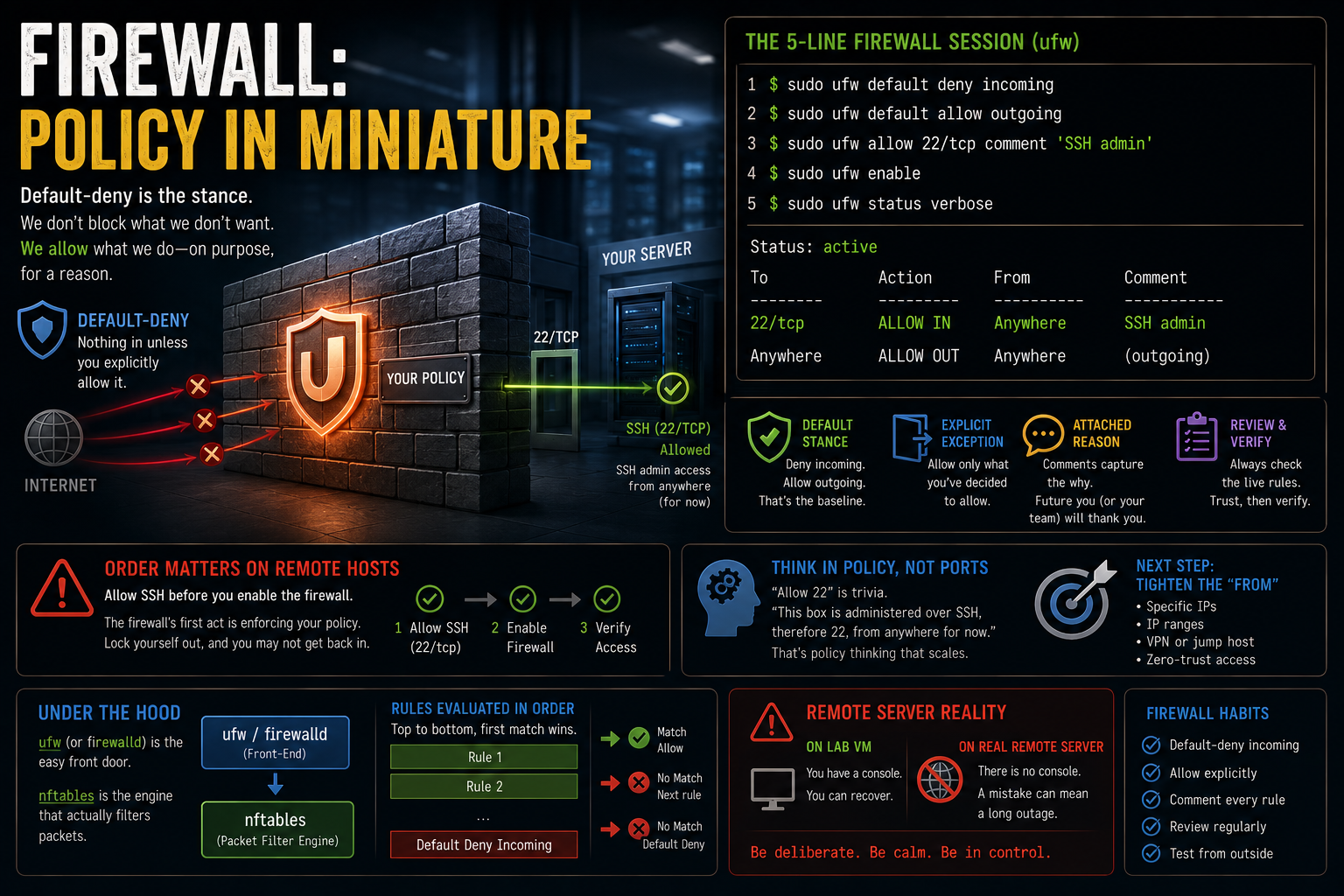
Default-deny is the stance, and it reframes the question permanently: never "what should I block," always "what have I decided to allow, and why." On the Debian family the frontend is ufw [firewalld on the RHEL family], and nftables is what actually filters packets beneath both.
$ sudo ufw default deny incoming
$ sudo ufw default allow outgoing
$ sudo ufw allow 22/tcp comment 'SSH admin'
$ sudo ufw enable
$ sudo ufw status verbose
That five-line session contains the whole architecture of firewall policy: a default stance, an explicit exception, a reason attached, and a review command. The comment flag exists precisely so rules carry their why, and the standard I hold is reasoned, not recited: "allow 22" is trivia, while "this box is administered over SSH, therefore 22, from anywhere for now" is policy thinking that scales to thousand-rule enterprise sets, where tightening the "from" is the next lesson. Order of operations on a remote box: allow SSH before enable, or the firewall's first act is locking you out. On the lab VM the console is your escape rope; on a real remote server there is not one.
Putting it together
One server, every module. System: the Debian VM, updated, snapshot taken, module one's habits. Serve: apt install nginx, systemctl enable --now nginx, then browse to it from the Kali box. Harden: SSH keys on and passwords off, ufw default-deny with 22 and 80 allowed, each rule carrying its reason. Verify: ss -tlnp on the server accounts for every listener, and an nmap from the Kali box agrees with the firewall; when inside and outside tell different stories, the discrepancy is the lesson, and it is usually the firewall doing its job. Schedule: count-fails.sh in cron nightly, so auth.log becomes your view of the world touching your box. The nmap here is the authorization rule honored: your box, your lab, your permission. That is the unit's thesis in five rows: a system you can read, run, connect, defend, and prove.
First reps, module three
Key-based SSH into your own Debian VM with ssh-copy-id, verify the passwordless login, keep a second session open, set PasswordAuthentication no, reload sshd, and then prove it: a password login attempt now fails, and that deliberate failure is the artifact, evidence of absence correctly demonstrated. Write one ufw rule with a comment stating its reason, then test it honestly from the Kali VM: the allowed port answers, everything else does not, and ss -tlnp on the server accounts for every listener. Run one tcpdump capture filtered to port 53 while you dig a name from another terminal, find your own query and its answer, and save the capture with -w. Your first pcap. Artifacts over vibes: the failed password attempt, the ufw status output, the capture file.
The road past the floor
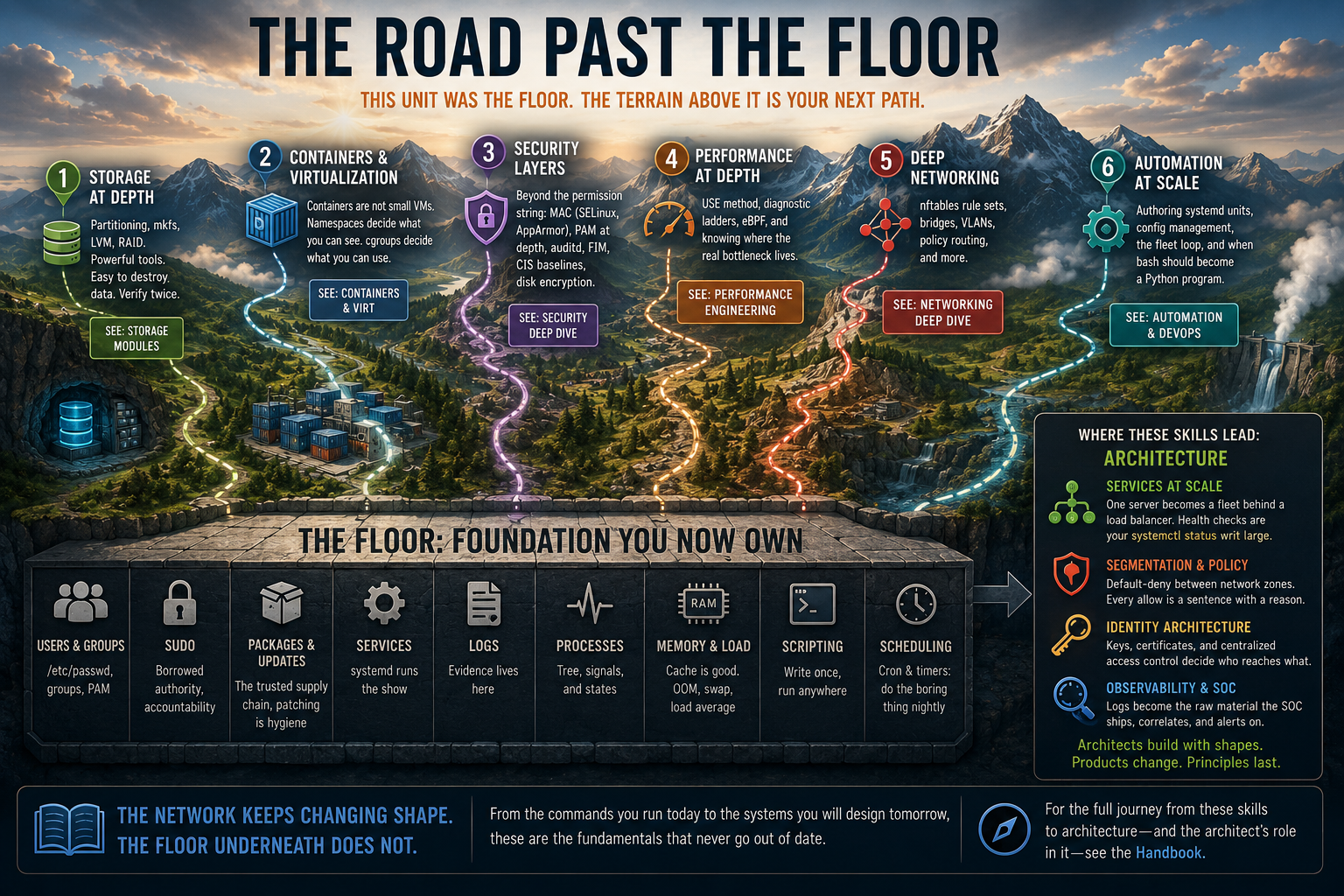
A terrain map with six regions above a bar labeled the floor: storage at depth, containers and virtualization, security layers, performance at depth, deep networking, and automation at scale, each with an arrow to follow-on material.
A foundational unit earns trust by naming its own edges, so here is what this post deliberately did not cover, compressed to pointers. Storage at depth: partitioning, mkfs, LVM, and RAID are deferred on purpose, because they destroy data on the wrong device without asking and need the verify-the-device-twice discipline drilled properly. Containers and virtualization: you have been standing on a hypervisor this whole post, and the layer beside it (containers, which are not small VMs but isolated processes, namespaces deciding what one can see and cgroups what it can consume) is a real course of its own. Security past the permission string: the string you decoded is discretionary access control, where the owner decides; above it sits mandatory access control, where system policy overrides the owner, met in the wild as SELinux [RHEL-family default] or AppArmor [Debian-family default] in enforcing mode, alongside PAM at depth, auditd and file-integrity monitoring, CIS hardening baselines, and disk encryption. Performance methodology (the USE method, the diagnostic ladders, eBPF), deep networking from Linux (nftables rulesets, bridges, VLANs), and automation at scale (authoring systemd units, config management, the fleet loop, and when a bash script should become a Python program) each have their own materials. Named here so that when you meet SELinux enforcing on a real box, it is not a stranger.
Where these skills lead is an architecture, and I will keep it vendor-neutral because the products change every market cycle and these shapes do not. The server you set up becomes the service behind a load balancer, one nginx becoming a fleet whose health checks are your systemctl status writ large. The firewall rule you reasoned becomes segmentation policy, default-deny between whole network zones with every allow still a sentence carrying its reason. The SSH key you generated becomes identity architecture, keys and certificates and centralized access control deciding who reaches what. The logs you grepped become the SOC's raw material, shipped, correlated, and alerted on. The network keeps changing shape; the floor underneath does not. The road from these skills to that architecture, and the architect's role in walking it, is the Handbook's territory; see [chapter ref] for where each of these shapes gets its full treatment.
Keep the lab
You leave this unit with two VMs, a key pair, a firewall stance, a nightly job, and the habit of reading what comes back. Cost so far: zero dollars. That price is the point, and it is this site's standing argument in its most literal form: the free stack teaches the discipline the commercial product sells, and a Debian VM plus an evening is the classroom where the failures are the curriculum. Grow the lab on the same pattern: add a VM, give it a job, secure it, watch its logs. Break something monthly on purpose, restore the snapshot, keep the lesson, because controlled failure with a snapshot behind it is the highest-density learning this field offers. The lab is also your legal target, forever; every tool category from the Kali orientation gets exercised here first, and anything beyond here happens in writing. The open-source-to-enterprise discipline this close compresses, the argument that the homelab is where enterprise judgment gets built, runs through [chapter ref] of the Handbook. The students who become professionals are reliably the ones whose lab kept growing after the grade posted.
$ sudo shutdown -h now, and by now you can read every word of that. See you in the lab.
Where to go from here
- The Map and the Floor: the front door this post sits behind, the ten domains and the skills floor.
- Names, Addresses, and Time: the resolution mechanics this post pointed at, DNS and DHCP and NTP from the wire up.
- From Log to Incident: where the logs lead, the pipeline from a line in auth.log to a SOC alert, and the budget that decides what you see.


