


Your first cybersecurity job may hand you a domain-joined Windows computer and expect you to be productive by Friday. That is a fair expectation.
Windows is where much of the work happens. Phishing reaches the workstation. Business data lives on file servers. Active Directory holds the identities and permissions that connect the environment. If you work in security, you need to understand how those systems behave.
An analyst who cannot read an access control list cannot evaluate a permissions finding. An incident responder who cannot query the Security log has to depend on someone else to interpret the evidence.
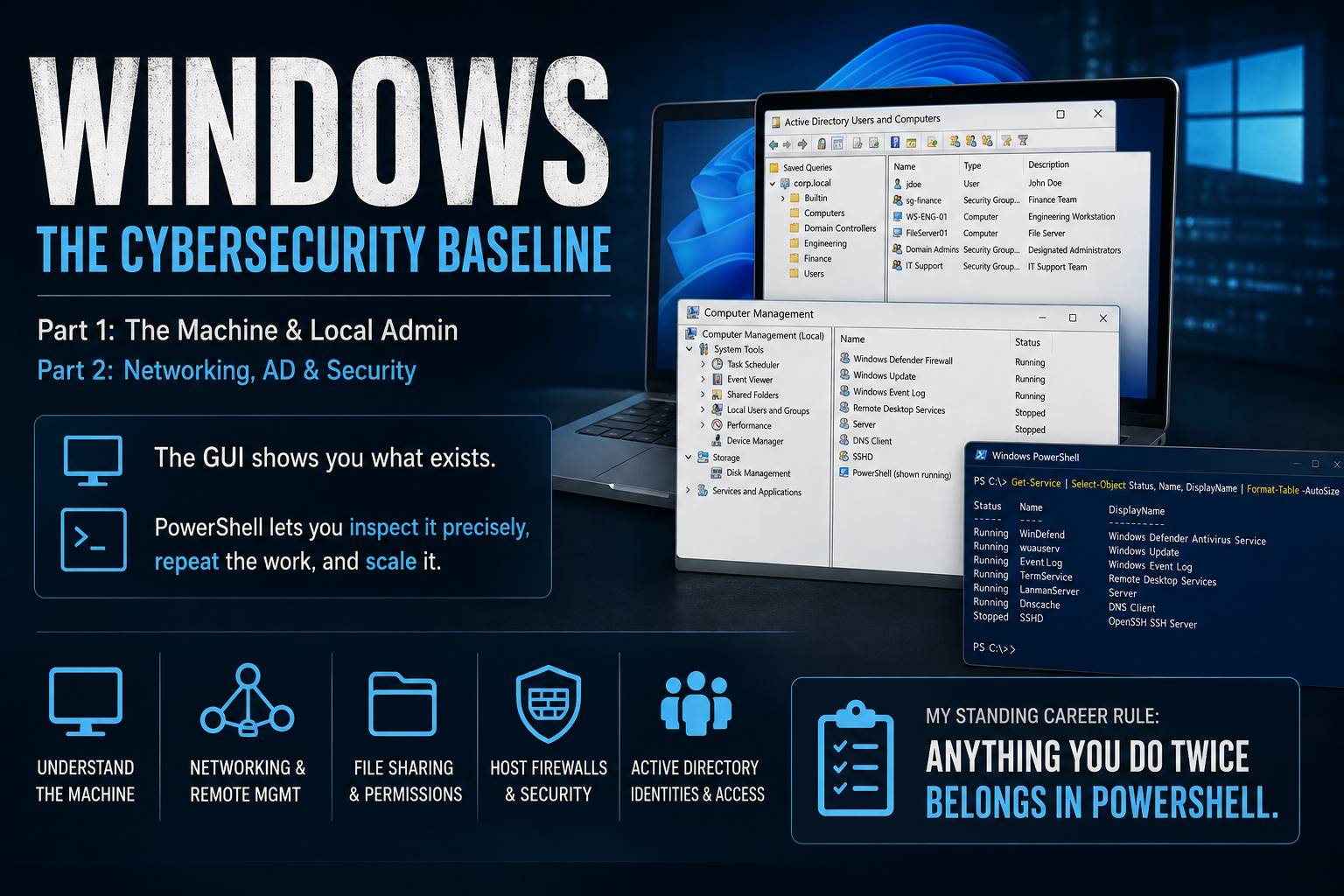
This post establishes the Windows baseline for this skills series. It is the counterpart to my Linux post. Part 1 covers the machine, its administrative consoles, and local administration. Part 2 moves into networking, remote management, file sharing, host firewalls, and Active Directory.
The Linux post treated the terminal as a conversation with the operating system. Windows gives you two interfaces for that conversation: graphical consoles and PowerShell. Most people start with the graphical tools because they are approachable. That works until you need to repeat a task across ten machines, collect evidence, or explain exactly what changed.
I teach both interfaces together:
The GUI shows you what exists. PowerShell lets you inspect it precisely, repeat the work, and scale it.
Each task includes a console path and PowerShell you can run as written. When output matters, I include it. Get-Service is useful only if you know how to interpret what comes back.
Unless stated otherwise, the examples use the built-in Windows PowerShell 5.1.
My standing career rule is simple:
Anything you do twice belongs in PowerShell.
Two conventions used throughout
This material is version-generic. The registry, NTFS, services, event logs, User Account Control, and the PowerShell pipeline are Windows concepts. They are not tied to a single release. When a version-specific detail matters, I date it.
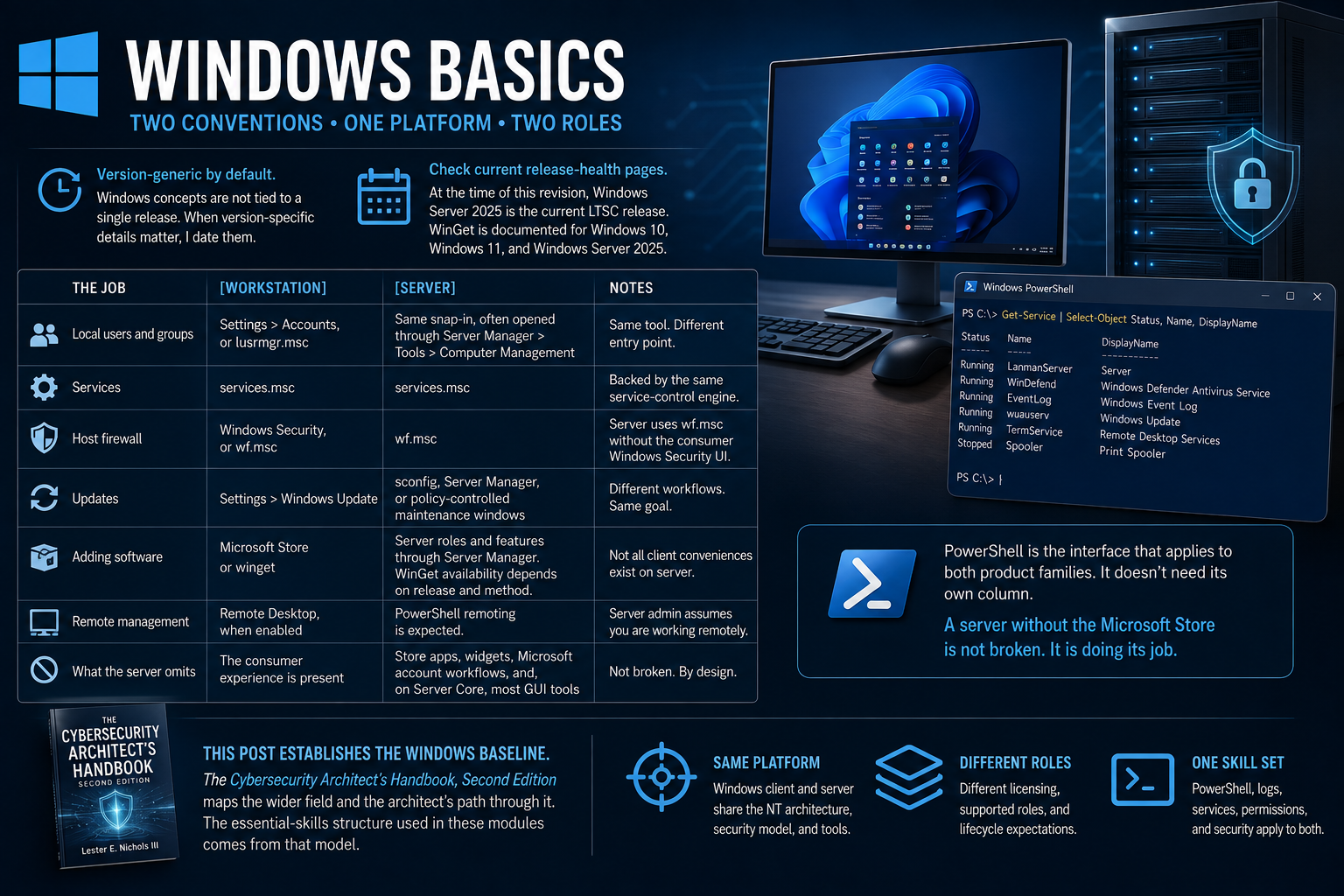
Microsoft's release information changes over time, so check the current Windows release-health pages before building a lab around a specific version. At the time of this revision, Windows Server 2025 is the current Long-Term Servicing Channel release. Microsoft also documents WinGet support for Windows 10, Windows 11, and Windows Server 2025.
Examples that differ by system role use a [Workstation] or [Server] marker. Unmarked examples apply to both.
Windows Server has different licensing, supported roles, and lifecycle expectations from the client product. The administration model is still familiar. Both product families use the NT architecture, security model, services, registry, event infrastructure, filesystem permissions, and PowerShell conventions.
| The job | [Workstation] | [Server] |
|---|---|---|
| Local users and groups | Settings > Accounts, or lusrmgr.msc |
The same snap-in, often opened through Server Manager > Tools > Computer Management |
| Services | services.msc |
services.msc, backed by the same service-control engine |
| Host firewall | Windows Security, or wf.msc |
wf.msc, without the consumer Windows Security interface |
| Updates | Settings > Windows Update | sconfig, Server Manager, or policy-controlled maintenance windows |
| Adding software | Microsoft Store or winget |
Server roles and features through Server Manager. WinGet availability depends on the release and installation method. |
| Remote management | Remote Desktop, when enabled | PowerShell remoting is expected. Server administration assumes you are working from somewhere else. |
| What the server omits | The consumer experience is present | Store applications, widgets, Microsoft account workflows, and, on Server Core, most graphical administration tools |
PowerShell is missing from the table because it does not need a separate column. It applies to both product families.
A server without the Microsoft Store is not broken. It is doing its job.
This post establishes the Windows baseline. The Cybersecurity Architect's Handbook, Second Edition maps the wider field and the architect's path through it. The essential-skills structure used in these modules comes from that model.
A brief word about editions
Edition determines which exercises you can perform.
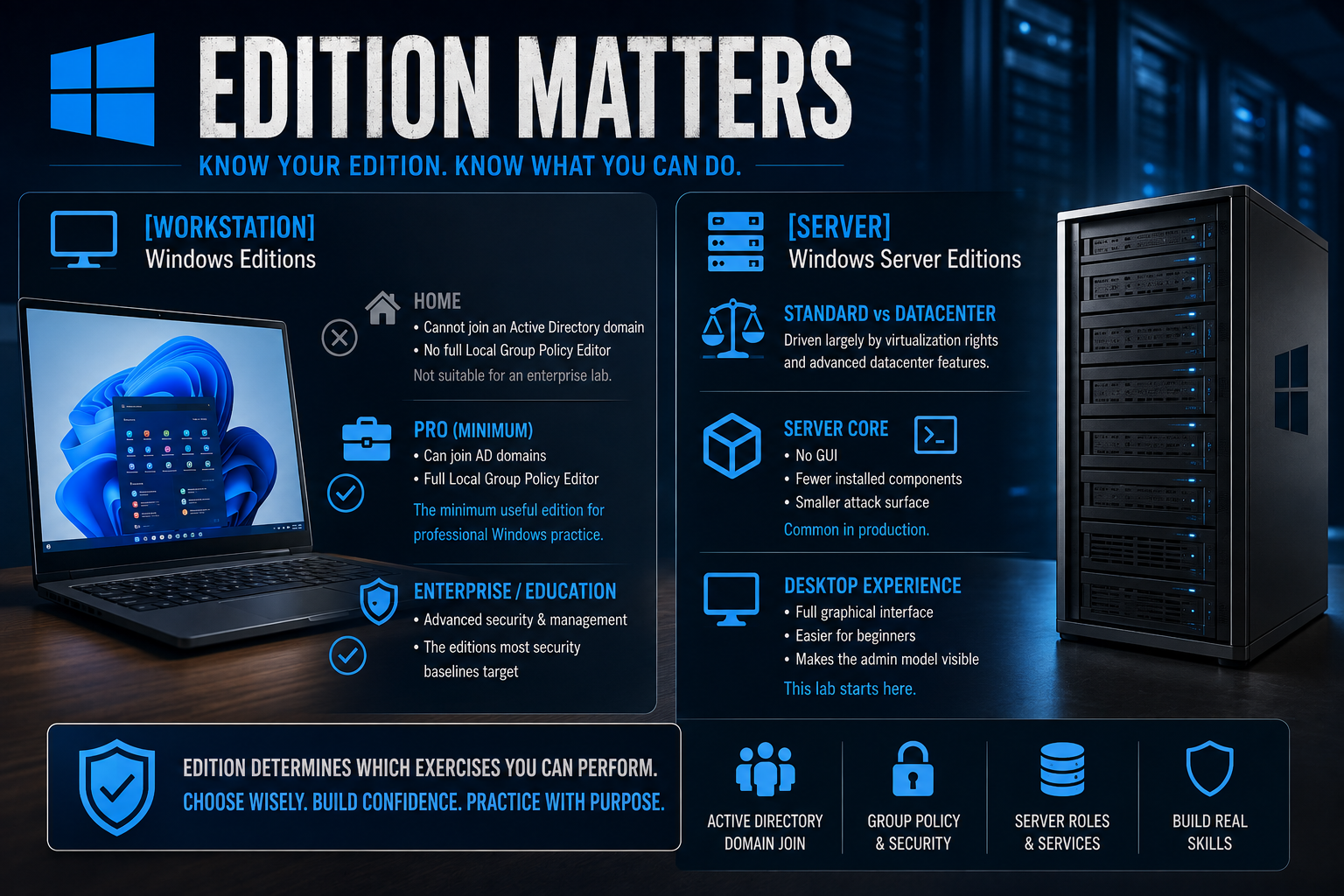
[Workstation] Windows Home cannot join an Active Directory domain and does not include the full Local Group Policy Editor. That removes too much of the enterprise administration model for a serious lab. Pro is the minimum useful edition for professional Windows practice. Enterprise and Education are the editions most security baselines target.
[Server] The choice between Standard and Datacenter is driven largely by virtualization rights and advanced datacenter features. Server Core removes much of the graphical interface, which reduces installed components and patch exposure. It is common in production. Desktop Experience is easier for a beginner because it makes the administrative model visible, so this lab starts there.
Module 1: the machine and the console
Two configuration worlds
Windows stores important state in two broad places. Beginners often waste time searching one when the setting lives in the other.
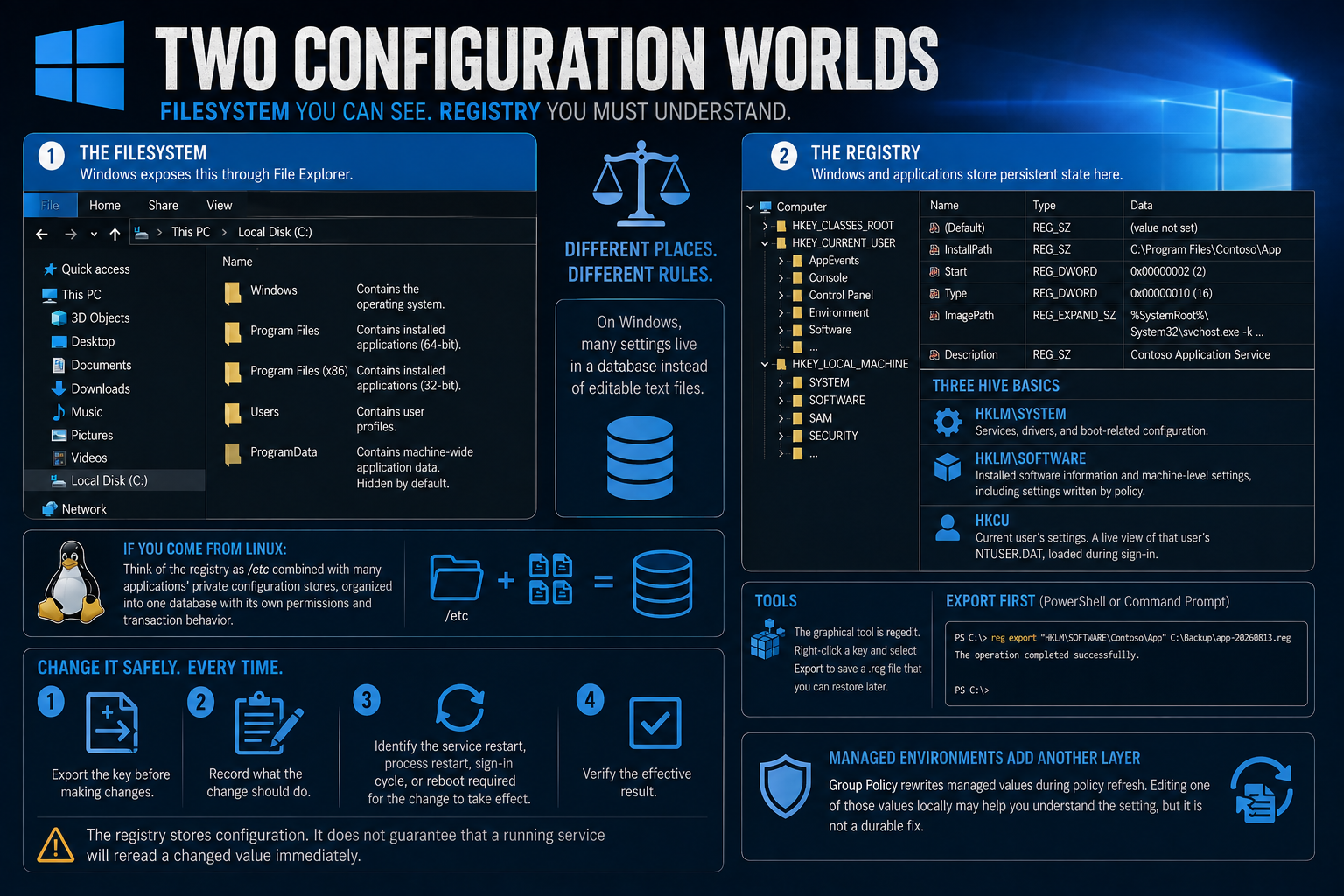
The first is the filesystem, which File Explorer exposes:
C:\Windowscontains the operating system.C:\Program FilesandC:\Program Files (x86)contain installed applications.C:\Users\<name>contains user profiles.C:\ProgramDatacontains machine-wide application data and is hidden by default.
The second is the registry. Windows and applications use this hierarchical database for service and driver configuration, installed software records, policy settings, user preferences, file associations, and other persistent state.
If you come from Linux, think of the registry as /etc combined with many applications' private configuration stores, organized into one database with its own permissions and transaction behavior.
Remember this:
On Windows, many settings live in a database instead of editable text files. That changes how you search, inspect, back up, and modify them.
Three registry hives cover most beginner work:
HKLM\SYSTEMcontains services, drivers, and boot-related configuration.HKLM\SOFTWAREcontains installed software information and many machine-level settings, including settings written by policy.HKCUcontains the current user's settings. It is a live view of that user'sNTUSER.DAT, loaded during sign-in.
Read the registry whenever you need to understand configuration. Edit it only when you know which component owns the value and how you will recover from a mistake.
Use the same procedure each time:
- Export the key before making changes.
- Record what the change should do.
- Identify the service restart, process restart, sign-in cycle, or reboot required for the change to take effect.
- Verify the effective result.
The registry stores configuration. It does not guarantee that a running service will reread a changed value immediately.
The graphical tool is regedit. Right-click a key and select Export to save a .reg file that you can restore later.
In PowerShell or Command Prompt, export first:
PS C:\> reg export "HKLM\SOFTWARE\Contoso\App" C:\Backup\app-20260813.reg
The operation completed successfully.
Managed environments add another complication. Group Policy rewrites managed values during policy refresh. Editing one of those values locally may help you understand the setting, but it is not a durable fix.
Navigation and file operations
| Task | Console path | PowerShell |
|---|---|---|
| List the current location | File Explorer. Click the address bar to expose the path as text. | Get-ChildItem. dir and ls are aliases. |
| Move through the filesystem | Use breadcrumbs to move up and double-click folders to move down. | Set-Location, then confirm with Get-Location. |
| Open a shell in the current folder | Shift + right-click the folder, then choose Open PowerShell window here. | This connects Explorer to the shell. |
| Create a directory | Right-click > New > Folder | New-Item -ItemType Directory |
| Copy, move, or rename | Drag items or use the right-click menu. | Copy-Item, Move-Item, and Rename-Item |
| Delete | Right-click > Delete, which normally uses the Recycle Bin. | Remove-Item, which does not use the Recycle Bin. |
Three habits will save time and prevent mistakes.
Turn on file-name extensions and hidden items now. In File Explorer, use View > Show. A system that hides extensions can make invoice.pdf.exe look like a document.
Learn tab completion. Type the first few characters and press Tab. PowerShell can complete commands, paths, parameters, and many argument values. It is faster, but the larger benefit is accuracy.
Learn the Verb-Noun naming convention. Commands use predictable verbs such as Get, Set, New, and Remove, followed by the object being managed. You can often guess a command name and confirm it with Get-Command.
Deletion deserves special attention. The Recycle Bin is an Explorer behavior, not a safety net for every Windows file operation. Remove-Item -Recurse immediately deletes the target and everything below it. That distinction has destroyed real data on real servers.
Rehearse destructive commands with -WhatIf:
PS C:\Users\sam\lab> Remove-Item .\old-lab -Recurse -WhatIf
What if: Performing the operation "Remove Directory"
on target "C:\Users\sam\lab\old-lab".
Read the proposed action. If the target is correct, run the command again without -WhatIf. Use Tab to complete destructive paths instead of typing them from memory. Treat Remove-Item -Recurse with the same respect you would give rm -r on Linux.
NTFS permissions: reading the ACL
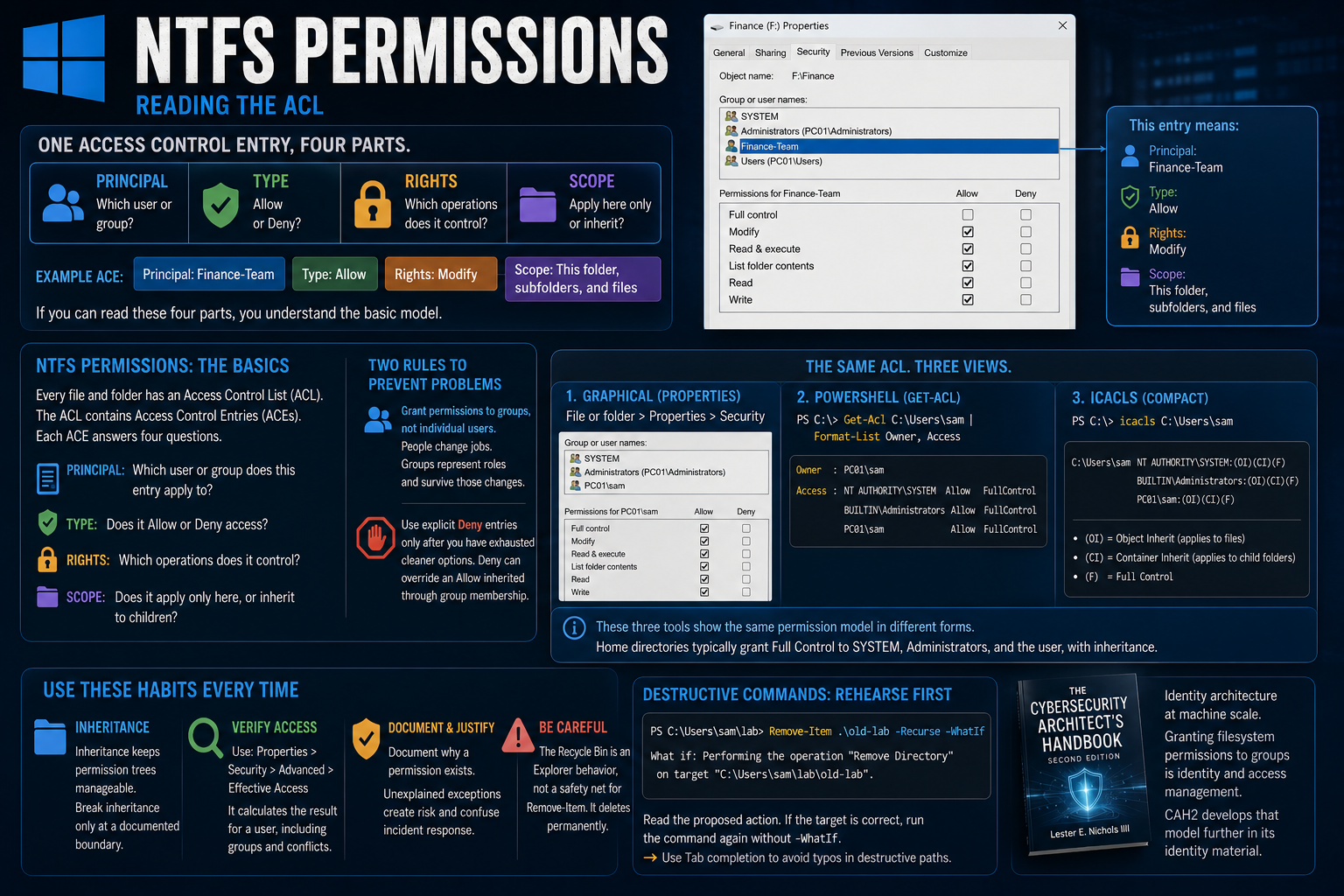
Diagram of a folder access control list showing one access control entry divided into four labeled parts: principal, type, rights, and applies-to scope, using a Finance-Team entry as the example.
NTFS permissions are central to Windows security. They are the Windows counterpart to the Linux permission string, but the model is more expressive.
Every file and folder has an access control list, or ACL. The ACL contains access control entries, or ACEs. Each ACE answers four questions:
- Principal: Which user or group does this entry apply to?
- Type: Does it allow or deny access?
- Rights: Which operations does it control?
- Scope: Does it apply only here, or does it inherit to child folders and files?
Consider this entry:
Principal: Finance-Team
Type: Allow
Rights: Modify
Scope: This folder, subfolders, and files
If you can read those four parts, you understand the basic model.
Two rules prevent most permissions problems. Grant permissions to groups rather than individual users. People change jobs. Groups represent roles and survive those changes.
Use explicit Deny entries only after you have exhausted cleaner options. A Deny can override an Allow inherited through another group membership. It often goes unnoticed until it blocks someone who appears to have access.
Start in the graphical interface:
File or folder > Properties > Security
Then inspect the same ACL in PowerShell:
PS C:\> Get-Acl C:\Users\sam | Format-List Owner, Access

Owner  : PC01\sam
Access : NT AUTHORITY\SYSTEM Allow  FullControl
         BUILTIN\Administrators Allow  FullControl
         PC01\sam Allow  FullControl
The older icacls utility presents the entries in compact notation:
PS C:\> icacls C:\Users\sam
C:\Users\sam NT AUTHORITY\SYSTEM:(OI)(CI)(F)
             BUILTIN\Administrators:(OI)(CI)(F)
             PC01\sam:(OI)(CI)(F)
In this output:
(OI)means object inherit, which applies the ACE to files.(CI)means container inherit, which applies the ACE to child folders.(F)means full control.
The graphical interface, Get-Acl, and icacls show the same permission model in three forms. The home-directory example is intentional. SYSTEM, the local Administrators group, and the user each have full control, with inheritance flowing downward.
Inheritance keeps permission trees manageable. A parent folder passes its ACL to child folders and files. The graphical interface displays inherited entries differently from explicit entries, which helps you identify permissions added at the current object.
Break inheritance only at a documented boundary. A tree full of unique ACLs is difficult to audit and harder to explain during an incident.
When someone disputes access, do not speculate. Use:
Properties > Security > Advanced > Effective Access
Effective Access calculates the result for a selected user, including group membership, inheritance, and conflicting entries. It turns an argument into a lookup.
This is identity architecture at machine scale. Granting filesystem permissions to groups is identity and access management. CAH2 develops that model further in its identity material.
Local users and borrowed authority
The primary graphical console for local accounts is lusrmgr.msc. It is not available on Windows Home, where Settings > Accounts provides the consumer interface.
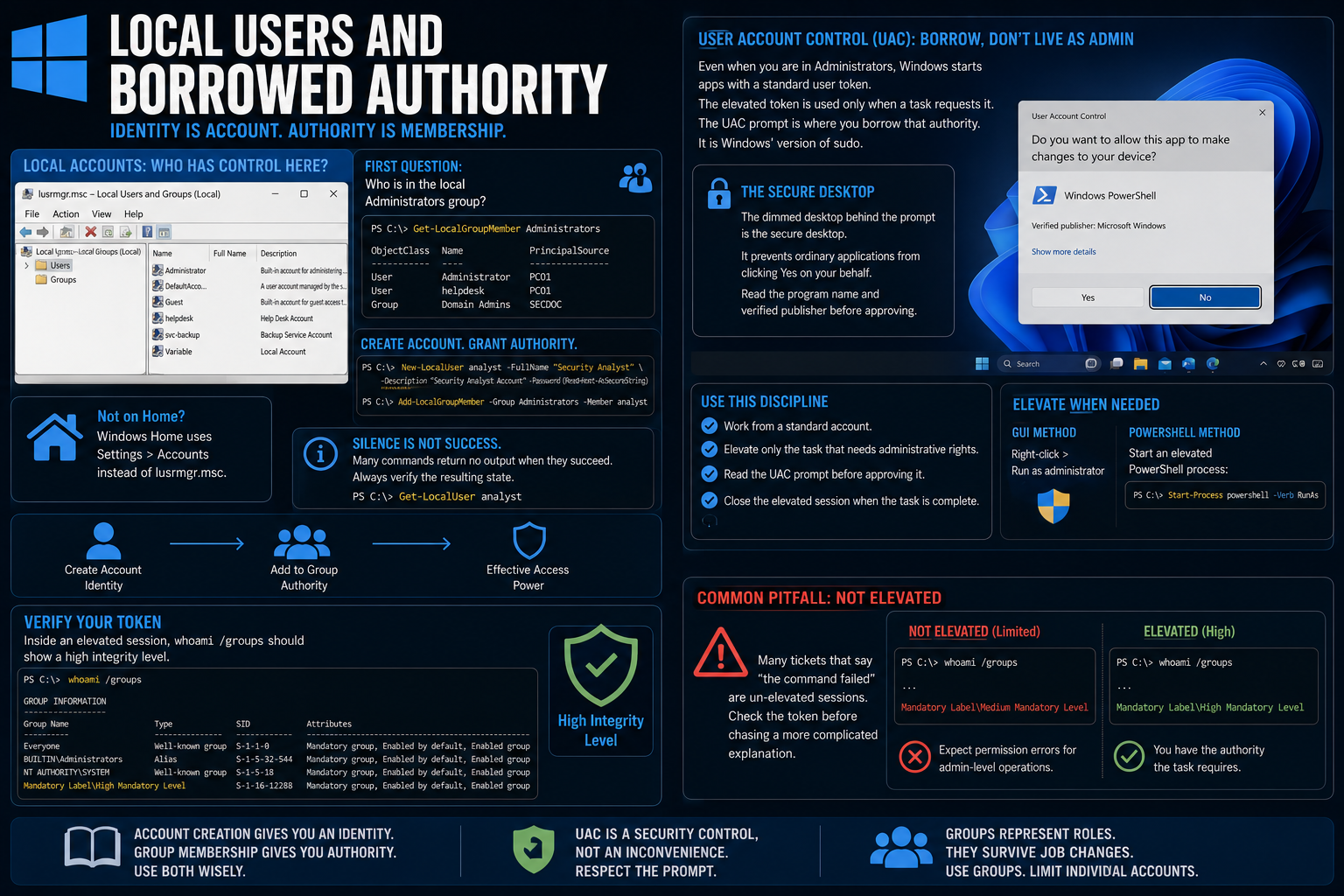
The first question to ask on a machine you inherit is who belongs to the local Administrators group. That group is the machine's local root list.
Get-LocalGroupMember Administrators
Use New-LocalUser to create an account and Add-LocalGroupMember to grant group membership.
Many PowerShell commands return no output when they succeed. Do not treat silence as verification. Run a separate Get command and confirm the resulting state.
Account creation grants an identity. Group membership grants authority.
User Account Control deserves more respect than it usually gets. Even when your account belongs to Administrators, Windows normally starts applications with a standard user token. The elevated administrative token remains unused until a task requests it.
The UAC consent prompt is where you borrow that authority. It is close to the role sudo plays on Linux.
The dimmed desktop behind the prompt is the secure desktop. Windows isolates the consent dialog so an ordinary application cannot press Yes on your behalf. Read the program name and verified publisher before approving anything.
Use this discipline:
- Work from a standard account.
- Elevate only the task that needs administrative rights.
- Read the UAC prompt before approving it.
- Close the elevated session when the task is complete.
You can elevate through right-click > Run as administrator, or start an elevated PowerShell process with:
Start-Process powershell -Verb RunAs
Inside the elevated session, whoami /groups should show a high integrity level, including High Mandatory Level.
Many tickets that say "the command failed" are un-elevated sessions. Check the token before chasing a more complicated explanation.
The object pipeline
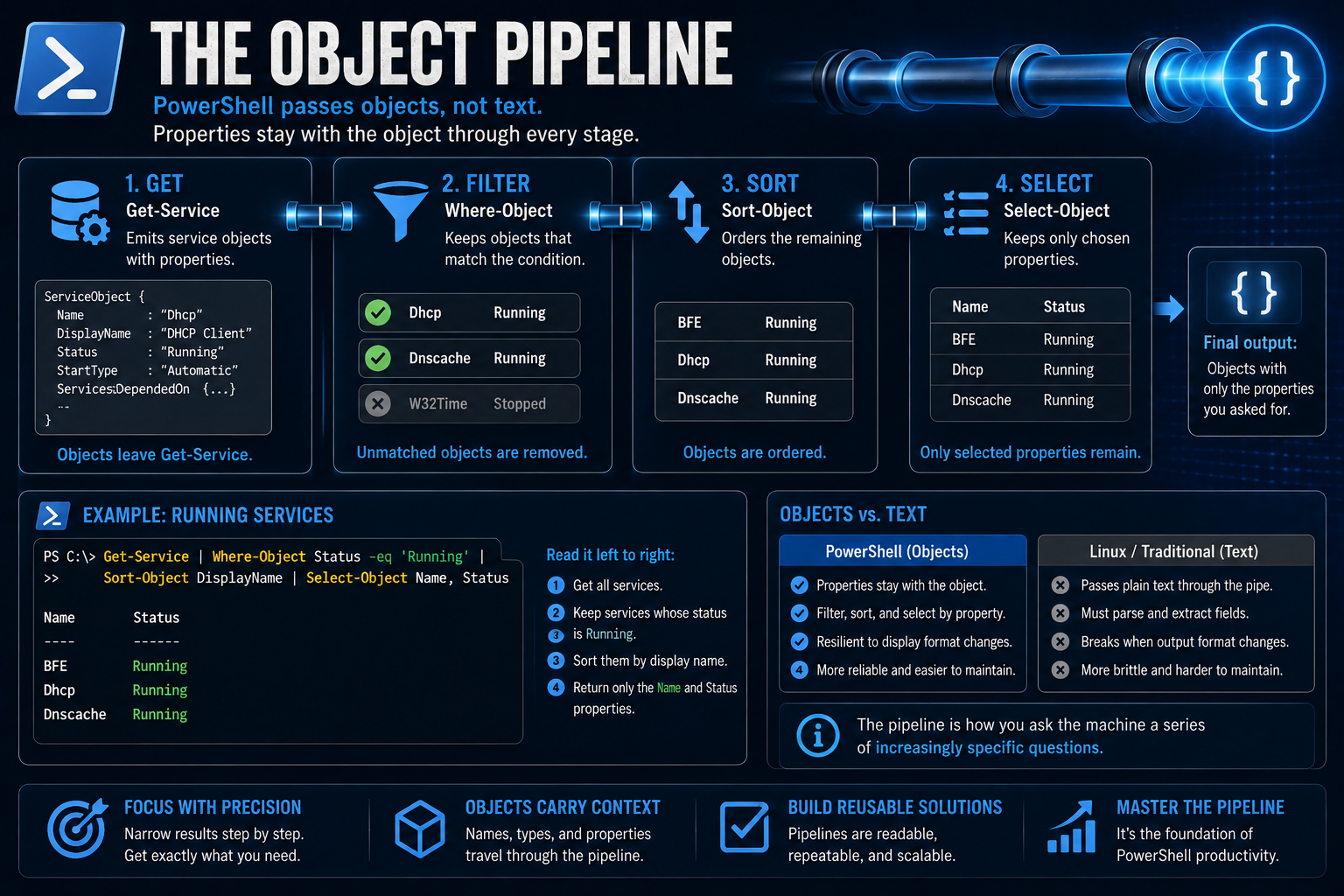
Get-Service and retain their properties through filtering, sorting, and selection.Flow diagram of a PowerShell pipeline with four stages connected by pipe symbols: Get-Service emits service objects, Where-Object keeps matching objects, Sort-Object orders them, and Select-Object keeps selected properties.
The pipeline supports everything else in this post.
Linux tools usually pass text through a pipe. That often requires extracting fields, splitting strings, and depending on a particular output format.
PowerShell passes objects. A service object has named properties such as Name, Status, and StartType. Those properties remain available as the object moves through the pipeline. You compare properties instead of parsing display columns.
PS C:\> Get-Service | Where-Object Status -eq 'Running' |
>>   Sort-Object DisplayName | Select-Object Name, Status

Name      Status
----      ------
BFE       Running
Dhcp      Running
Dnscache  Running
Read the command from left to right:
- Get all services.
- Keep services whose status is
Running. - Sort them by display name.
- Return only the
NameandStatusproperties.
Run it once, then remove stages from the right and watch the result change. The pipeline is how you ask the machine a series of increasingly specific questions.
First exercises before Module 2
Build a free lab with a client VM using Microsoft evaluation media or a developer VM. Nothing in this section requires a paid lab license. Add the server VM later.
Complete these exercises:
- Find your profile at
C:\Users\<you>. - Find your user configuration under
HKCU, which is backed by your ownNTUSER.DAT. Inspect it without changing anything. - Read your home-directory ACL through Properties > Security.
- Read the same ACL with
Get-Aclandicacls. - Match each ACE to its principal, type, rights, and inheritance scope.
- Open Event Viewer with
eventvwr.msc. - Browse Windows Logs > System.
Do not fix anything yet. Look at what the machine records.
Module 2: administering the machine
Services and processes
| Task | Console path | PowerShell |
|---|---|---|
| View services | services.msc |
Get-Service |
| Restart a service and display the result | Right-click > Restart | Restart-Service Spooler -PassThru |
| Prevent a service from starting | Properties > Startup type > Disabled | Set-Service Spooler -StartupType Disabled |
| See the service identity and executable | Properties > Log On and General | Get-CimInstance Win32_Service |
| View processes | Task Manager with Ctrl+Shift+Esc | Get-Process |
| Investigate resource use | Resource Monitor with resmon |
Sort and select properties from Get-Process |
Two rows in this table are security decisions presented as administration.
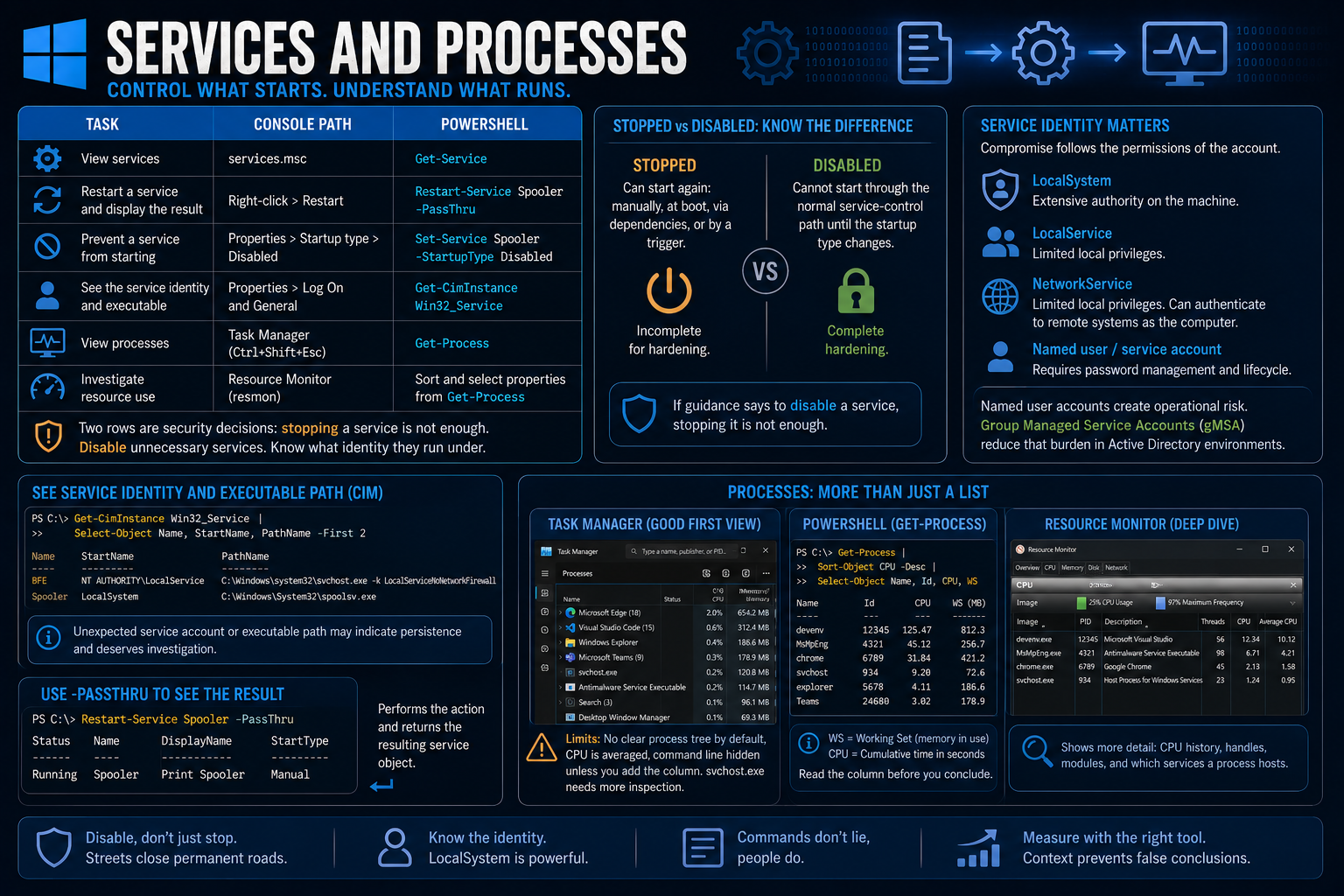
A stopped service can start again manually, during boot, through a dependency, or in response to a trigger. A disabled service cannot start through the normal service-control path until its startup type changes. If hardening guidance says to disable an unnecessary service, stopping it is incomplete.
Every service also runs under an identity. The Log On tab exposes that identity one service at a time.
Common service identities include:
LocalSystem, which has extensive authority on the machine.LocalService, which has deliberately limited local privileges.NetworkService, which has limited local privileges but can present the computer's identity to remote systems.- A named user or service account, whose password and lifecycle someone must manage.
Compromise a service running as LocalSystem and the attacker gains extensive control over the host.
Named user accounts create a different problem. Someone has to rotate and protect the password without breaking the service. Group managed service accounts solve much of that operational burden in Active Directory environments.
Use CIM to see the service identity and executable path together:
PS C:\> Get-CimInstance Win32_Service |
>>   Select-Object Name, StartName, PathName -First 2

Name    StartName                  PathName
----    ---------                  --------
BFE     NT AUTHORITY\LocalService  C:\Windows\system32\svchost.exe -k LocalServiceNoNetworkFirewall
Spooler LocalSystem                C:\Windows\System32\spoolsv.exe
Those columns matter during a security review. A suspicious service account or unexpected executable path may expose persistence that the display name hides.
-PassThru helps with commands that normally succeed silently:
Restart-Service Spooler -PassThru
It performs the action and returns the resulting service object.
Task Manager is a good first view of processes, but the default view has limits. It does not clearly show the process tree. Short CPU spikes can disappear into averaged measurements. Command lines are hidden unless you add the column. svchost.exe instances require more inspection to identify their hosted services.
Get-Process gives you another view, but you still have to understand the columns. WS is the current working set, or memory in active use. CPU is cumulative processor time in seconds. A process at the top of a CPU sort may have been busy earlier and idle now.
Read the column before drawing a conclusion. If Task Manager and Get-Process do not explain the behavior, open Resource Monitor.
Event Viewer: the machine's record
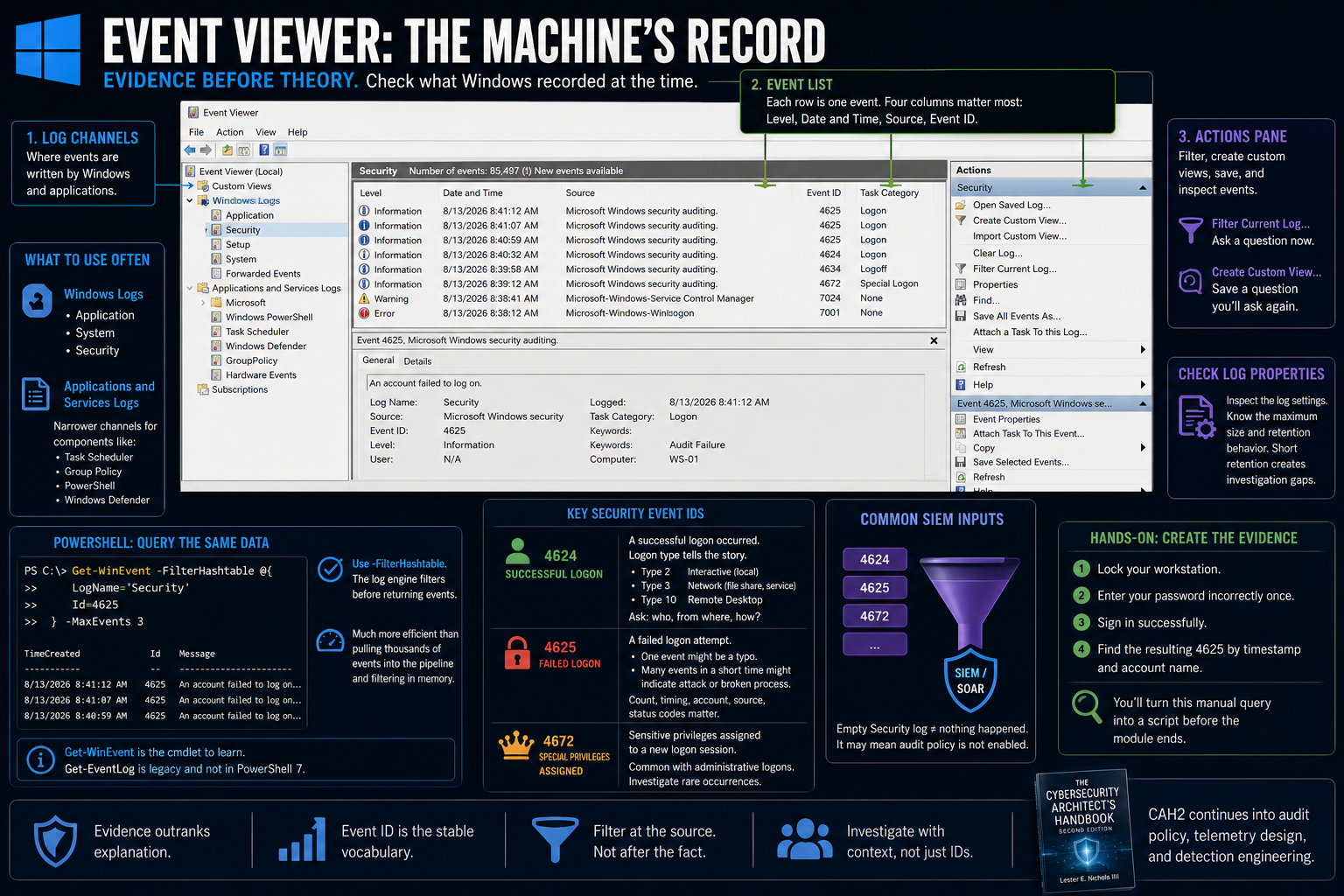
Annotated Event Viewer layout showing Windows Logs with Security selected, an event list containing level, time, source, and event ID columns, and an Actions pane containing filter and custom-view options.
My central habit in this module is evidence before theory.
Before guessing what happened, check what Windows recorded at that time. The log will not answer every question, but it outranks an explanation with no evidence behind it.
Under Windows Logs, you will use three channels often:
- Application
- System
- Security
Applications and Services Logs contains narrower channels for Task Scheduler, Group Policy, PowerShell, Windows Defender, and other components.
Four Event Viewer columns matter immediately:
- Level
- Date and Time
- Source
- Event ID
Event ID is the vocabulary of Windows logging. Message text may be long, localized, or formatted differently across versions. The ID is stable enough for references, filters, detection rules, and SIEM searches.
Inspect the log properties while you have the console open. Check the maximum size and retention behavior. A Security log that overwrites itself every few hours creates an investigation gap.
A full event log is unreadable without filtering. Use Filter Current Log for a temporary question. Enter 4625 in the Event IDs field to find failed logons. Use Create Custom View to save a question you will ask again, such as failed logons during the last 24 hours.
PowerShell can query the same data:
PS C:\> Get-WinEvent -FilterHashtable @{
>>   LogName='Security'
>>   Id=4625
>> } -MaxEvents 3

TimeCreated             Id    Message
-----------             --    -------
8/13/2026 8:41:12 AM    4625  An account failed to log on...
8/13/2026 8:41:07 AM    4625  An account failed to log on...
8/13/2026 8:40:59 AM    4625  An account failed to log on...
Use -FilterHashtable instead of retrieving the entire log and passing it to Where-Object. The log engine applies the filter before returning events. That is much more efficient than moving a hundred thousand events through the pipeline to retain three.
Filter at the source whenever the command supports it.
Get-WinEvent is the event cmdlet worth learning. The older Get-EventLog supports only classic event logs and is not available in PowerShell 7.
Event ID 4624: successful logon
A 4624 records a successful logon. The logon type explains how the session was established:
- Type 2: interactive logon at the machine
- Type 3: network logon, such as access to a file share or remote service
- Type 10: Remote Desktop logon
Ask who logged on, from where, and by which method.
Event ID 4625: failed logon
A 4625 records a failed logon.
One event may be a typing mistake. A hundred events in a minute may indicate password spraying, brute force activity, a broken service account, or stale credentials in automation. Count, timing, account names, source addresses, and status codes all matter.
Event ID 4672: special privileges assigned
A 4672 indicates that Windows assigned sensitive privileges to a new logon session. It commonly accompanies an administrative logon. On a system where administrative sign-ins should be rare, investigate it.
These events are common SIEM inputs. An empty Security log does not prove that nothing happened. It may mean the required audit policy was never enabled.
CAH2 continues from these events into audit policy, telemetry design, and detection engineering.
Create the first event in this series yourself:
- Lock the workstation.
- Enter your password incorrectly once.
- Sign in successfully.
- Find the resulting 4625 by timestamp and account name.
You will turn that manual query into a script before the module ends.
Updates, applications, Defender, and BitLocker
| Task | Console path | PowerShell |
|---|---|---|
| Install operating-system updates | [Workstation] Settings > Windows Update. [Server] sconfig, Server Manager, or managed update tooling. |
Get-HotFix reviews many installed updates but does not install them. |
| Review supported application updates | Microsoft Store and Settings > Apps | winget upgrade, then winget upgrade --all |
| Check Microsoft Defender health | Windows Security | Get-MpComputerStatus |
| Verify BitLocker state | Settings > Privacy and security > Device encryption, or Control Panel > BitLocker Drive Encryption | Get-BitLockerVolume C: |
Windows quality updates are cumulative. The current month's update normally includes earlier fixes for that servicing branch. This simplifies patch sequencing but makes repeated postponement more dangerous.
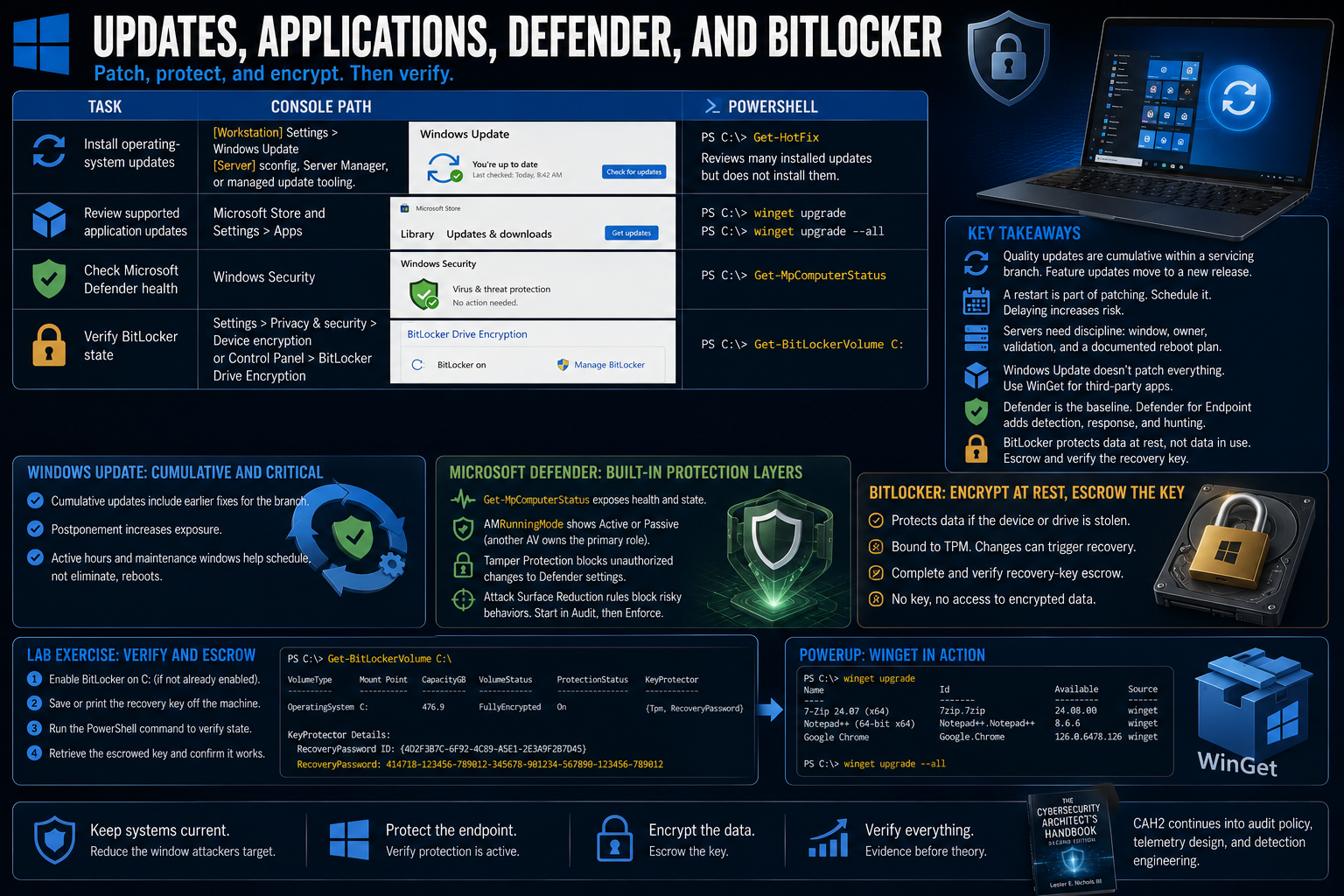
Feature updates move the system to a new Windows release. Quality updates service the release already installed.
If an update requires a restart, the restart is part of patching. Active hours and maintenance windows help schedule it. They do not remove the requirement.
Servers need stronger operational discipline around the same update system. A production server should have a maintenance window, an owner, a validation procedure, and a documented reboot plan. An uncontrolled 2:00 a.m. reboot is a failure. Leaving the server unpatched to avoid a reboot is also a failure.
Windows Update does not patch every third-party application. That separate application-update problem is why WinGet matters to security teams.
winget upgrade
winget upgrade --all
The first command inventories available upgrades. The second applies supported upgrades. Microsoft documents WinGet for Windows 10, Windows 11, and Windows Server 2025, although availability on a particular server still depends on how it was installed.
Microsoft Defender Antivirus provides the built-in malware-protection layer. Get-MpComputerStatus exposes operational state, signature information, real-time protection status, and related health fields.
The AMRunningMode property can show whether Defender is active or operating in passive mode because another antivirus product owns the primary role.
Tamper protection protects Defender settings from unauthorized changes. Malware often tries to disable security tooling early in an intrusion, so protecting the configuration matters as much as the scanner.
Attack Surface Reduction rules target behaviors such as Office applications creating child processes and scripts launching executable content. Start in audit mode. Review the events, correct legitimate conflicts, and then enforce the rule.
Microsoft Defender for Endpoint is the separately licensed endpoint detection and response platform. The built-in antivirus stack is the baseline. Defender for Endpoint adds telemetry, investigation, response, and centralized hunting.
BitLocker provides full-volume encryption, normally bound to the Trusted Platform Module. Its boundary is specific: BitLocker protects data at rest. It helps when someone steals a laptop or removes a drive. It does not stop malware from reading data after Windows starts and unlocks the volume.
Complete and verify recovery-key escrow before relying on encryption. A firmware update, TPM change, or boot-integrity event can send a machine into recovery. Without the recovery key, the encrypted data may be unrecoverable.
In a home lab, save or print the key somewhere other than the encrypted machine. In an enterprise, enforce directory-backed escrow through policy and verify it through reporting.
Run:
Get-BitLockerVolume C:
If KeyProtector includes RecoveryPassword, find out where that recovery password is stored. "Somewhere in the directory" is not evidence. Retrieve the escrowed object or report on it.
Scheduled tasks
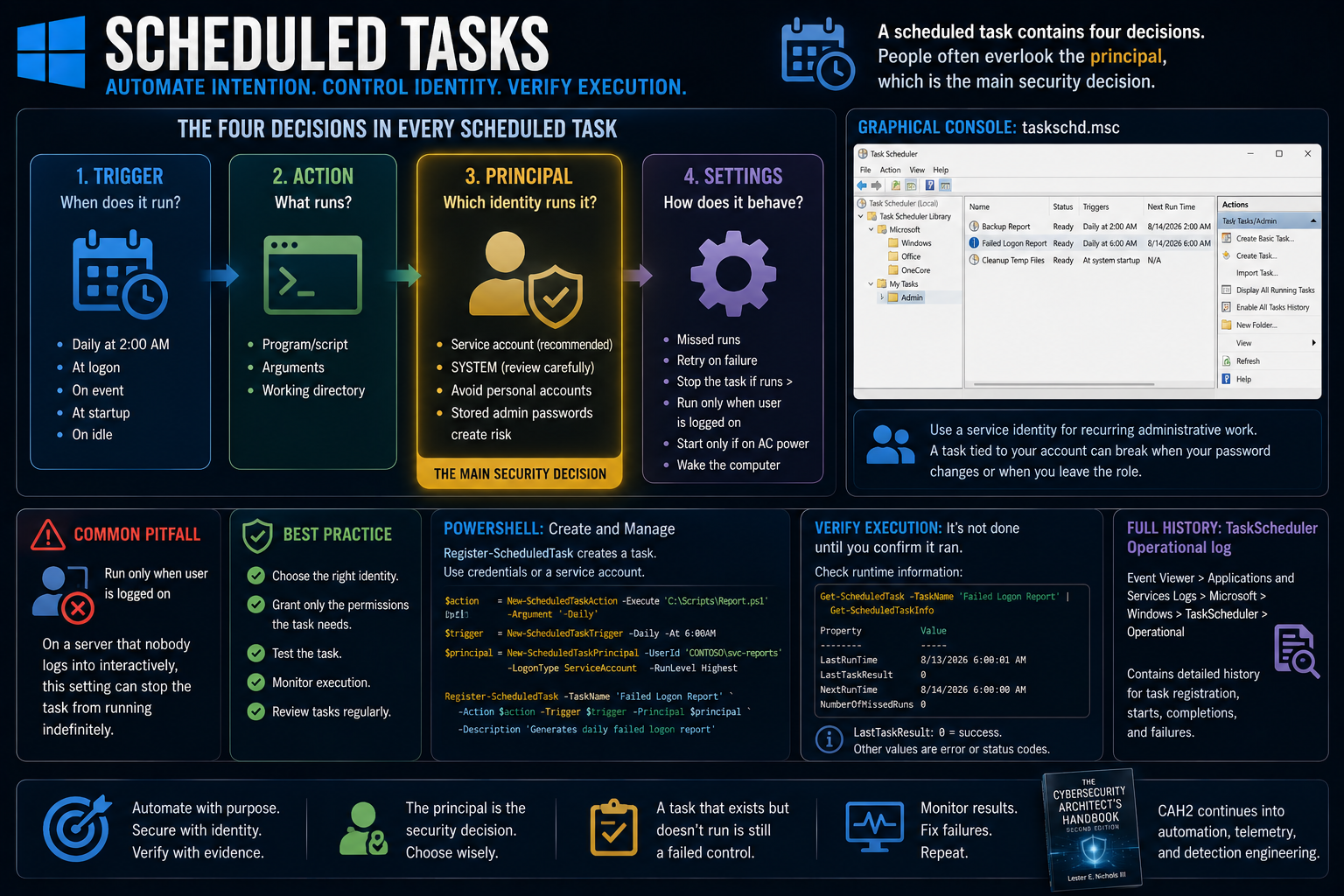
Diagram dividing a scheduled task into four labeled parts: trigger for when it runs, action for what it runs, principal for the identity used, and settings for retries and execution conditions. Principal is visually emphasized.
A scheduled task contains four decisions:
- Trigger: When does it run?
- Action: Which program runs, and with which arguments?
- Principal: Which identity runs it?
- Settings: What happens after missed starts, failures, battery changes, or other conditions?
People often overlook the principal, which is the main security decision.
Use a service identity for recurring administrative work instead of a personal account. A task tied to your account may fail after your password changes or after you leave the role. A stored administrator password also creates an attractive credential target.
For strictly local work that requires machine authority, SYSTEM may be appropriate. That choice still requires review because compromise of the task action would grant extensive local privileges.
One setting causes frequent failures: Run only when user is logged on. On a server that nobody logs into interactively, that setting can stop the task from running indefinitely.
The graphical console is taskschd.msc. PowerShell provides Register-ScheduledTask and related cmdlets.
Task registration does not prove execution. Query the task and its runtime information:
Get-ScheduledTask -TaskName 'Failed Logon Report' |
    Get-ScheduledTaskInfo
Read LastRunTime and LastTaskResult. A result of 0 normally means success. Other values are error or status codes that require interpretation. The TaskScheduler Operational log contains the fuller execution history.
The scripting progression
The pipeline gives you enough structure to automate the machine in front of you. PowerShell engineering, including modules, testing, code signing, and the point where a one-liner should become a maintained tool, belongs in the scripting material.
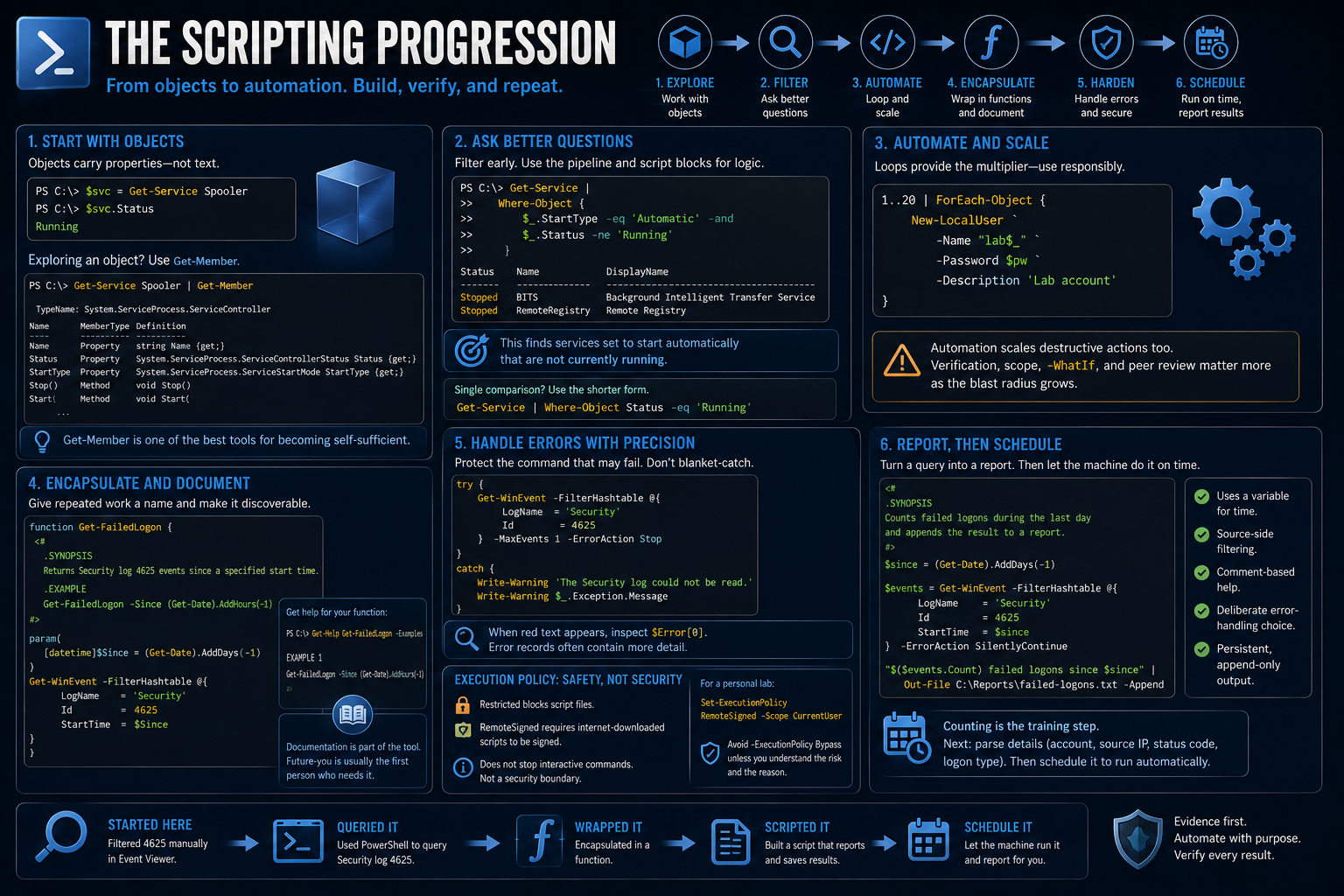
Start with objects:
$svc = Get-Service Spooler
$svc.Status
$svc contains the service object, not a line of display text. You can ask for $svc.Status, $svc.Name, and other properties without parsing columns.
When you do not know what an object contains, use Get-Member:
Get-Service Spooler | Get-Member
Get-Member lists the object's properties and methods. It is one of the best tools for becoming self-sufficient in PowerShell.
The following command answers a useful operational question:
PS C:\> Get-Service |
>>   Where-Object {
>>       $_.StartType -eq 'Automatic' -and
>>       $_.Status -ne 'Running'
>>   }

Status   Name            DisplayName
------   ----            -----------
Stopped  BITS            Background Intelligent Transfer Service
Stopped  RemoteRegistry  Remote Registry
Read it as: show me services configured to start automatically that are not running.
The result is not proof of a problem. Delayed starts, trigger-start services, dependencies, and deliberate stopping can all affect service state. It gives you a useful question to investigate.
Inside the script block, $_ means the object currently moving through the pipeline. Use the script-block form for compound logic. A single comparison can use the shorter form:
Where-Object Status -eq 'Running'
Reduce the stream as early as the command allows. You already saw this with Get-WinEvent -FilterHashtable. Source-side filtering uses less memory, processing time, and network traffic during remote administration.
Loops provide the multiplier:
1..20 | ForEach-Object {
    New-LocalUser `
        -Name "lab$_" `
        -Password $pw `
        -Description 'Lab account'
}
That creates twenty accounts with consistent naming and configuration. The same pattern can create two thousand accounts. Automation scales destructive actions as efficiently as constructive ones. Verification, scope, -WhatIf, and peer review matter more as the blast radius grows.
A repeated query should receive a name:
function Get-FailedLogon {
    <#
    .SYNOPSIS
    Returns Security log 4625 events since a specified start time.

    .EXAMPLE
    Get-FailedLogon -Since (Get-Date).AddHours(-1)
    #>
    param(
        [datetime]$Since = (Get-Date).AddDays(-1)
    )

    Get-WinEvent -FilterHashtable @{
        LogName   = 'Security'
        Id        = 4625
        StartTime = $Since
    }
}
The Verb-Noun name follows PowerShell conventions. Comment-based help makes the function discoverable through:
Get-Help Get-FailedLogon -Examples
Documentation is part of the tool. Future-you is usually the first person who needs it.
Treat errors with the same precision. Do not wrap an entire script in try and catch without deciding which failures you can handle. Protect the command that may fail for an expected reason. Use -ErrorAction Stop when you need a normally non-terminating PowerShell error to enter the catch block.
Reading the Security log without sufficient rights is a useful beginner example:
try {
    Get-WinEvent -FilterHashtable @{
        LogName = 'Security'
        Id      = 4625
    } -MaxEvents 1 -ErrorAction Stop
}
catch {
    Write-Warning 'The Security log could not be read. Check whether this session is elevated.'
    Write-Warning $_.Exception.Message
}
When red text appears, inspect $Error[0]. Error records often contain more information than the default screen output shows.
Execution policy also needs an accurate explanation. PowerShell execution policy is a safety feature, not a security boundary. It controls when script files may load. It does not stop someone from entering the same commands interactively, and it is not designed to stop a determined attacker.
Restricted blocks script files. RemoteSigned requires scripts marked as downloaded from the internet to carry a trusted signature, while locally created scripts can run unsigned.
For a personal lab, a reasonable user-scoped setting is:
Set-ExecutionPolicy RemoteSigned -Scope CurrentUser
This avoids a machine-wide change. Do not add -ExecutionPolicy Bypass to copied commands without understanding which protection you are removing and why the script needs it.
The module closes with a short report script:
<#
.SYNOPSIS
Counts failed logons during the last day and appends the result to a report.
#>

$since = (Get-Date).AddDays(-1)

$events = Get-WinEvent -FilterHashtable @{
    LogName   = 'Security'
    Id        = 4625
    StartTime = $since
} -ErrorAction SilentlyContinue

"$($events.Count) failed logons since $since" |
    Out-File C:\Reports\failed-logons.txt -Append
The script uses a variable for a point in time, source-side event filtering, comment-based help, a deliberate error-handling choice, and persistent output.
SilentlyContinue needs a specific justification. In this training report, no matching events is an expected result, and the script records zero. In production, handle errors more precisely so access and query failures cannot masquerade as a clean report.
Appending timestamped results creates a simple history. The next version should parse event details and report account names, source addresses, status codes, and logon types. Counting is the training step.
You began by filtering 4625 manually in Event Viewer. Then you queried it in PowerShell, wrapped the query in a function, and placed it in a script. The final exercise schedules that script so the machine reports without waiting for you.
Scenario: the undocumented server
You inherit a Windows server with no documentation and no available predecessor. I would inspect these five areas first, in this order.
1. Establish your identity and the machine's identity
whoami
hostname
Get-ComputerInfo
Confirm who you are, whether the session is elevated, which system you are touching, and which Windows release it runs.
2. Find who has administrative authority
Get-LocalGroupMember Administrators
This identifies the local accounts and groups that can control the machine. On a domain-joined server, expand domain groups separately. A group name does not tell you which people inherit access through it.
3. Inventory services, identities, and executable paths
Get-CimInstance Win32_Service |
    Select-Object Name, State, StartMode, StartName, PathName
This gives you a practical view of what the server does, which identities perform that work, and which binaries implement it.
4. Identify listeners and active connections
Get-NetTCPConnection
Network listeners describe the services the machine exposes. Investigate unexpected ports, but do not change the firewall or stop services until you understand the server's role. Part 2 develops this network view.
5. Read the machine's recent evidence
Open Event Viewer and review System errors, recent administrative logons, successful logons, service failures, and events that match the time window you are investigating.
Useful starting IDs include 4624 and 4672, but the review should follow the machine's role instead of a fixed checklist.
The common failure is changing the server before collecting evidence. During the first hour on an undocumented system, preserve and understand the current state. Administration starts after you know what the server is doing and who depends on it.
Exercises before Part 2
Complete four evidence-based exercises.
Exercise 1: use a standard account
Create a standard user for daily work. Sign in with it, perform one administrative task through Run as administrator, and read the UAC prompt before approving it.
Record which program requested elevation and which publisher Windows displayed.
Exercise 2: find your failed logon
Lock the workstation, enter your password incorrectly once, and then sign in correctly.
Find your 4625 event using the timestamp, account name, and logon type. Do not settle for finding any 4625. Prove that the event is yours.
Exercise 3: write the report
Type the failed-logon counter instead of pasting it. The mistakes you make while typing will teach you more about PowerShell syntax than a clean copy and paste.
Run the script and inspect the output file.
Exercise 4: schedule and verify it
Schedule the report to run nightly under SYSTEM.
The following day, verify execution in two places:
- The TaskScheduler Operational log
Get-ScheduledTaskInfo, withLastTaskResultshowing 0
A configured task is not proof that it ran. Execution records are.
You should now be able to inspect and administer a standalone Windows machine through both the graphical consoles and PowerShell. You have worked with the filesystem and registry, decoded an NTFS ACL, used the object pipeline, queried authentication events, and scheduled a report that runs without an interactive session.


