


October is Cybersecurity Awareness Month, but the people trying to get into your accounts don't take the rest of the year off. That's why I'm writing about security and privacy at home and when you travel. We can all use a reminder now and then.
You don't have to work in cybersecurity to have something worth protecting. Someone with access to your email may be able to reset your bank password. Your phone holds family photos, private conversations, and access to other accounts. Even the router behind your TV could be useful to a criminal.
I'm not suggesting you stop using technology you enjoy. Just give a few everyday security habits the same attention you give your house keys.
I would start with the things that would cause the most trouble if you lost access to them: your main email, your phone, your money, and the photos or documents you cannot replace. Then I would look at the places those things travel with you. The goal is a routine you can keep, not a weekend spent changing every setting you can find.
Start with your accounts
Imagine a shopping site you use suffers a breach. Someone gets the password you used there and tries it against your email. If you reused it, they may read messages, reset other accounts, or quietly change the recovery address so you cannot get back in. They might send a convincing request for money to someone who trusts you. You did not have to be singled out. Trying stolen passwords on other sites can be automated. A different password on each account stops that one stolen password from opening the rest.
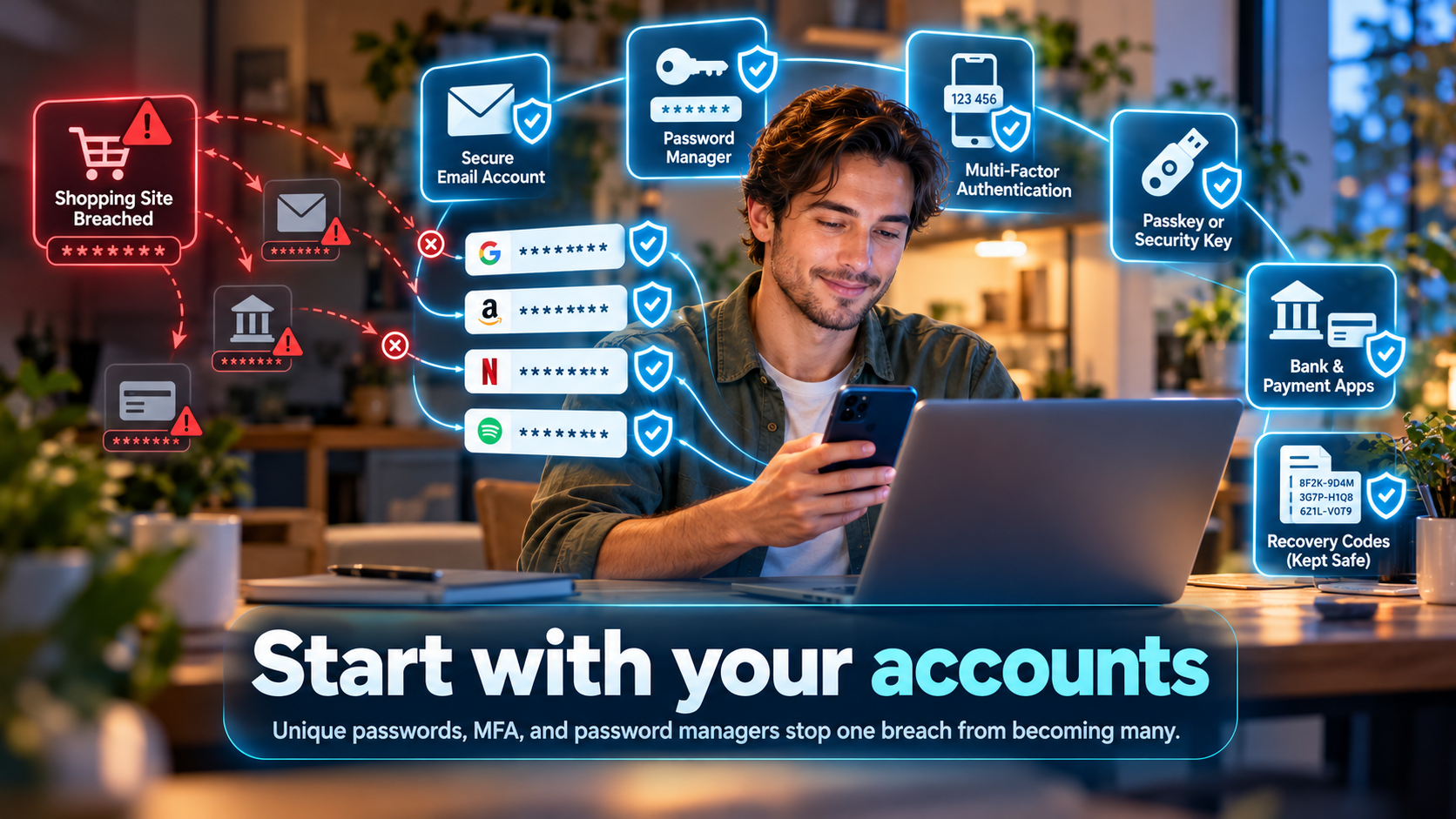
Open the settings for your main email account. Look for Security or Sign-in. Change a reused password to a long, unique one, then turn on a second sign-in check, often called two-factor or multifactor authentication. Do the same for your bank, payment apps, and your password manager. That second check makes a stolen password less useful. If the service offers a passkey and you understand its recovery options, that can be a convenient choice. If it offers several second-check methods, an authenticator app or security key is generally preferable to a text message, but use the best method you can manage reliably. Never approve a sign-in request you did not start; an unexpected prompt could mean someone already knows your password.
A password manager can make and remember different passwords for each site. You remember one strong master password instead of dozens. Before moving everything into it, make sure you know how to recover access if your phone is lost. Keep recovery codes somewhere private that you can still reach without that phone. Do not put them in a photo album or send them to yourself by email. A password manager is useful, but losing its only recovery path can lock you out.
Give your devices a routine
Set a screen lock on your phone and computer. Use a PIN that is not an obvious date or sequence, or use a longer passcode if you can. Set the screen to lock after a short period of inactivity. A lost phone is bad enough without giving its finder open access to your messages and account-reset links. Turn on automatic updates for the operating system, browser, and apps. Some updates close flaws that attackers can use to get into a device; postponing them leaves that door open longer.
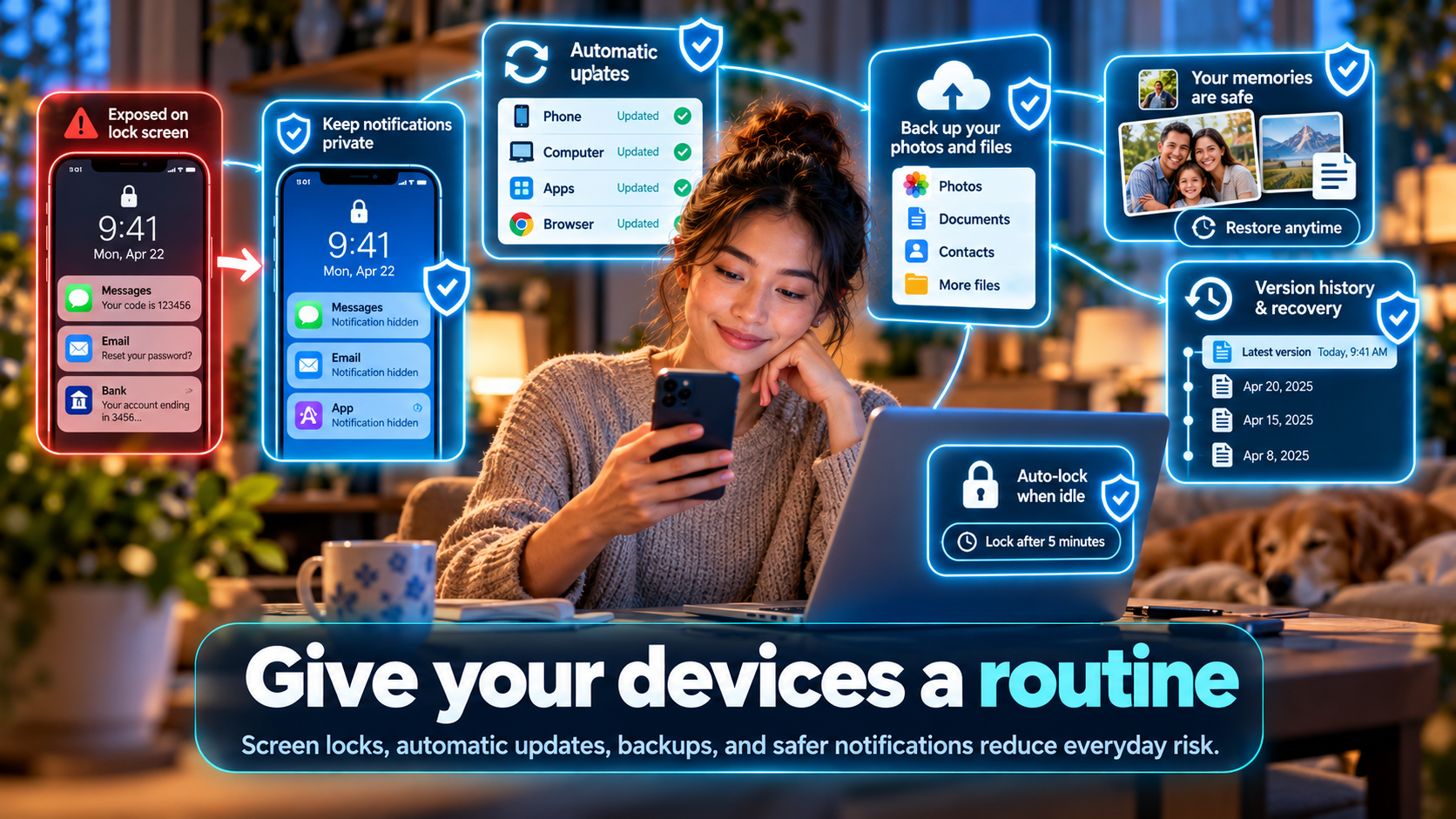
Back up the photos and files you care about. Think of a family photo you cannot take again, or the document you would need after a fire. A stolen or broken device can take the only copy with it. Check that you can actually open a backed-up photo or document from another device. A sync service can copy a deletion or unwanted change to your other devices, so check what its recovery or version-history options really cover. If a device is lost, a backup and a working account-recovery method matter more than a list of security apps you installed and forgot about.
You can do a quick check now: lock your phone, then see what a stranger could read or do from the lock screen. A one-time sign-in code displayed in a notification or a message preview may reveal more than you intended. Adjust notification previews if needed, while keeping alerts you rely on for safety.
Spend ten minutes on the home Wi-Fi
Your router is the box that connects your household devices to the internet. If an attacker takes control of it through a known software flaw, exposed management feature, or weak administration login, your internet may still appear to work. The attacker may change settings, redirect a request for a website, or recruit the device into a botnet, a group of compromised devices controlled together. Botnets have been used for distributed denial-of-service (DDoS) attacks: thousands of devices flood someone else's service with traffic until ordinary visitors cannot use it. Your router could be helping do that without an obvious warning on your screen. That is a possible outcome, not a claim that every outdated router is infected.
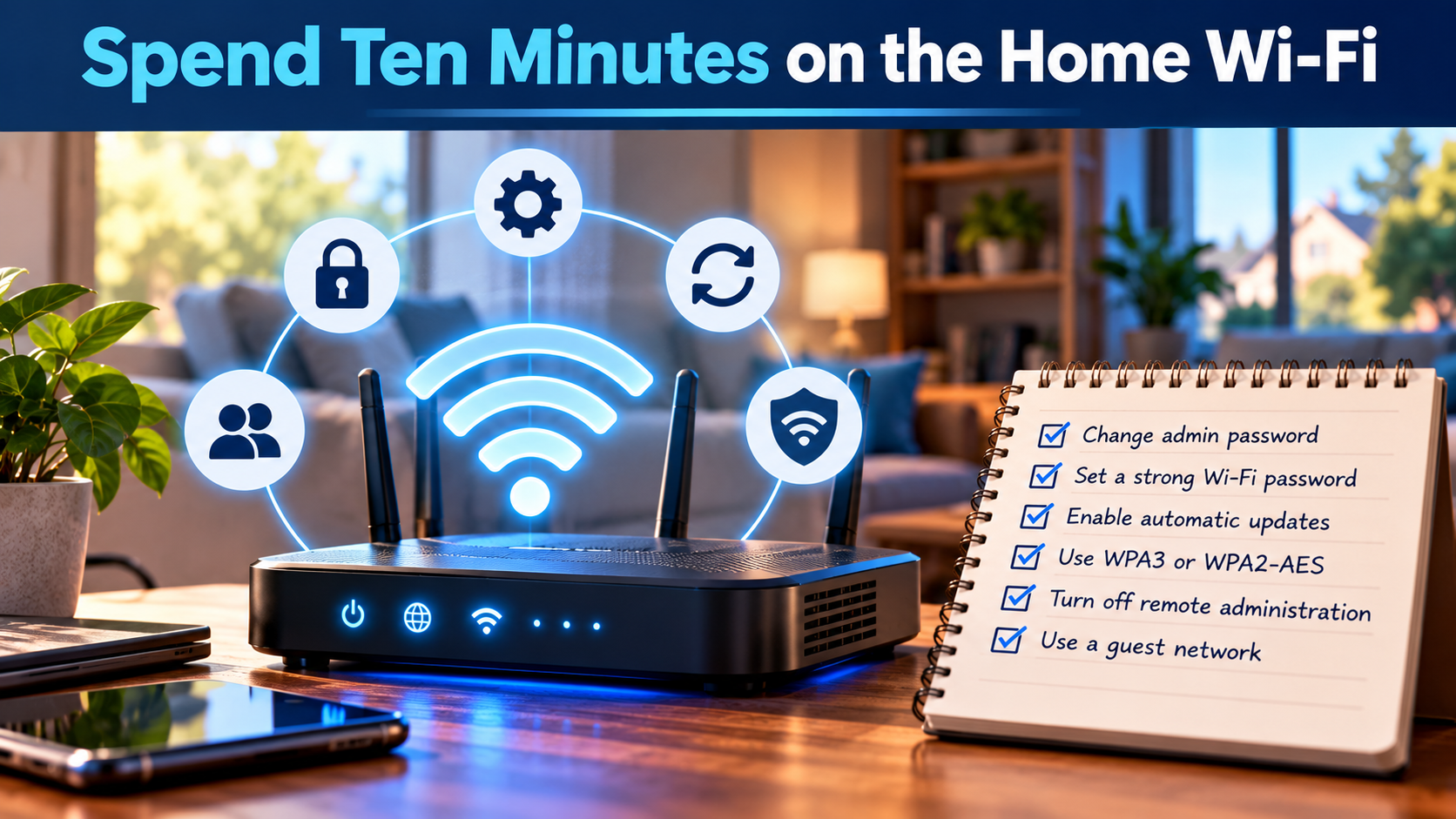
Your router's administration password and your Wi-Fi password protect different things. One controls the settings; the other lets a device join your wireless network. Changing the Wi-Fi password alone does not repair a vulnerable router or replace its administration password. Changing the administration password does not install a missing security update.
Find the router model on its label, then use the manufacturer's instructions or your internet provider's app to open its settings. Save its current settings if the interface allows it. Change a default router administration password, set a separate strong Wi-Fi password, and turn on automatic router updates if offered. Check that the wireless security mode is WPA3 or WPA2-AES. Avoid an open network and older modes such as WEP. Turn off internet-facing remote administration unless you have a specific need for it. If the router has a guest network, put visitors there; it can also be useful for smart devices that only need internet access. Check whether that guest setting actually separates devices, since products differ. Each step removes an unnecessary way in or limits what an unfamiliar device can reach.
Do not start by changing settings you do not understand. A new Wi-Fi password will disconnect devices until you reconnect them. If your provider manages the router, ask it how updates and administrator access work rather than following a random video for a different model. Review who still has access when a roommate moves out or you have given the Wi-Fi password to many visitors. If the router no longer receives security updates, ask your provider or manufacturer about replacing it. If you have reason to believe someone already controls it, a password change alone is not proof it is clean; contact the provider or manufacturer about a supported reset, firmware reinstall, and fresh configuration. Keep a copy of the information you need to reconnect before resetting anything.
Take your privacy with you
At a coffee shop, hospital, airport, or hotel, ask staff for the actual guest network name instead of guessing from a list of similar names. An impostor can name a network to look like the real one and try to steer visitors to a fake sign-in page. A cellular connection or your own hotspot is a reasonable alternative when you do not trust the available Wi-Fi. On a shared network, turn off file sharing or nearby sharing you do not need, use the genuine app or the site you intended to visit, and disconnect when you are done. The padlock or HTTPS in a browser protects the connection to that site; it does not prove the site itself is honest. A VPN can help with some network privacy concerns, but it cannot make a fake bank page safe.
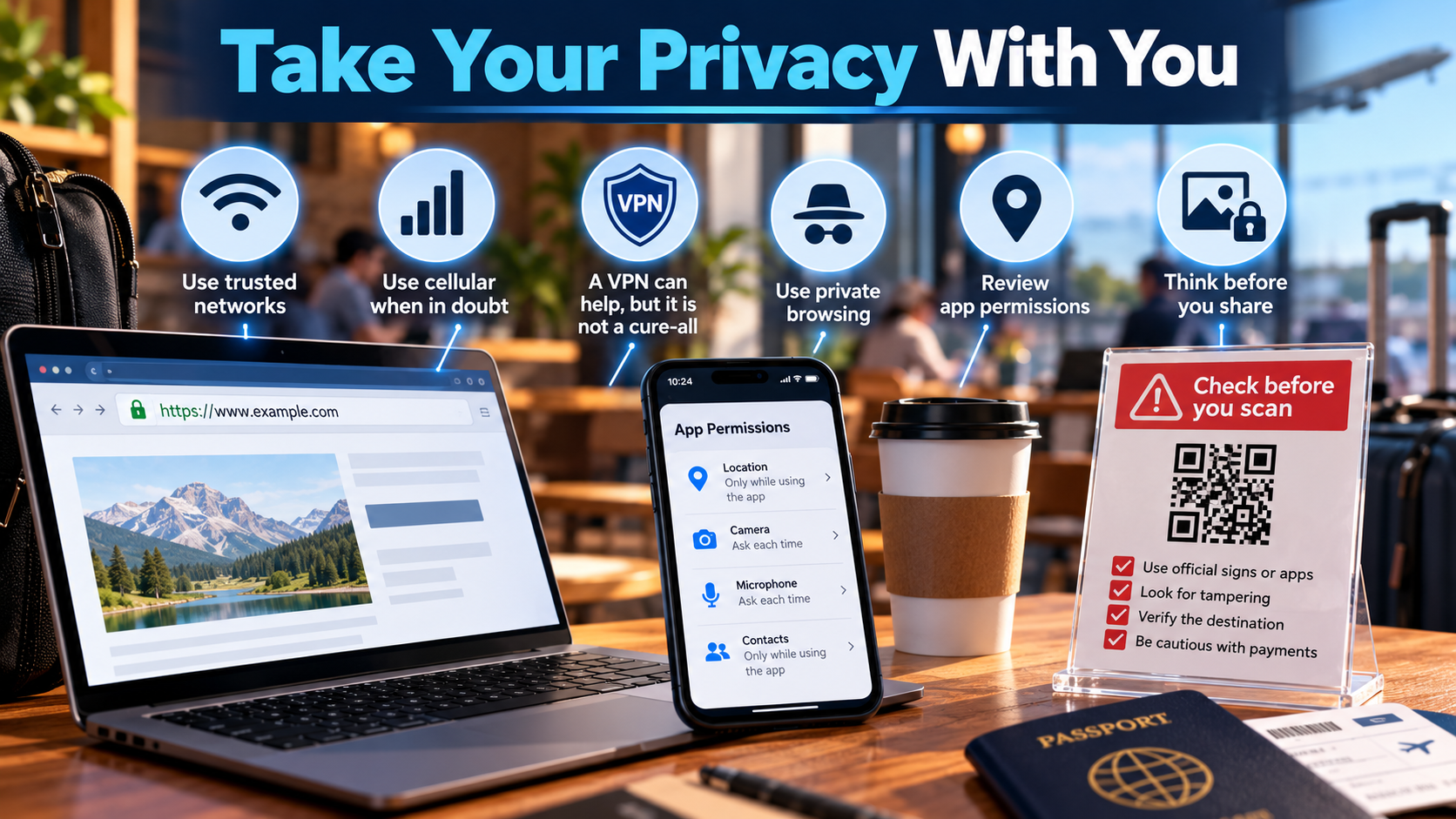
Treat a QR code on a parking meter, restaurant table, or flyer as a shortcut someone else supplied. A sticker can cover a legitimate code and send you to a lookalike payment page. If a code opens a payment page, stop and compare it with the official sign, app, or website you locate yourself. A text claiming you owe a toll or missed a delivery deserves the same treatment. The amount might be small, but the page may ask for a card number or account password. Open the service's app or type its known address yourself; do not use the link or phone number in the unexpected message. Polished spelling and familiar logos do not prove a message is genuine.
Before you share a photo, pause over what appears in the frame: your child's school name, a house number, a boarding pass, a work badge, or the fact that your home is empty for the week. A stranger could use those details to learn your routine or impersonate you more convincingly. Choose who can see the post, and consider sharing travel photos after you return. In your phone's privacy settings, review which apps can use your location, camera, microphone, and contacts. Change access to only while using the app or ask each time where those choices fit. A map app may need your location to guide you; a shopping app may not need it all day. Private browsing can reduce what remains in that browser session, but it does not hide you from websites, your provider, or someone watching the device you use.
When something feels wrong
Suppose you tap a suspicious link and enter a password. You do not need to prove a crime happened before acting. Close the page. On a device you trust, open the real service through your own bookmark or app, change that password, and change it anywhere else you reused it. Check recent sign-ins and account recovery details, then sign out of other sessions if the service offers that option. If money is involved, contact your bank using the number on your card or its official app. If someone is impersonating you, warn the people who might receive messages from your account. Report the message through the service's built-in report option.
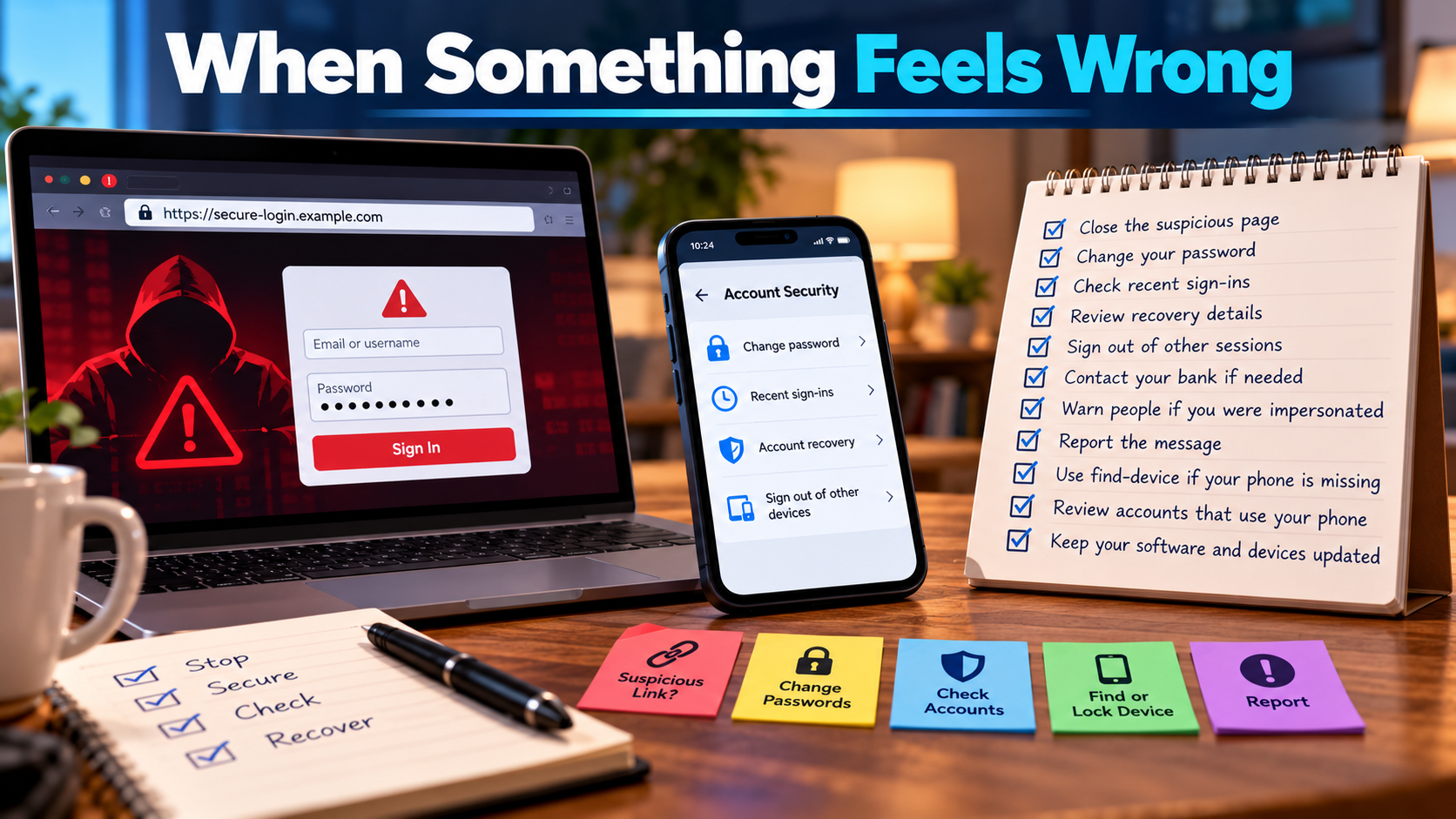
If your phone goes missing, use the device maker's official find-device service to locate or lock it if you had that feature enabled. Call your mobile carrier if you suspect the phone or number is being misused. Review the accounts that depend on that phone for sign-in and recovery. Remote erase is a serious choice, especially if you have no backup, so make it deliberately.
The consequences can be serious: losing access to your email, having your card used on a fake site, or unknowingly lending your home router to a botnet. None of these outcomes is inevitable. You cannot make yourself impossible to attack, and a careful person can still be deceived. You can make common attacks harder to carry out and much easier to recover from.
I would rather see you do a few things well than buy something that promises to make you invisible online. This week, protect your email and phone. Next week, check the router and your backups. Once a month, spend a few minutes reviewing updates, account alerts, and the apps that still have access to your location. If you can explain how you would get back into your accounts after losing your phone, you are building a habit that will help you at home and when you are out in town.


